
Published
Why Is a Product Missing from Search Results?

First check whether Shoply has the product information it needs. A product can be absent from its catalog, excluded by a setting, or simply appear below other results. The checks below help you find the cause before changing search settings.
Check whether the product is included
For Shopify stores, start with the guide to which products Shoply includes. Check:
- Is the product Active, rather than Draft or Archived?
- Do the custom product fields
seo.hiddenorshoply.no_indexexclude it? The linked guide explains where to find and check them. - Does its tag match a configured product-exclusion rule?
- Is a rule excluding free products enabled?
- Is it published to the sales channel selected in your settings—the place where you sell the product?
For other platforms, check how your product catalog connects to Shoply and which products are included. The Shopify settings above do not apply to every platform.
Check whether the catalog has updated
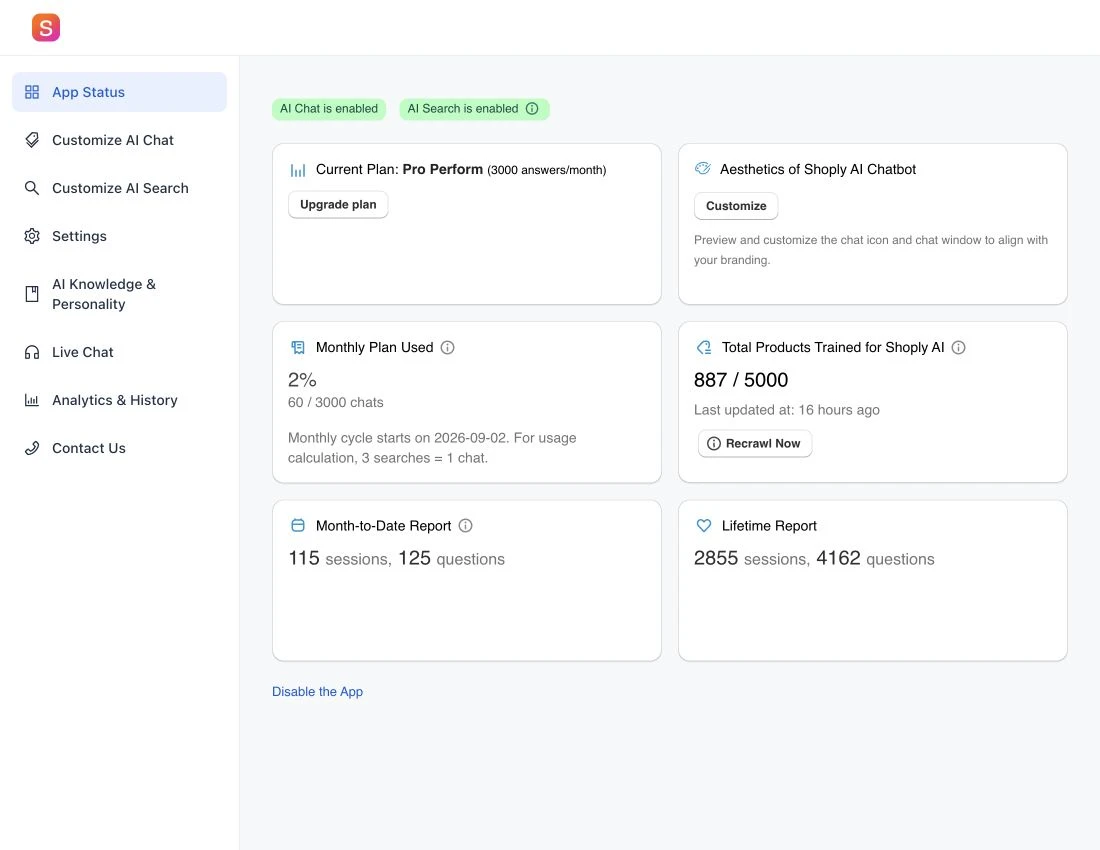
If you recently added or changed a product, open App Status and check the product count and last update time. Use Recrawl Now, when available, to ask Shoply to read the catalog again, or wait for the next automatic update.
A product saved in your store may not yet be in the catalog Shoply searches.
Try a specific search with filters cleared
Search for the exact product name, then try the words a customer would use. Clear selected filters that could exclude it, such as brand or price.
If a broad search shows other products first, the item may be ranked lower rather than missing from the catalog. Read how Shoply ranks product search results for the factors involved.
Check product details and availability
Make sure the title and description explain what the product is and what it is for. Review the product details and any excluded custom product fields that could remove useful information.
If you use multiple warehouses, check location-specific availability for the customer location you are testing. Stock and availability can affect results; do not assume that all sold-out products are always excluded.
Shopify tags are not searchable by default. If the search depends on customer-friendly tag terms, review making product tags searchable.
Check relevance before turning it off
Shoply checks how well products match a search and can remove poor matches. If you are considering turning off that check, first read the setting and its trade-off. Turning off this check will not add a product missing from Shoply’s catalog.
Collect an example for support
Send the product’s web address, exact search text, selected filters, approximate test time, and customer country if warehouse availability matters. Include the result you expected and whether the product appears when searched by its exact name.
You can use chat and search history to find the words the shopper searched for.