
Published
How to Read Analytics and Chat History

Open Analytics & History in your Shoply AI Admin Console to see how shoppers use chat and search. Start with the activity totals, then read individual conversations and searches to find questions your store could answer better.
Choose a date range
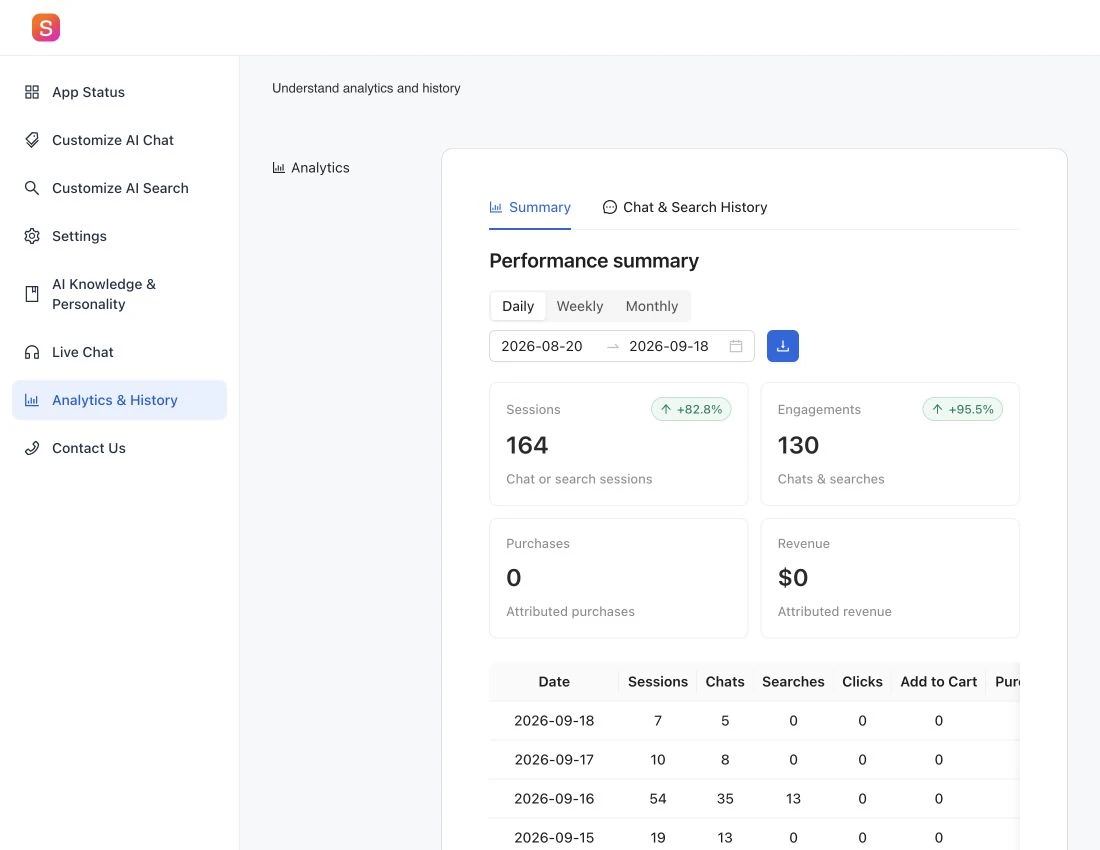
Select the period you want to review. In the performance summary, switch between Daily, Weekly, and Monthly views to change how the results are grouped.
If the page shows no activity, try a wider date range and confirm that shoppers have used chat or search. A newly enabled store may not have data yet.
Understand the summary
The admin reports these measures:
- Sessions: Recorded chat or search sessions. A shopper can start more than one, so this is not a count of individual customers.
- Chats and searches: The recorded chat and search activity.
- Clicks: Recorded product clicks.
- Add to Cart: Recorded cart additions.
- Purchases: Orders the report links to Shoply activity.
- Revenue: The sales value of those orders.
The report calls these linked orders and sales attributed purchases and revenue. They do not represent all store sales or prove that Shoply caused a purchase. Compare them with your store’s own reports.
Review chat and search history
Open Chat & Search History to inspect the questions and searches behind the totals.
Look for repeated questions, searches that do not find the expected product, and answers that need better source information. For example, repeated questions about sizing may indicate that your size guide should be clearer or added to AI Knowledge.
If a product is missing from results, follow the missing-product checklist before changing your search settings.
Export information you need to keep
Use Download CSV in the performance summary to save the selected report as a file you can open in a spreadsheet. To download conversations, use the export controls in chat history.
Chat and search history is kept for 90 days, then deleted, as noted in the admin. Download any history you need before it expires, and keep files containing customer information private.
Check tracking when numbers look incomplete
Compare the same date range across reports and check that shopper activity is being recorded. If your Shopify store uses a custom website instead of a Shopify theme, it may need a separate connection to record actions such as product clicks and purchases. See how to send shopper events to Shoply.
To have your own software retrieve reports automatically, see the Shoply Merchant API, which lets your software work with Shoply.