
Published
How to Teach Shoply About Your Store

When customers ask about fitting, store policies, or services, Shoply needs those details to answer. Add them in AI Knowledge & Personality in your Shoply AI Admin Console, then test a few questions to check the answers.
Choose the right source
- Edit AI Knowledge: Type information you want the AI to use, such as a fitting guide or an explanation of a service.
- Add files to AI Knowledge: Upload a PDF, text (
.txt), or Markdown (.md, a text file with simple formatting) document. - Pages in your domain: Select the public store pages Shoply should read. Uncheck pages you want excluded.
- Pages Not In Your Store Domain: Add public external pages that contain relevant information, such as a manufacturer’s care guide.
Some options depend on your plan. Check the notice beside the control you want to use.
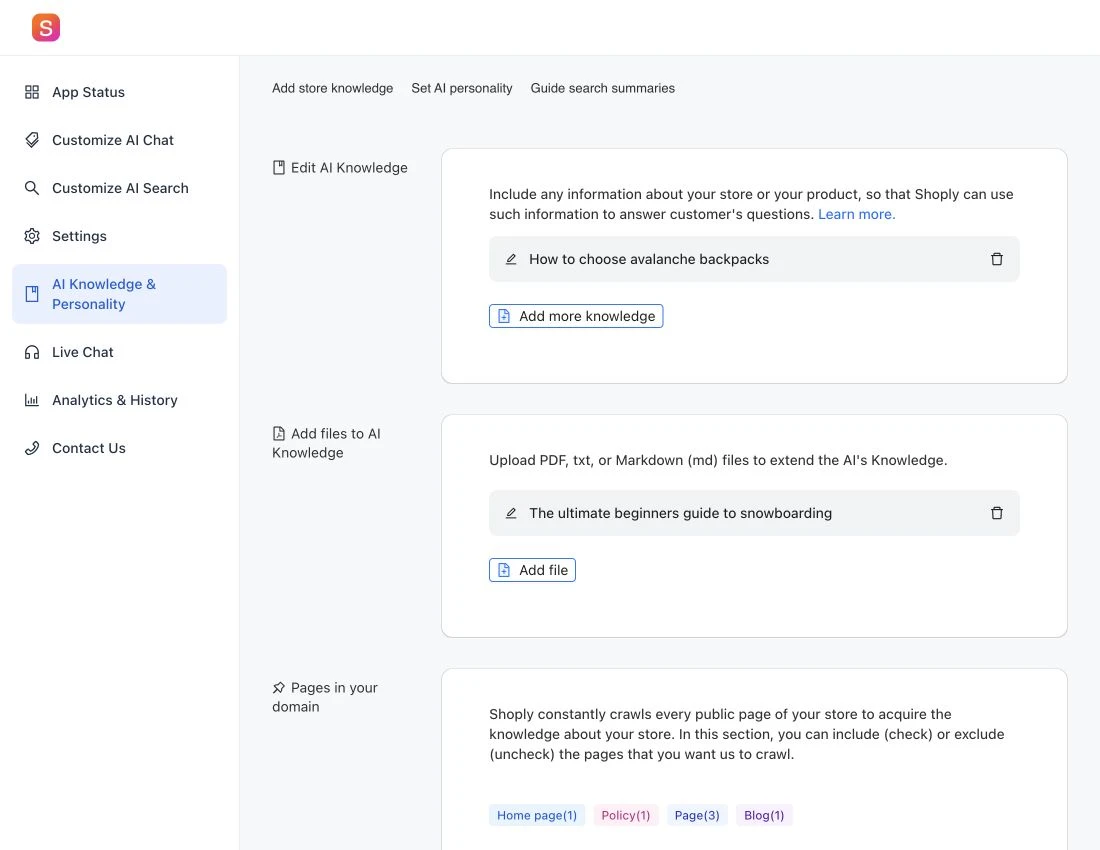
Add useful knowledge
- Open AI Knowledge & Personality.
- Choose the source that contains the information you want to add.
- Add or edit the text, upload the file, or select the relevant pages.
- Save your changes when the admin shows the Save control. Wait for any upload or processing step to complete.
Write facts that a shopper could use. For example:
Our boot-fitting appointments take 30 minutes. Bring the socks you plan to wear with your boots. Appointments are available at our downtown store.
Only add details that are true for your business. Keep customer records, passwords, and internal notes out of customer-facing knowledge. Read what information Shoply uses before adding sources.
Update outdated information
When a policy or product detail changes, update the page, file, or saved text that contains it. Remove or replace outdated files so Shoply does not receive conflicting information.
In Pages in your domain, review when Shoply last read your store pages. Use the recrawl control, when available, to ask it to read them again. Saving a change does not mean Shoply has finished reading and processing it.
To choose which products Shoply can use, follow the guide to choosing which products Shoply includes.
Check the answers
After processing finishes, start a fresh conversation and ask a specific question answered by the new source. Then try a different wording of the same question.
If the answer is wrong, check whether the source is included, current, and specific enough. Look for contradictory information in other pages or files before adding more instructions.
Use Analytics & History to find real customer questions that your knowledge should answer. Our store-knowledge walkthrough provides more examples.
Knowledge or personality?
Knowledge gives Shoply facts to work with. Personality instructions guide its tone, the questions it asks, and how it presents answers. See how to customize your AI’s personality.