
Published
Why Isn’t Shoply Showing on My Website?

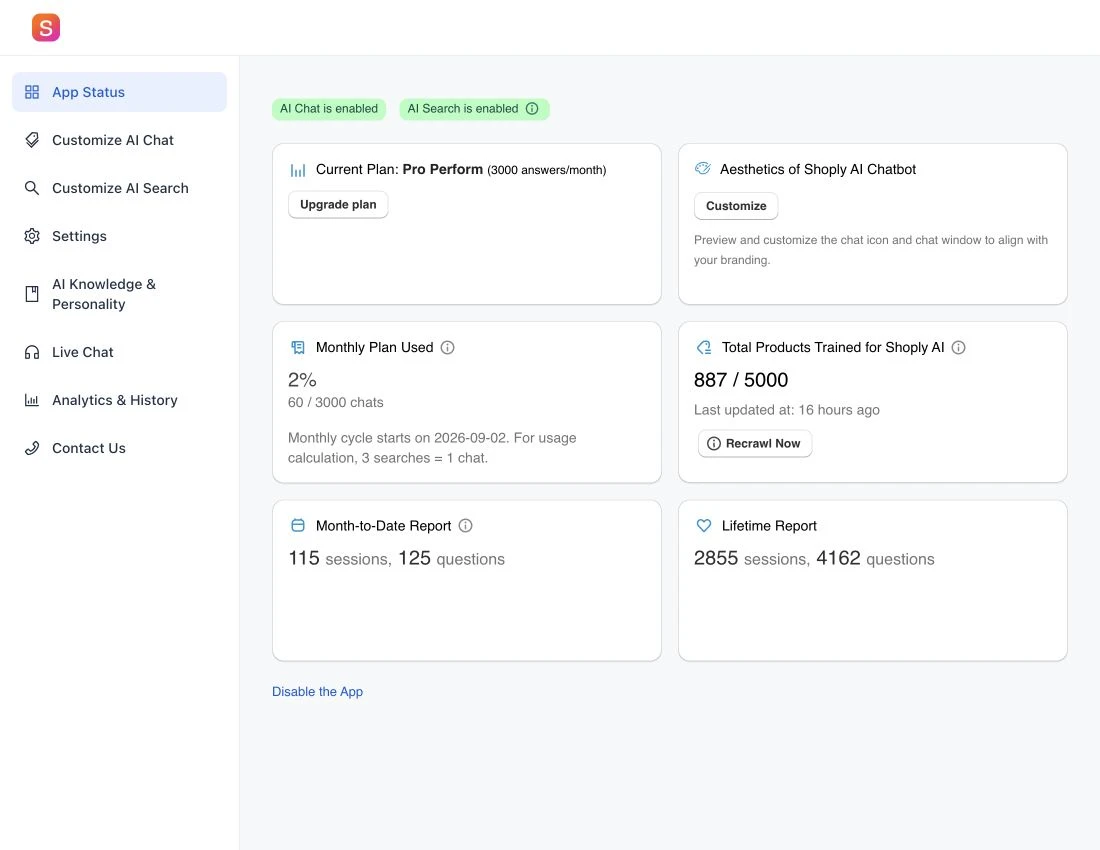
Start in App Status in your Shoply AI Admin Console. Check whether AI Chat, AI Search, or both are enabled, and review any setup or plan messages shown for your store.
Check chat and search separately. If the floating chat icon is missing, AI Search may still work through your store’s search box.
Shopify: check the published theme
- Open the theme editor for the theme customers currently see.
- Check that the Shoply app embed, which loads Shoply on your storefront, is switched on.
- Click Save in the theme editor.
- Open the published storefront and test again.
A change saved only to a draft theme will not appear on the published store. If you recently changed themes, check the app embed in the new theme too.
For search setup, follow how to add AI Search to a Shopify store.
Other website platforms: check installation
Use the installation instructions supplied for your website in the Shoply Admin Console. Check that the Shoply installation code has been added to the pages where you want chat or search to appear, then publish the website changes.
If your account contains several websites, use the installation code supplied for the one you are setting up.
After publishing, refresh your website and test a page with the installation code. If your website builder, cookie-consent tool, or browser extension blocks Shoply, ask the person managing your website to check the installation.
Check chat visibility settings
Review Customize AI Chat for icon position, size, and mobile auto-hide settings. An icon may be hidden after a delay or positioned behind another element.
Also check any country restrictions. A country rule can intentionally hide the chatbot from the location where you are testing.
If you hide the floating icon, give customers another way to open chat. See how to open the chat window with a link.
Distinguish setup from missing content
If the search box works but a product does not appear, follow the missing-product checklist. If the AI opens but cannot answer a store-policy question, check its knowledge sources.
What to send support
Include your store’s web address, the page you tested, whether the problem affects chat or search, the device and browser, and a screenshot. Mention whether you changed themes or installation code recently. Do not send passwords or private access keys.