
Published
How to Set Up Live Chat and Add Your Team

To let customers ask your team for help during an AI conversation, open Live Chat in your Shoply AI Admin Console. Add the team members who will reply, choose who receives requests, and set the hours they can cover. Check the plan notice in the admin for access to live-chat features.
Add your team
- Open Live Chat → Customer Service Agents.
- Select Add Agent. In an account that uses staff invitations, the control may be labeled Invite Staff Member.
- Enter the requested name and email details, then save or send the invitation using the form.
- Ask the agent to complete the account setup instructions they receive.
- Use Open Live Chat to access the agent app.
Check that the email address is correct. If an agent has not received the setup message, the agent menu includes Resend Setup Email.
An agent’s Active status means the account is enabled; it does not by itself mean that person is currently online and ready to respond.
Enable customer requests for a human
In Live Chat → Settings, enable Customer escalation. This lets customers ask a member of your team to join the conversation.
Under Escalation notification emails, enter the addresses that should receive requests for human help. Separate addresses with commas, and use inboxes your team checks.
Save any pending changes before leaving the page.
Set available hours
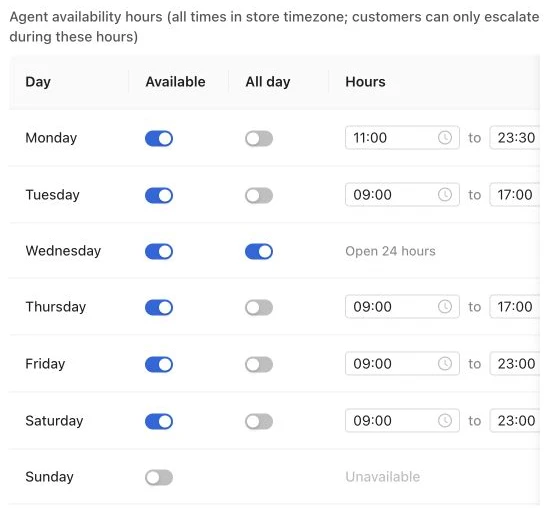
In Live Chat settings, choose the hours your team is available for each day: all day, a set time range, or unavailable. Times follow your store timezone. Customers can request a human during those hours.
Choose hours your team can cover. Test a request both during and outside those hours to check what customers see.
Test a conversation with your team
Open your storefront as a customer and request a human from the chat. Confirm that the request reaches the expected notification addresses and that an agent can find the conversation in the live-chat app.
Have the agent reply and check that the customer sees the response. Before launch, also check the controls in the agent app for taking over a conversation and returning it to AI.
For a broader introduction, read how to add live chat to a Shopify store.
If requests do not reach your team
Check that requests for human help are enabled, the current time falls within your available hours, the notification addresses are correct, and the agent account is active. Check spam folders for setup emails and request notifications.
If the chat itself is missing, follow the storefront setup checklist. If the AI needs better answers before a team member joins, update its store knowledge.