
How to Add Live Chat to a Shopify Store
 Rui Jiang - Apr 20, 2026
Customers expect fast answers — and sometimes they want to talk to a real person. With Shoply AI Live Chat, you can offer human agent support directly in your store’s chatbot, while letting AI handle routine questions automatically. Here’s how to get it set up.
Step 1: Install Shoply AI
Head to the Shopify App Store and install Shoply AI . Once installed, the app will index your store’s product catalog and activate the AI chatbot. Live Chat is built into the same widget — no additional plugins needed.
Step 2: Configure Live Chat
You can also customize the chat widget so the storefront experience matches your brand.
Add a Human Agent
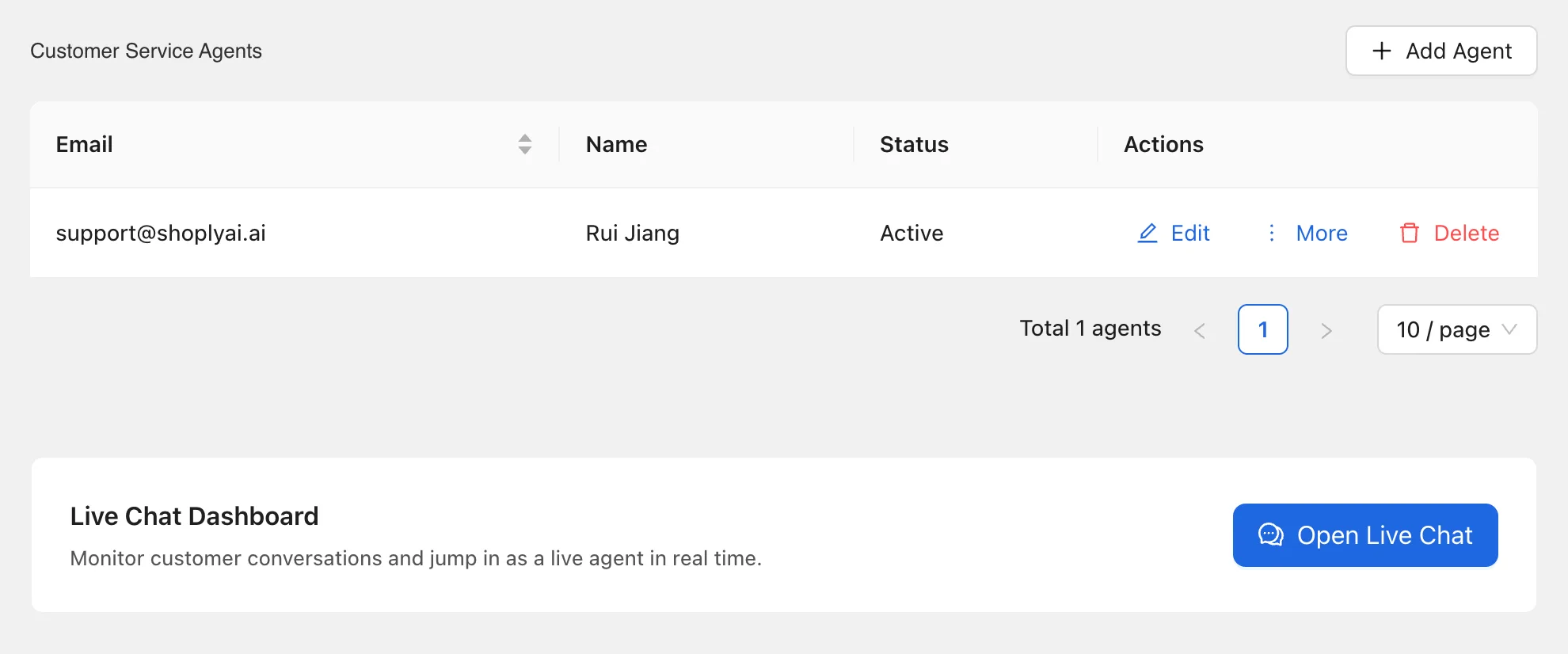
In the Shoply AI admin panel, go to Live Chat settings and add your human agent’s email address. Once added, they will receive an email invitation to create a login at https://livechat.shoplyai.ai .
You can add multiple agents — each will get their own login and can handle customer conversations independently.
Enable Live Chat and Set Business Hours
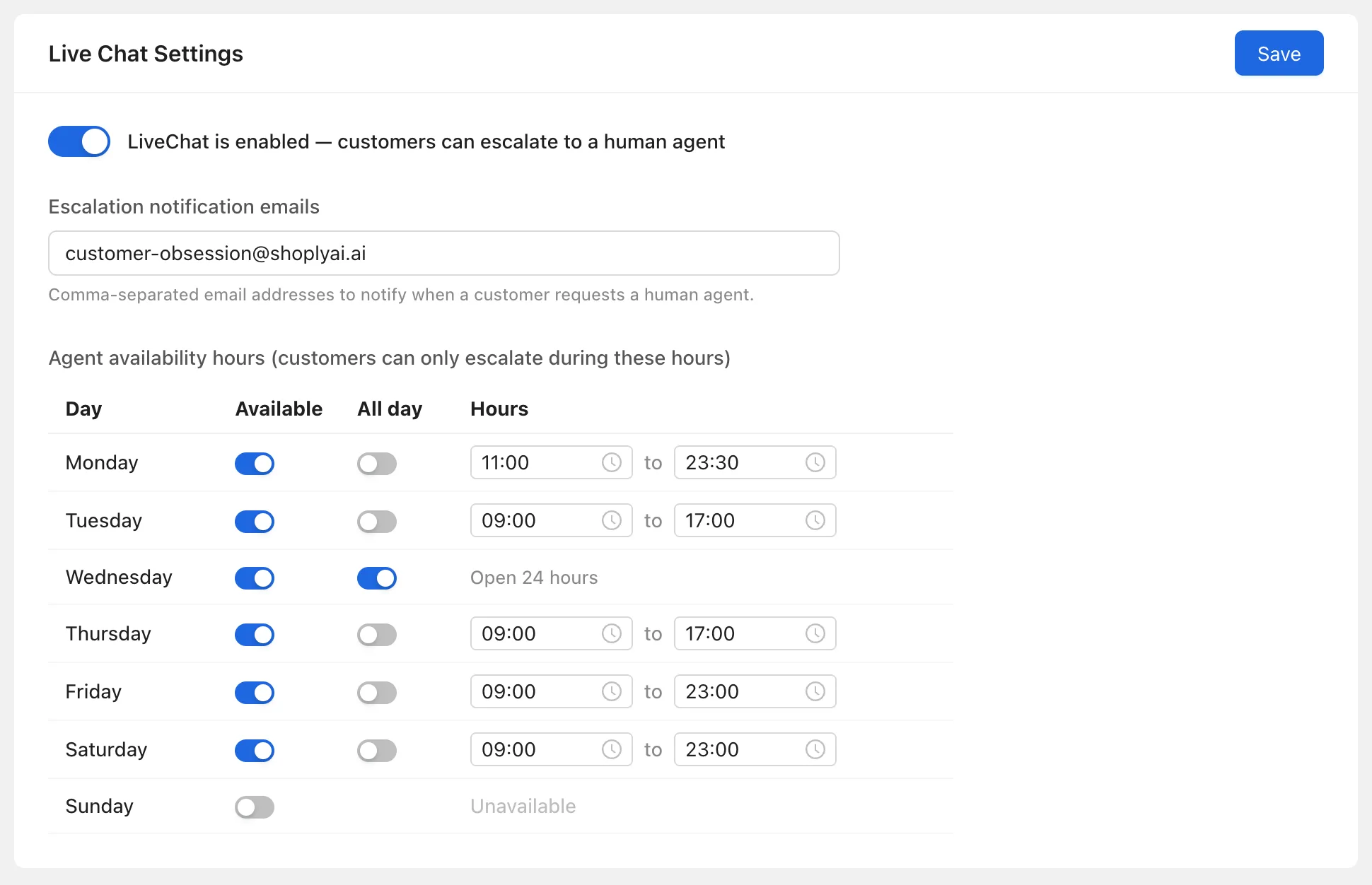
In the same Live Chat settings page:
- Toggle Enable Live Chat on
- Configure your Business Hours — the days and times when human agents are available
Customers can always chat with the AI assistant — outside of business hours, the option to escalate to a human agent simply won’t be offered.
Step 3: Start Answering Customer Questions
Once your agents have created their logins, they can go to https://livechat.shoplyai.ai to see and respond to customer chats.
When logging in, the Shop Domain field should be your store’s unique Shopify domain — the one ending in .myshopify.com (e.g. your-store.myshopify.com). If you open the live chat portal by clicking “Open Live Chat” from the Live Chat settings page in the Shoply AI admin, this field will already be pre-filled for you.
Important: Enable Chrome browser notifications when prompted. This ensures agents get real-time alerts when a customer requests human support — even if the tab is in the background.
Step 4: How the Live Chat Flow Works
For the broader storefront experience around human handoff, explore Shoply AI Chatbot.
Customer requests human support
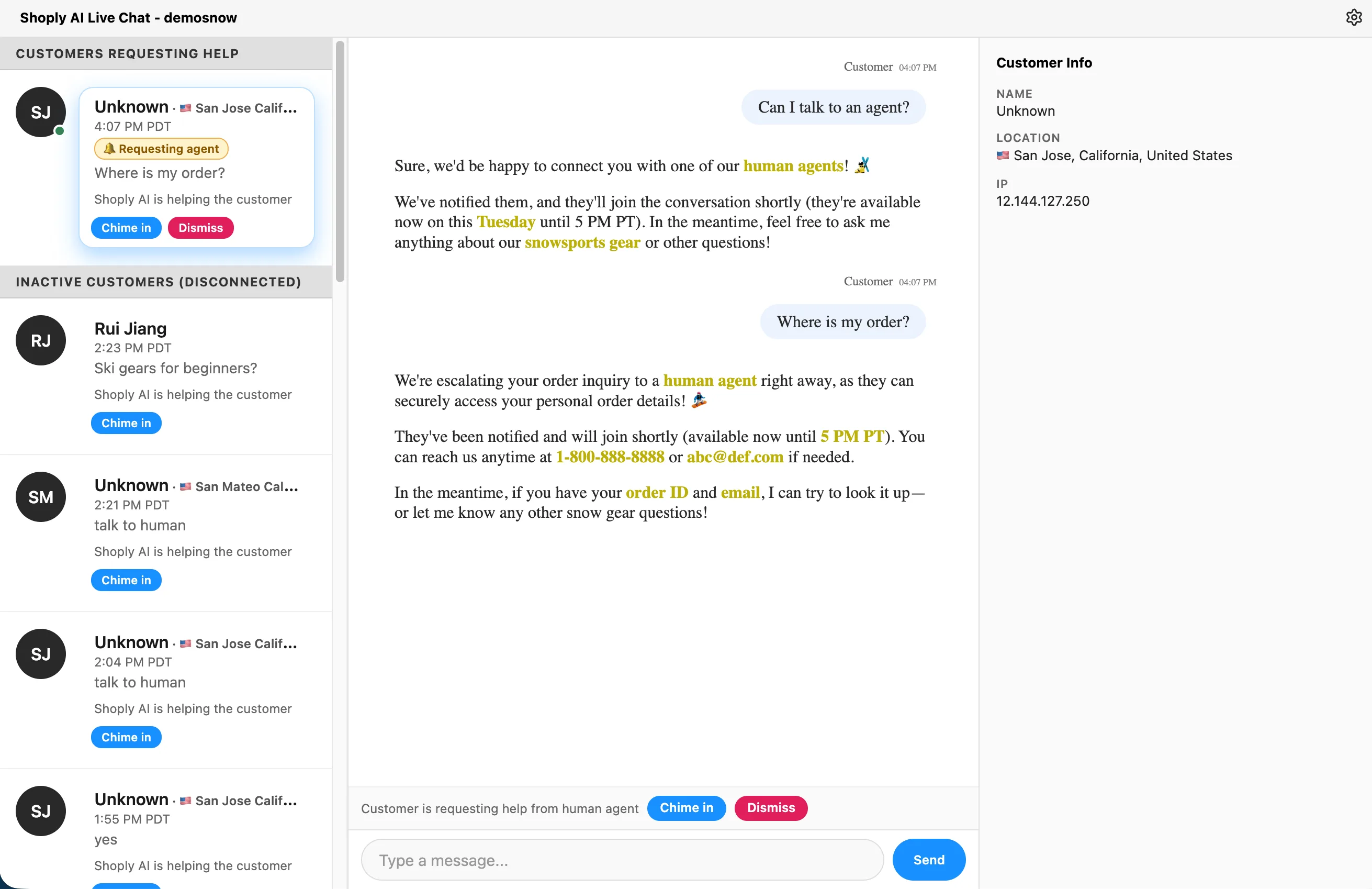
When a customer asks to speak with a human agent, and live chat is enabled and within business hours, our AI chatbot will automatically escalate the conversation. The chat is labeled “Requesting agent” in the agent dashboard.
Agents will receive both an email notification and a Chrome browser notification. While the customer waits, they can continue chatting with the AI — so no one is left staring at a blank screen.
If no action is taken, the “Requesting agent” status is automatically cleared after 24 hours.
Agents can chime into any chat
Agents aren’t limited to escalated conversations. You can jump into any active chat session — whether or not the customer explicitly requested human help. This is useful for proactively engaging with high-value customers or assisting when the AI’s response isn’t quite right.
AI steps back when an agent takes over
Once a human agent sends a message in a session, the AI chatbot automatically stops responding in that conversation. The customer will be talking to a real person from that point on.
Delegating back to AI
If you need to step away, you can delegate the session back to AI from the agent dashboard. The AI will resume handling that customer’s questions.
Pricing Note
Live chat is available to paid plan customers only. The good news: messages handled by human agents are free and do not count toward your monthly chat limit.
Get Started
Setting up Live Chat takes just a few minutes. Install Shoply AI, add your agents, and you’re ready to offer a seamless blend of AI and human support.
Need help? Book a meeting with us and we’ll walk you through the setup.
Happy selling!