
Published
Advanced Settings for AI Search
Use these settings to show or hide product options, choose whether AI double-checks search matches, make Shopify tags searchable, and control filters. Each section explains what changes for shoppers and whether the setting also affects products shown in chat.
For warehouse availability and chat product limits, see Advanced Settings in Shoply AI. To show stock at a shopper’s chosen store on search results, see how to set up In-Store Pickup. To show business buyers prices without VAT on product cards, see how to show prices without VAT.
Where to find these settings
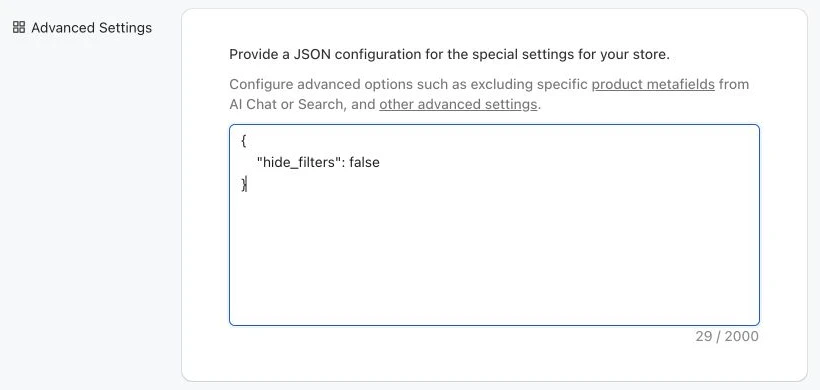
Open Settings → Advanced Settings in your Shoply AI Admin Console. The examples below use JSON, a text format that pairs each setting name with a value. Add the settings you need inside the existing braces, separate entries with commas, and keep the other settings already there.
To show or hide search filters, you can also use Customize AI Search → Search filters, as described below.
Hide color and pattern choices
Shoply shows small visual choices, called swatches, below product images in search and chat. They appear when options such as colors or patterns have different images. Selecting one shows that option’s image and price.
If you prefer not to show option swatches, add the following to your Advanced Settings JSON:
{
  "disable_option_swatches": true
}
This will hide the swatches from all search and chat results, and products will display only their default image and price. For other visual changes to search product cards, see how to customize search results.
Skip the extra check for matching products
Shoply uses an extra AI check to remove products that do not match the shopper’s search. This helps keep results relevant, but shoppers wait for that check before seeing the results.
For an explanation of the step this setting skips, read how Shoply checks and ranks product relevance. Our guide to response times explains the tradeoffs between search speed and answer quality.
To skip this check and accept potentially less relevant results, add:
{
  "disable_ai_relevance_check_in_search": true
}
This skips the extra relevance check and can reduce the wait for results. Some returned products may be less closely related to the search.
Make product tags searchable
By default, Shoply does not use Shopify product tags to match searches. Tags used to manage your store, such as supplier-acme, black-friday-2024, or do-not-restock, can introduce terms shoppers do not mean to search for.
If a tag combines several product details, see how to separate those details into product fields.
If your tags describe what shoppers look for, such as waterproof, vegan, or gift-for-her, you can make them searchable. Add this setting:
{
  "index_tags": true
}
With this setting enabled, Shoply includes tags when it reads and organizes product information for search. Tag terms can then help match products in both search and chat.
The change takes effect when Shoply next processes your catalog. Wait for that update or request a fresh catalog read using the recrawl control when available. Review your tags first, since they will influence which products shoppers see.
Hide Search Filters
By default, Shoply AI shows filter buttons above product results (for example, “Brand”, “Price”, or “Color”) so customers can narrow down what they see. These are generated automatically from your catalog.
Before removing filters, understand automatically generated filters and how their source data affects the choices shoppers see.
To hide the entire filter bar:
- Open your Shoply AI Admin Console.
- Go to Customize AI Search.
- Under Search filters, turn off Show filters in search results.
- Click Save.
To show the filters again, turn the same option on and click Save. Your choice is saved and remains in place after refreshing the page.
This control updates the same setting as the existing hide_filters option. If you already use Advanced Settings JSON, that method is still supported:
{
  "hide_filters": true
}
Both methods hide filter controls from AI Search and chat product results. Products and recommendations still appear. Hiding the bar does not delete product information or custom product fields from your catalog.
To hide only selected filter categories while keeping the rest, use the controls for hiding selected filter categories. The underlying product information can remain available to the AI.