
Classic, Gallery or Editorial: Choose How Your AI Search Results Look
 Frank Yang - Oct 29, 2026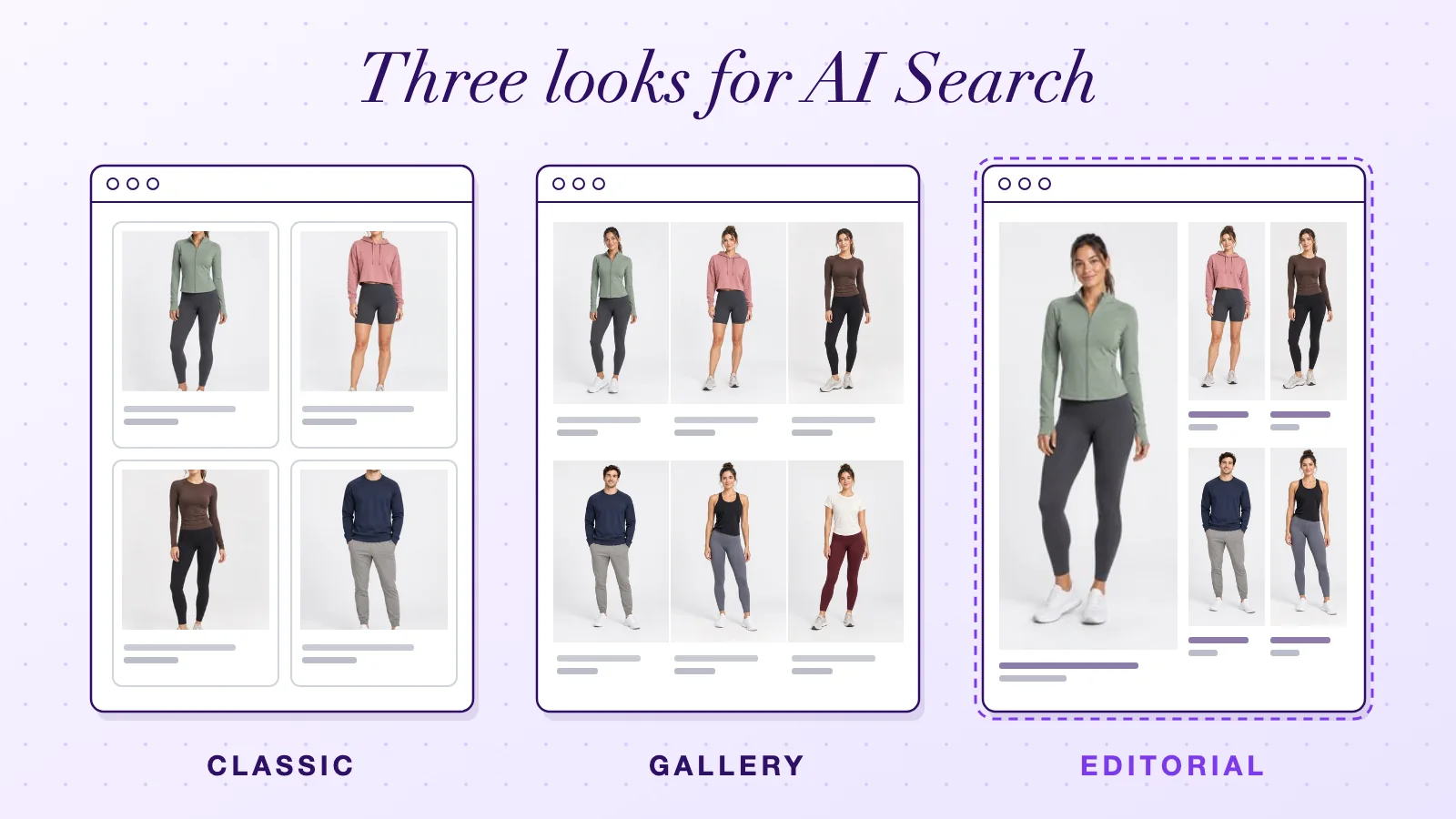
A shopper searches your store for activewear. What do they see first: a tidy grid of product cards, a wall of big photos or a page that looks like a fashion magazine? The results page is where the shopper picks which product to open.
Shoply AI adds AI search and an AI shopping assistant to Shopify stores and other websites. AI Search now offers three designs for that page: Classic, Gallery and Editorial. We added Editorial, the newest, in October 2026. All three show the same products, ranked the same way. They differ in how each product looks: photo size, card frame, fonts and grid. This post shows all three with the same six products, explains what each does and helps you pick one.
The three designs at a glance
| Design | What it looks like | Good fit (our suggestion) |
|---|---|---|
| Classic | Framed cards with padding around each photo; name, rating and price below | Catalogs where shoppers compare details such as specs and ratings |
| Gallery | Borderless photos in a tight grid, with round color swatches | Stores whose photos sell the product: apparel, home decor, beauty |
| Editorial | A large photo every few rows, tall photos and uppercase names | Fashion and lifestyle brands with portrait product photos |
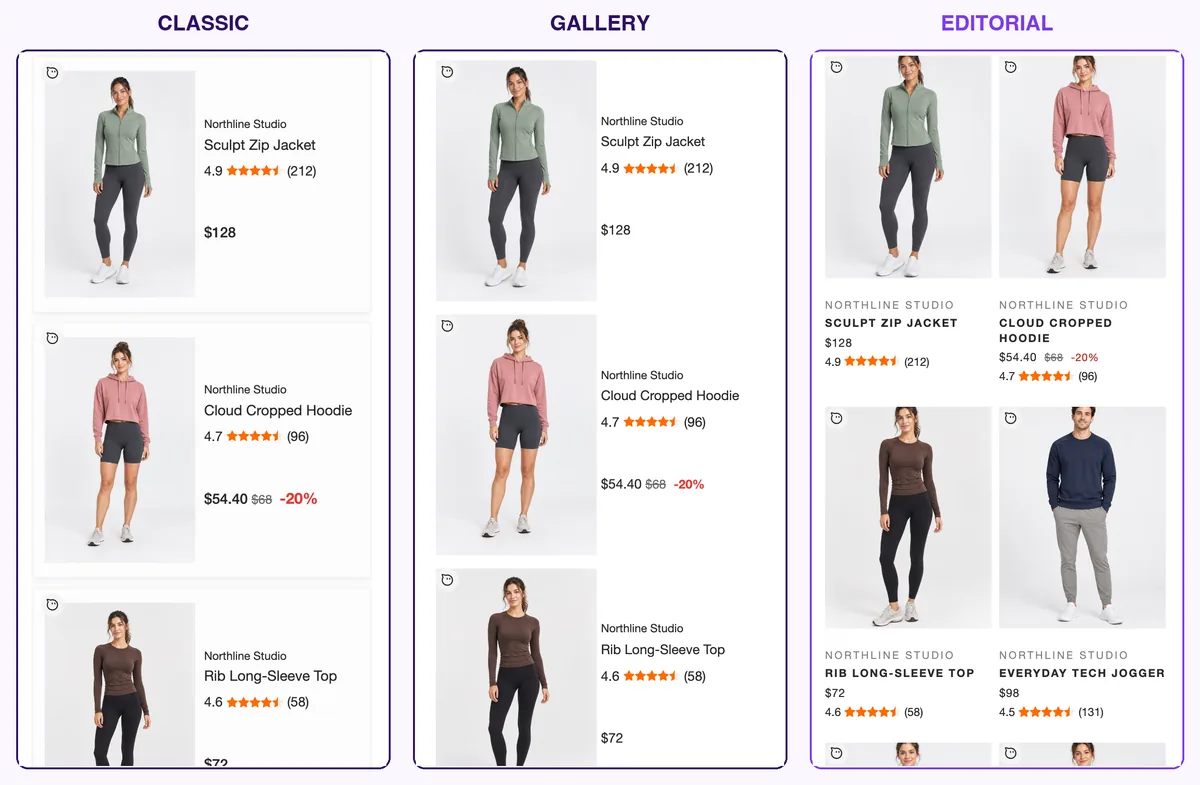
The screenshots below show AI Search as it really runs on a computer screen. The six products are samples we made for this post, with a made-up brand.
Classic: framed cards
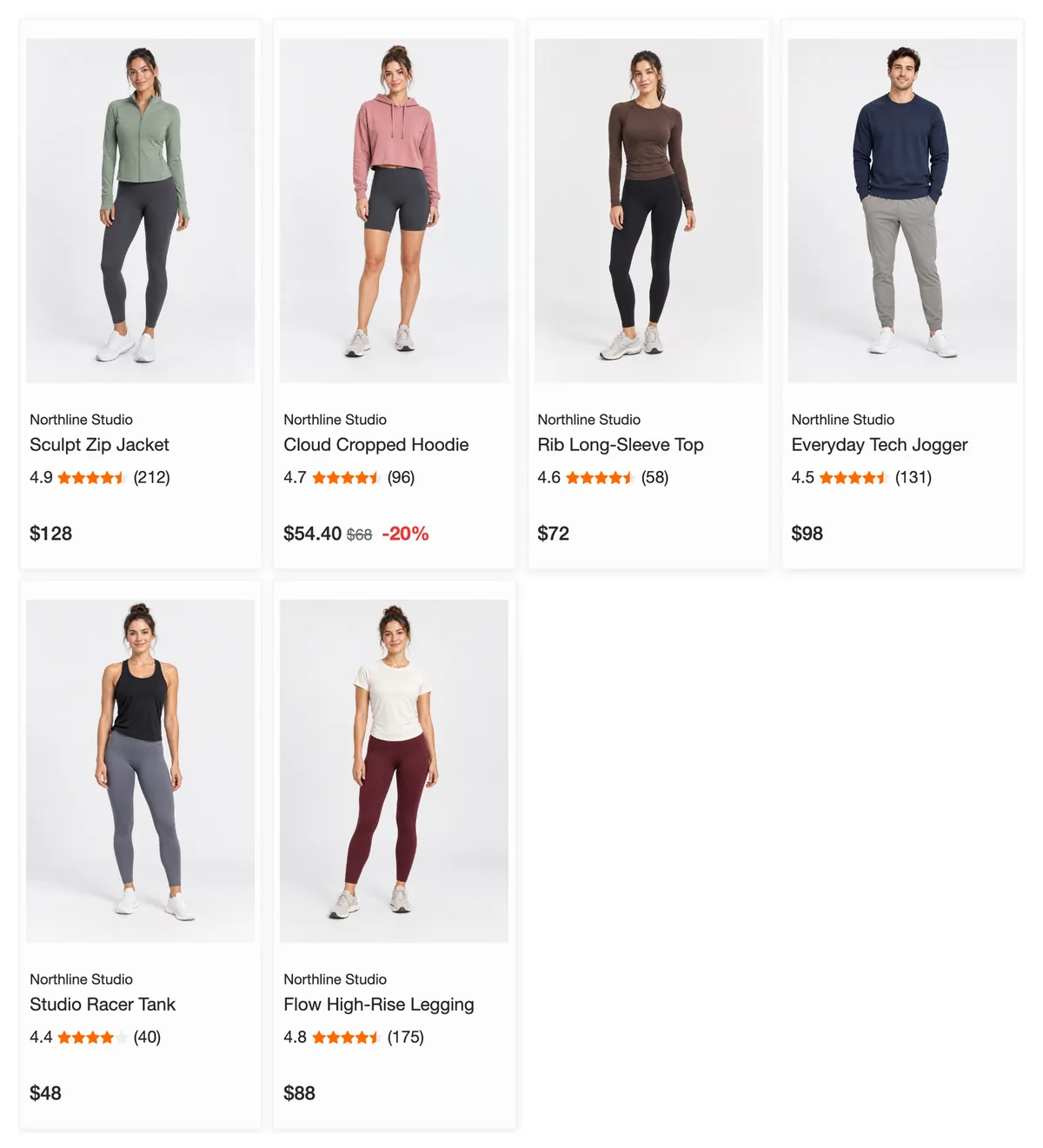
Classic is the original AI Search design. Each product sits in its own framed card, with a thin border and a little space around the photo. The brand, name, star rating and price line up under each photo, so shoppers can scan details across a row.
On small screens, Classic shows the filters in a row above the products.
Gallery: photos first
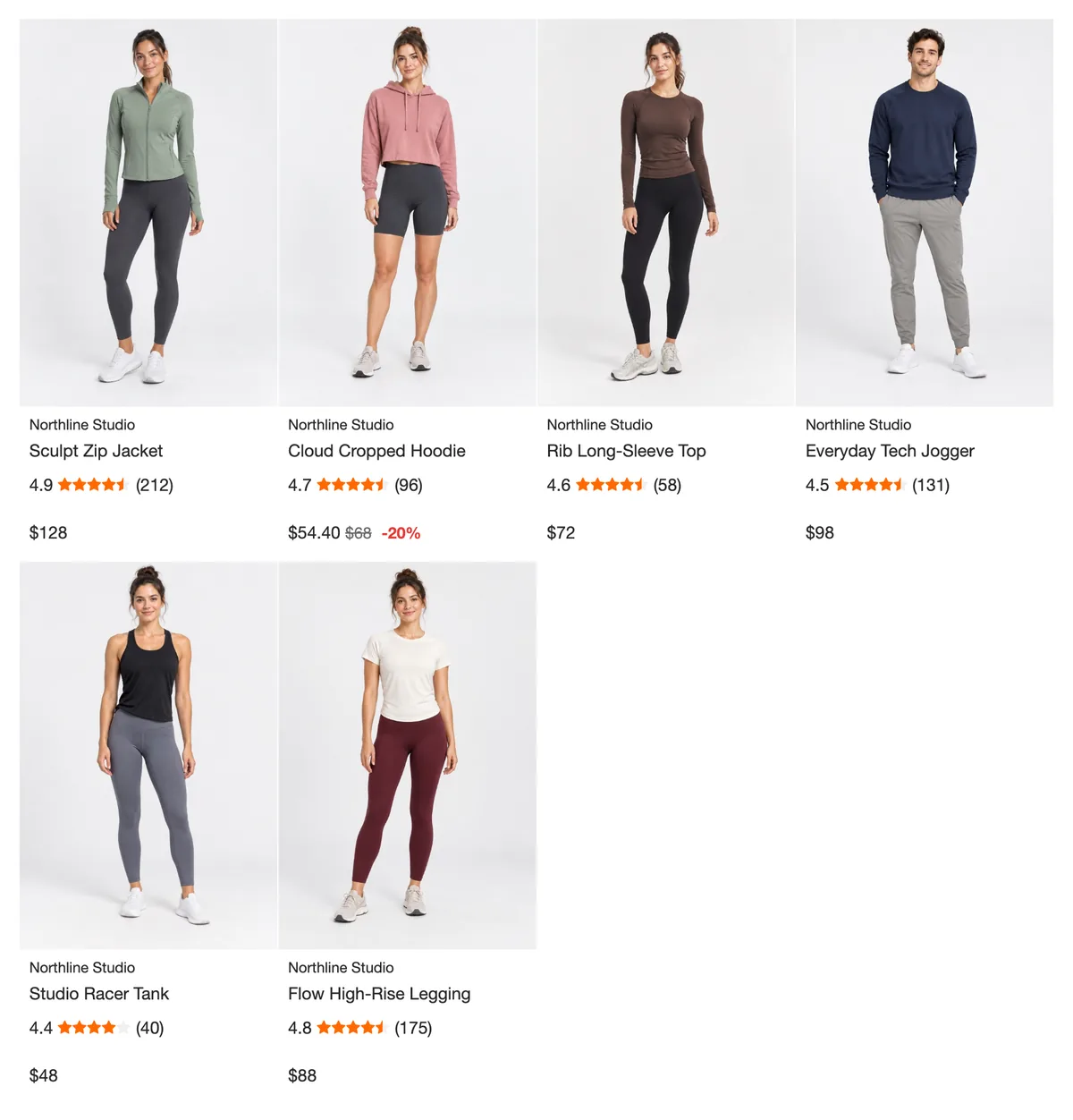
Gallery drops the card frames. Photos run edge to edge with a thin gap, so the page reads as one large grid of pictures. Its color swatches are round. Shoppers can switch between larger and smaller photos with the view switch at the bottom of the screen.
On small screens, Gallery puts a Filters button in the bottom toolbar.
Editorial: a fashion-magazine page
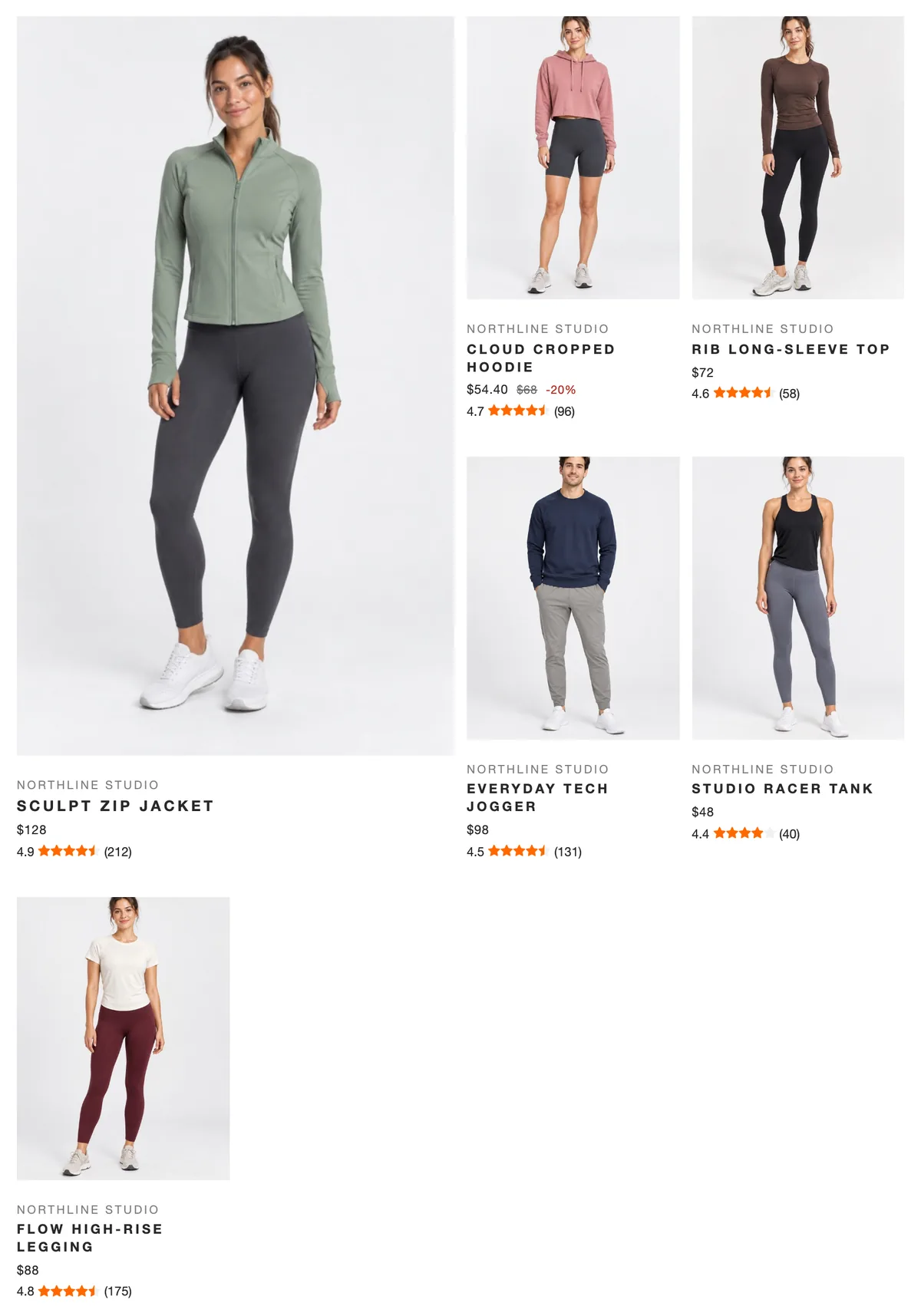
Editorial borrows the look of boutique fashion search pages:
- A large photo every few rows. One product takes a spot two columns wide and two rows tall, beside smaller products. Then comes one regular row. The next large photo appears on the other side.
- Tall photos. Every photo is cropped to a portrait shape, 3 wide by 4 tall, as fashion sites do.
- Uppercase names in spaced letters, with the chosen color under the name, and square color swatches.
- A second photo. On a computer, pointing at a product shows its next photo.
- Add to Cart on the photo. On a computer, the Add to Cart or View Product button slides up over the photo. On phones it sits under the price.
- A large or small grid. Shoppers can switch to a denser grid with one more column and no large photos. The result count sits next to the switch.
On small screens, Editorial shows a Filters button above the products.
Which product gets the large photo?
In each group of nearby results, Editorial gives the large photo to the strongest product. It compares products in this order:
- A tall (portrait) photo, which fills the large space best.
- A higher star rating, if your products have reviews.
- More sales.
- More clicks from shoppers who ran the same search.
- The newer product.
Each product stays within its own group of rows, so the page still follows your search ranking. In the screenshot above, the jacket gets the large photo: all six photos are portraits, and it has the best rating.
Square photos work too. When the large photo is square or wide, Editorial shows all of it instead of cutting off its sides.
How the designs look on phones
Phones show the biggest differences between the designs:
- Classic and Gallery follow your Number of Products per Row on Mobile Screens setting in Customize AI Search. The screenshot uses one per row, with the photo beside the details.
- Editorial always shows at least two products per row, with its tall photos, uppercase names and square swatches. It shows no large photos on phones: a large photo needs at least three columns of space.
Which design fits your store?
We have no data showing that one design sells more than another, so choose by your products and your shoppers. Two questions help:
- Do your shoppers decide by reading or by looking? If they compare specs, sizes or ratings, choose Classic. If the photo does the selling, choose Gallery or Editorial.
- Are your product photos tall and consistent? Editorial’s large photo and tall crop look best with portrait photos shot the same way. With mixed or square photos, choose Gallery.
To check your choice, compare product clicks and add-to-carts in Analytics & History with a similar week before the switch. Traffic, seasons and promotions move those numbers too, so a small change may mean nothing.
How to switch
- In your Shoply AI admin, open Customize AI Search.
- Open AI Search: Product Results.
- Under Product Card Design, choose Classic, Gallery or Editorial. The preview next to the settings shows the layout with sample products.
- Click Save.
Every Shoply plan includes all three designs. New stores start with Gallery. Your store keeps its current design until you change it, and you can switch back at any time.
If you have added your own styles to AI Search (CSS, the code that sets colors and spacing), they still apply after you switch: all three designs use the same names for their parts, listed in the guide to customizing AI Search with CSS. Check your styles in the preview after switching, because each design spaces its cards differently.
To see AI Search on a live store, try the Shoply AI demo , or install Shoply from the Shopify App Store .