
วิธีปรับแต่งลักษณะของ AI Search

มี 2 วิธีในการปรับแต่งผลลัพธ์การค้นหา Shoply AI ของคุณ:
- ตัวเลือกที่มีมาให้ในระบบ: เริ่มจากตัวควบคุมใน Shoply AI Admin Console ของคุณเพื่อเปลี่ยนสรุปผล ตัวกรอง ปุ่ม สี และเลย์เอาต์สินค้าได้โดยไม่ต้องเขียนโค้ด ดูตัวเลือกที่มีมาให้และพรีวิว
- Custom CSS: หากตัวควบคุมเหล่านั้นยังไม่ให้ดีไซน์ที่คุณต้องการ ให้ใช้ CSS—ภาษาสำหรับจัดสไตล์หน้าเว็บ—เพื่อปรับแต่งฟอนต์ ระยะห่าง เส้นขอบ และรายละเอียดด้านภาพอื่น ๆ ให้ละเอียดขึ้น คุณสามารถใช้ร่วมกับการตั้งค่าที่มีมาให้ในระบบได้ ไปที่คู่มือ CSS
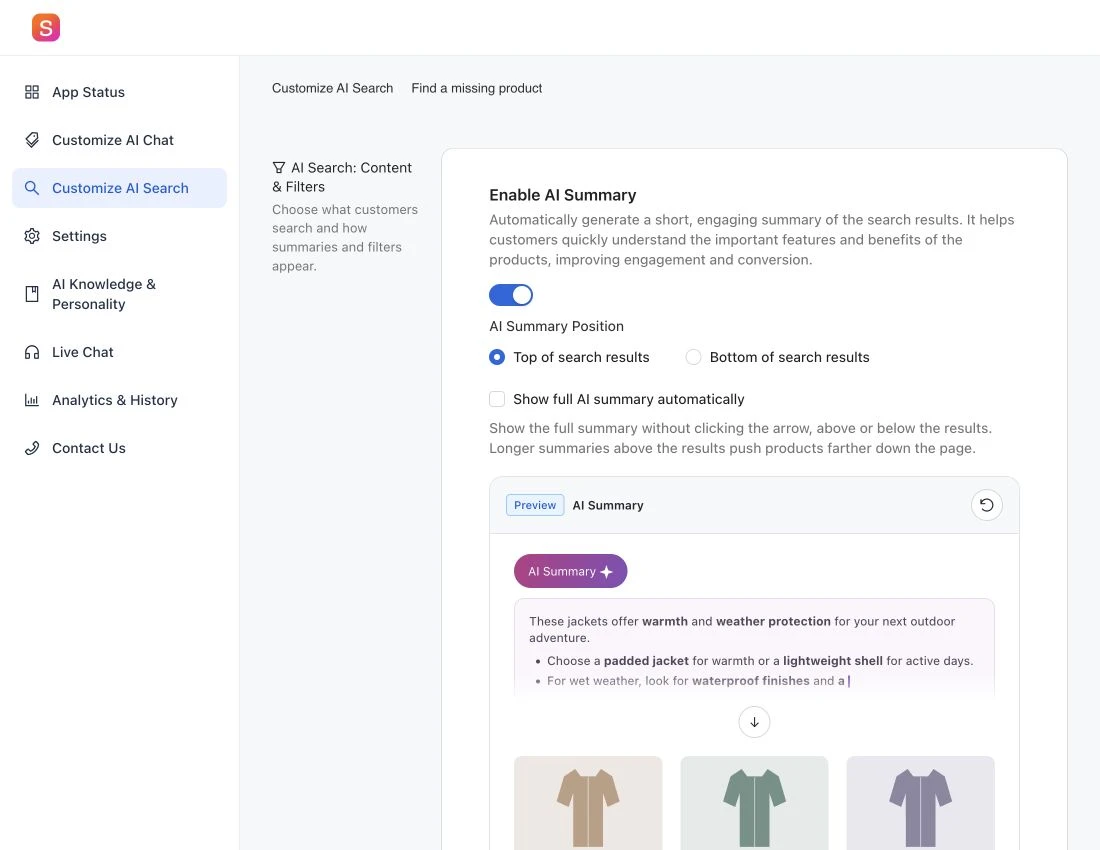
คุณอาจไม่จำเป็นต้องใช้ CSS เลย
การเปลี่ยนแปลงเลย์เอาต์และหน้าตาของการค้นหาส่วนใหญ่มีให้ใช้อยู่แล้วภายใต้ Customize AI Search ใน Shoply AI Admin Console ของคุณ ไม่ว่าคุณจะใช้ Shopify หรือแพลตฟอร์มเว็บไซต์อื่น ๆ ก็ตาม ลองใช้ตัวเลือกที่มีมาให้ในระบบเหล่านี้ก่อน จากนั้นคลิก Save ในแอดมินเพื่อใช้งานตัวเลือกที่คุณเลือก ใช้ CSS สำหรับการจัดสไตล์ที่ตัวควบคุมเหล่านี้ยังไม่ครอบคลุม
ตัวอย่างแบบโต้ตอบด้านล่างใช้พรีวิวเดียวกับในแอดมิน เป็นตัวอย่างให้คุณลองดูได้ที่นี่ แต่จะไม่เปลี่ยนแปลงร้านค้าของคุณ
- AI Summary: เปิดหรือปิดสรุปผล และเลือกว่าจะให้แสดงเหนือหรือใต้ผลลัพธ์สินค้า
- Search filters: แสดงหรือซ่อนแถบตัวกรอง และวางตัวกรองไว้ด้านบน ด้านซ้าย หรือในแผงลอยตัว เลย์เอาต์ด้านซ้ายจะย้ายขึ้นไปอยู่เหนือผลลัพธ์บนหน้าจอที่เล็กลง ดู การตั้งค่าการมองเห็นตัวกรองการค้นหา สำหรับผลที่ใช้ร่วมกันกับผลลัพธ์แชต
- ปุ่มดำเนินการของสินค้าและสี: เลือก Add to Cart, View Product หรือ No Button เลือกสีพื้นหลังและสีข้อความของปุ่ม และเปลี่ยนสีดาวรีวิวให้เข้ากับร้านค้าของคุณ
- จำนวนสินค้าต่อแถว: เลือก 3 หรือ 4 คอลัมน์บนเดสก์ท็อป และ 1 หรือ 2 คอลัมน์บนมือถือ จำนวนคอลัมน์ที่น้อยลงจะทำให้แต่ละภาพสินค้ามีพื้นที่มากขึ้น
- จำนวนสินค้าที่แสดงทั้งหมด: ตั้งค่าจำนวนสินค้าแยกกันสำหรับหน้าจอมือถือขนาดเล็ก หน้าจอมือถือขนาดใหญ่ และเดสก์ท็อป แอดมินมีตัวเลือก 3, 4, 6, 8, 9, 12, 15, 16, 18 หรือ 20 สินค้า การตั้งค่านี้ควบคุมจำนวนผลลัพธ์ ไม่ใช่จำนวนคอลัมน์
หากคุณยังต้องการดีไซน์แบบกำหนดเอง ให้ทำต่อด้วยคู่มือ CSS ด้านล่าง
เริ่มต้นใช้งาน
หากตัวเลือกที่มีมาให้ในระบบยังไม่ให้หน้าตาตามที่คุณต้องการ ให้ใช้ custom CSS เพื่อปรับแต่งผลลัพธ์การค้นหาของคุณอย่างละเอียด
ทั้ง Shoply AI Chat และ AI Search สามารถแสดงผลลัพธ์การค้นหาได้ ดังนั้นตัวเลือกการปรับแต่ง CSS ที่คุณเพิ่มจะมีผลกับทั้งสองส่วน หมายเหตุ: ฟีเจอร์ AI Summary ใช้ได้เฉพาะใน Shoply AI Search เท่านั้น
ก่อนอื่น เปิดใช้งาน AI Search ก่อนจึงค่อยจัดสไตล์ เพื่อให้คุณสามารถพรีวิวการเปลี่ยนแปลงกับผลลัพธ์จริงได้
เพิ่ม CSS ของคุณที่ไหน
หากต้องการซ่อนแถบตัวกรองทั้งหมด ให้ใช้ตัวควบคุมที่มีมาให้ในระบบ: ไปที่ Customize AI Search → Search filters ปิด Show filters in search results แล้วคลิก Save ไม่จำเป็นต้องใช้ CSS ดูรายละเอียดได้ที่ Hide Search Filters
- ไปที่ส่วน Customize AI Search ในแอดมินคอนโซลของแอป Shoply
- ค้นหาช่องข้อความ CSS styles for search elements
- ป้อนโค้ด CSS ที่คุณกำหนดเองลงในช่องข้อความ
- คลิก Save เพื่อใช้การเปลี่ยนแปลงของคุณ
พื้นฐาน CSS
CSS ช่วยให้คุณเปลี่ยนสี ฟอนต์ ระยะห่าง เส้นขอบ และอื่น ๆ ได้ ไวยากรณ์พื้นฐานคือ:
.class-name {
    property: value;
}
ตัวอย่างเช่น หากต้องการเปลี่ยนสีข้อความเป็นแดงเข้ม:
.shoply-product-name {
    color:rgb(82, 2, 2);
}
ทำความเข้าใจ CSS Classes เฉพาะของ Shoply
Shoply มี CSS classes เฉพาะที่คุณสามารถใช้เพื่อกำหนดเป้าหมายส่วนต่าง ๆ ของผลลัพธ์การค้นหาได้ แต่ละ class จะสอดคล้องกับองค์ประกอบเฉพาะในผลลัพธ์การค้นหา
Shoply ยังได้กำหนดสไตล์เริ่มต้นบางอย่างไว้สำหรับ classes เหล่านี้ด้วย คุณสามารถตรวจสอบสไตล์เหล่านั้นได้โดยใช้ Chrome DevTools และค้นหาแต่ละ class หากคุณต้องการเขียนทับสไตล์เริ่มต้น ให้เพิ่มคำประกาศ !important ในกฎ CSS ของคุณตามที่อธิบายไว้ใน เอกสาร MDN CSS !important
Classes ของการ์ดสินค้า
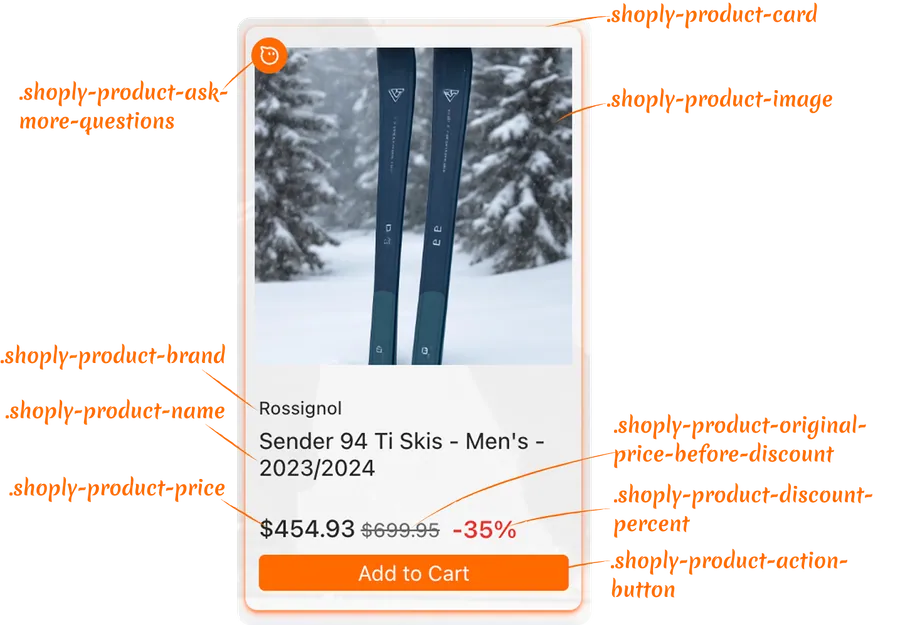
สไตล์สำหรับคอนเทนเนอร์:
.shoply-product-image- กำหนดสไตล์ให้รูปภาพสินค้า.shoply-product-card- กำหนดสไตล์ให้คอนเทนเนอร์การ์ดสินค้า
สไตล์สำหรับข้อมูลข้อความ:
.shoply-product-brand- กำหนดสไตล์ให้ชื่อแบรนด์/ผู้ขายของสินค้า ที่แสดงอยู่เหนือชื่อสินค้า.shoply-product-name- กำหนดสไตล์ให้ชื่อ/ชื่อเรื่องสินค้า
สไตล์สำหรับราคา:
.shoply-product-price- กำหนดสไตล์ให้ราคาสินค้า (หลังหักส่วนลดแล้ว).shoply-product-original-price-before-discount- กำหนดสไตล์ให้ราคาเดิมก่อนส่วนลด (มีการขีดทับเป็นค่าเริ่มต้น).shoply-product-discount-percent- กำหนดสไตล์ให้ข้อความเปอร์เซ็นต์ส่วนลด (แสดงเป็นข้อความสีแดงตัวหนาโดยค่าเริ่มต้น)
สไตล์สำหรับปุ่มดำเนินการ:
.shoply-product-action-button- กำหนดสไตล์ให้ปุ่มดำเนินการหลัก (Add to Cart, View Product ฯลฯ).shoply-product-action-button-sold-out- กำหนดสไตล์ให้ปุ่มดำเนินการเมื่อสินค้าหมด (สถานะปิดการใช้งาน)
หมายเหตุ: ในส่วน Customize AI Search ของแอดมินคอนโซลแอป Shoply คุณสามารถตั้งค่าได้ว่าจะให้เกิดอะไรขึ้นเมื่อลูกค้าคลิกปุ่มดำเนินการ—สามารถเพิ่มสินค้าลงตะกร้า เปลี่ยนเส้นทางไปยังหน้าสินค้า หรือเลือกซ่อนปุ่มดำเนินการทั้งหมดก็ได้
Classes ของ AI Summary
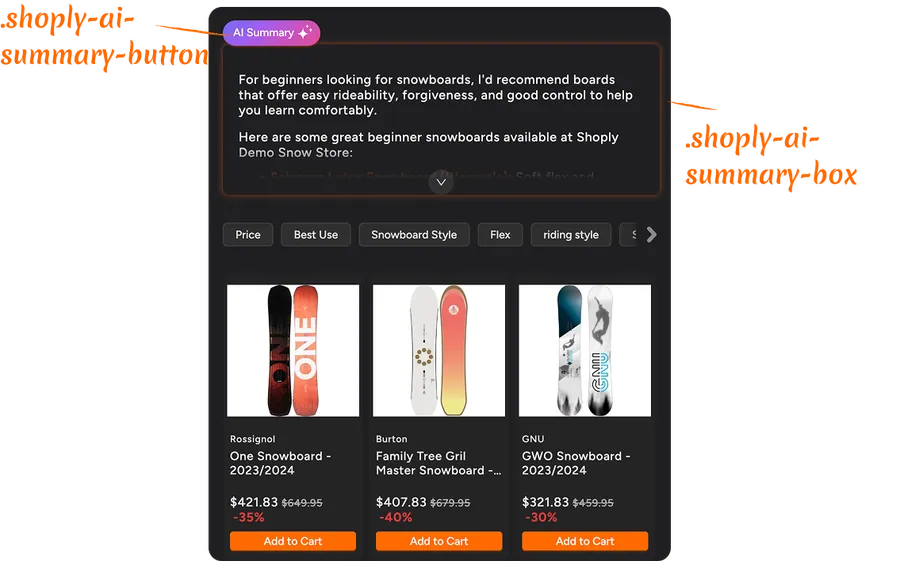
.shoply-ai-summary-box- กำหนดสไตล์ให้กล่องคอนเทนเนอร์สำหรับสรุปที่สร้างโดย AI.shoply-ai-summary-button- กำหนดสไตล์ให้ปุ่มที่ใช้เรียกการสร้าง AI summary
ตัวอย่างการปรับแต่งการ์ดสินค้าในผลลัพธ์การค้นหาด้วย CSS
เปลี่ยนสไตล์แบรนด์สินค้า
แบรนด์สินค้าจะแสดงอยู่เหนือชื่อสินค้า ด้านล่างนี้คือการปรับแต่งที่พบบ่อย:
/* Make brand name smaller and gray */
.shoply-product-brand {
    font-size: 11px;
    color: #888888;
    font-weight: 500;
    text-transform: uppercase;
    letter-spacing: 0.5px;
}
ปรับแต่งชื่อสินค้า
ชื่อสินค้าเป็นหนึ่งในองค์ประกอบที่สำคัญที่สุด ปรับแต่งให้เข้ากับแบรนด์ของคุณได้:
/* Make product title bold and larger */
.shoply-product-name {
    font-size: 18px;
    font-weight: 600;
    color: #1a1a1a;
    line-height: 1.4;
    margin-bottom: 8px;
}

/* Add hover effect */
.shoply-product-name:hover {
    color: #0066cc;
    text-decoration: underline;
}
ตัวอย่างการจัดสไตล์ราคาสินค้า
ทำให้ราคาของคุณโดดเด่นด้วยการจัดสไตล์แบบกำหนดเอง:
/* Style the current price (after discount) */
.shoply-product-price {
    font-size: 20px;
    font-weight: 700;
    color: #e74c3c;
    margin-top: 10px;
}

/* Style the original price (before discount) - greyed out with strikethrough */
.shoply-product-original-price-before-discount {
    font-size: 14px;
    color: #999999;
    margin-left: 8px;
    text-decoration: line-through;
}
ปรับแต่งปุ่มดำเนินการ
ปุ่มดำเนินการของคุณ (Add to Cart, View Product) สามารถจัดสไตล์ให้เข้ากับดีไซน์ร้านค้าของคุณได้:
/* Style the main action button with blue background, white text, rounded corners, and smooth transitions */
.shoply-product-action-button {
    background-color: #0066cc !important;
    color: #ffffff !important;
    border-radius: 6px;
    padding: 12px 24px;
    font-weight: 600;
    font-size: 14px;
    transition: all 0.3s ease;
    border: none;
}

/* Add hover effect - darker blue background, slight lift, and shadow */
.shoply-product-action-button:hover {
    background-color: #0052a3 !important;
    transform: translateY(-2px);
    box-shadow: 0 4px 8px rgba(0, 102, 204, 0.3);
}

/* Style sold-out button - grey background, darker grey text, disabled cursor, and reduced opacity */
.shoply-product-action-button-sold-out {
    background-color: #cccccc !important;
    color: #666666 !important;
    cursor: not-allowed;
    opacity: 0.6;
}
จัดสไตล์รูปภาพสินค้า
เพิ่มความโดดเด่นให้ภาพสินค้าของคุณด้วยเส้นขอบ เงา หรือเอฟเฟกต์เมื่อโฮเวอร์:
/* Add border and shadow to product images */
.shoply-product-image {
    border-radius: 8px;
    border: 2px solid #f0f0f0;
    box-shadow: 0 2px 8px rgba(0, 0, 0, 0.1);
    transition: all 0.3s ease;
}

/* Add hover effect of the product image*/
.shoply-product-image:hover {
    transform: scale(1.05);
    box-shadow: 0 4px 16px rgba(0, 0, 0, 0.2);
}
ตัวอย่างการปรับแต่งส่วน AI Summary
สำหรับร้านค้าที่เปิดใช้งาน AI Search, AI Summary จะปรากฏที่ด้านบนของผลลัพธ์การค้นหาและอธิบายทันทีว่าควรซื้ออะไรและเพราะเหตุใด โดยอิงจากผลลัพธ์การค้นหา — ก่อนที่ลูกค้าจะเลื่อนดูสินค้าเสียอีก
คุณสามารถปิด AI Summary ได้ในหน้า Customize AI Search ในแอดมินคอนโซลของแอป และยังสามารถปรับแต่งหน้าตาของมันด้วย CSS ได้ตามตัวอย่างด้านล่าง
จัดสไตล์กล่อง AI Summary
    /* Style the AI summary box with purple gradient background, white text, rounded corners, shadow, and semi-transparent border */
.shoply-ai-summary-box {
    background: linear-gradient(135deg, #667eea 0%, #764ba2 100%);
    color: #ffffff;
    padding: 24px;
    border-radius: 12px;
    box-shadow: 0 8px 24px rgba(102, 126, 234, 0.3);
    border: 1px solid rgba(255, 255, 255, 0.2);
}

/* Alternative: Light theme - light gray background with subtle border and shadow */
.shoply-ai-summary-box {
    background-color: #f8f9fa;
    border: 1px solid #e9ecef;
    padding: 20px;
    border-radius: 8px;
    box-shadow: 0 2px 8px rgba(0, 0, 0, 0.05);
}
ปรับแต่งปุ่ม AI Summary
โดยค่าเริ่มต้น AI Summary จะถูกทำให้สั้น กระชับ เพื่อประหยัดพื้นที่หน้าจอ ลูกค้าสามารถคลิก “AI Summary Button” เพื่อขยายและดูรายละเอียดทั้งหมดได้ อยากให้เข้ากับแบรนด์ของคุณหรือไม่? คุณสามารถปรับแต่งปุ่มนี้ได้เช่นกัน! ดูตัวอย่างด้านล่างได้เลย
/* Customize the summary button */
.shoply-ai-summary-button {
    background: linear-gradient(135deg, #667eea 0%, #764ba2 100%) !important;
    color: #ffffff !important;
    border: none;
    border-radius: 20px;
    padding: 10px 20px;
    font-weight: 600;
    font-size: 14px;
    cursor: pointer;
    transition: all 0.3s ease;
}

/* Add hover effect */
.shoply-ai-summary-button:hover {
    transform: translateY(-2px);
    box-shadow: 0 4px 12px rgba(102, 126, 234, 0.4);
}
การแก้ปัญหา
การเปลี่ยนแปลง CSS ของฉันไม่แสดงผล
- ตรวจสอบการพิมพ์ผิด: ตรวจสอบให้แน่ใจว่าสะกดชื่อ CSS class ถูกต้อง (จะขึ้นต้นด้วย
.shoply-) - ล้างแคชเบราว์เซอร์: บางครั้งเบราว์เซอร์อาจแคชสไตล์เก่าไว้
- ตรวจสอบไวยากรณ์ CSS: ตรวจสอบให้แน่ใจว่ากฎ CSS ทั้งหมดปิดด้วย
}อย่างถูกต้อง - ใช้
!important: หากสไตล์ไม่ถูกนำไปใช้ คุณอาจต้องเพิ่ม!importantเพื่อเขียนทับสไตล์เริ่มต้น:css.shoply-product-action-button { background-color: #ff0000 !important; }
สไตล์ดูแตกต่างกันบนมือถือ
บางสไตล์อาจต้องปรับเพิ่มเติมเฉพาะสำหรับมือถือ ใช้ media queries:
@media (max-width: 768px) {
    .shoply-product-name {
        font-size: 14px;
    }
}
ต้องการรีเซ็ตกลับเป็นสไตล์เริ่มต้น
เพียงล้างข้อความในช่อง CSS แล้วบันทึก แอปจะกลับไปใช้สไตล์เริ่มต้น
ต้องการความช่วยเหลือเพิ่มเติม?
หากคุณต้องการความช่วยเหลือเพิ่มเติมเกี่ยวกับการปรับแต่ง CSS:
- ตรวจสอบตัวอย่างภาพในหน้าการตั้งค่าของแอป (Product Card Preview และ AI Summary Preview)
- อ้างอิงแหล่งข้อมูลเอกสาร CSS เช่น MDN Web Docs
- ติดต่อทีมซัพพอร์ตของเราเพื่อรับความช่วยเหลือแบบเฉพาะบุคคลได้ที่ customer-obsession@shoplyai.ai
ขอให้สนุกกับการปรับแต่ง! 🎨
ด้วย CSS classes เหล่านี้ คุณจะสามารถควบคุมหน้าตาของผลลัพธ์การค้นหาได้อย่างเต็มที่ ลองปรับแต่ง ทดสอบ และสร้างประสบการณ์การค้นหาที่เข้ากับแบรนด์ของคุณได้อย่างสมบูรณ์แบบ!