
Does Shoply AI Lift Conversion? A/B Test It with Shopify Rollouts (2026)
 Frank Yang - Aug 25, 2026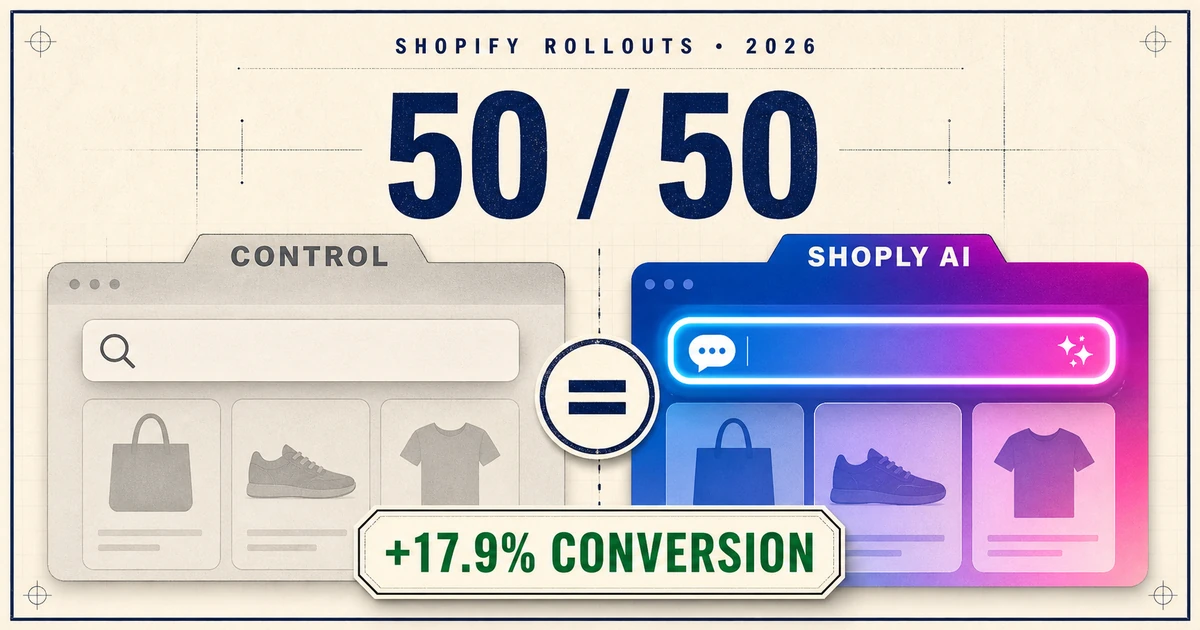
Shoply AI Search helps shoppers describe what they want in natural language and find the right products faster. Shoply AI Chatbot answers product questions immediately and guides shoppers toward a purchase. Together, they can improve product discovery and reduce repetitive support work—but they also introduce a prominent new experience to the storefront. Merchants naturally want to confirm that this change helps their shoppers before releasing it to everyone. Shopify Rollouts makes that possible with a native A/B test.
Keep the current storefront as Control, enable one change in Treatment, send 100% of eligible visitors into the experiment, and split that traffic 50/50. Shopify then reports conversion, checkout, add-to-cart, and bounce-rate differences. Updated August 2026.
Merchants may test Shoply AI Search and AI Chatbot this way before making them permanent. Shopify Rollouts assigns eligible visitors to randomized groups, measures both groups during the same period, and gives each visitor one consistent experience.
How do you A/B test Shoply AI with Shopify Rollouts?
The setup takes five steps:
-
Open Shopify Rollouts. In Shopify Admin, go to Markets, open Rollouts, and start a new rollout.
-
Create a theme edit. Give the test a clear name and add a change to the main theme.
-
Enable Shoply AI in Treatment. Turn on Shoply AI Chat & Search only inside the rollout theme editor.
-
Create the 50/50 experiment. Admit all eligible visitors, then divide them equally between Control and Treatment.
-
Review the report. Compare Shopify’s native conversion, checkout, add-to-cart, and bounce-rate results.
Change nothing else during the test. The experiment should answer one question: does adding Shoply AI improve shopper behavior on this storefront?
1. Open Markets > Rollouts
In Shopify Admin, open Markets > Rollouts, then click Create rollout. Shopify Rollouts are available on Basic or higher, but experiments require the Grow plan or higher according to Shopify’s current requirements .

2. Name the test and add a theme edit
Use a name that states the change, such as Shoply AI Search — furniture test. Click Add any change > Online store theme, then edit the main theme. Shopify stores the Treatment customization inside the rollout.

3. Enable Shoply AI only in Treatment
In the rollout theme editor, open App embeds and enable Shoply AI Chat & Search. This introduces two shopper-facing changes for Treatment visitors: the storefront search page uses Shoply AI Search, and a floating Shoply AI Chatbot icon appears so shoppers can ask questions and get product recommendations. Control visitors keep the current search page and do not see the chat icon. Leave test and development embeds off, then save. The published theme must keep the same production embed off, or the Control will also show Shoply AI and the test will measure nothing.
To test only Shoply AI Chatbot: Open the Shoply AI admin, go to Settings > AI Search, clear AI Search is enabled, and save. This setting applies across themes, so turn it off before launching the experiment. Keep the production app embed enabled only in Treatment. Treatment visitors will see the Shoply AI Chatbot icon, while the storefront continues using its current search page.

If you want to validate the search experience before the experiment, use the Shoply AI Search installation and preview guide.
4. Set 100% reach and a 50/50 split
Set Experiment will launch to all visitors. Under the change, assign 50% to Control and 50% to Treatment. Add an end date and keep Treatment will roll back to 0% so the store returns to Control while you decide whether to apply the winner.

5. Read the experiment report
Open the active rollout. Shopify shows Sessions, Conversion rate, Reached checkout rate, Added to cart rate, Bounce rate, and confidence intervals. Do not call a winner after three browsers or one quiet weekend. Wait for enough sessions that the confidence intervals settle, and avoid editing either version while it runs.

What lift did Shoply AI Search produce for a furniture store?
The results below come from a real Shoply AI customer A/B test run by a furniture merchant. We have kept the store anonymous. In the Shopify Rollouts report, the Shoply AI Search treatment raised conversion from 2.40% to 2.83%, a 17.9% relative lift, while the add-to-cart rate rose 18.9%.
| Metric | Control | Treatment | Relative change |
|---|---|---|---|
| Sessions | 6,200 | 6,180 | Balanced |
| Conversion rate | 2.40% | 2.83% | +17.9% |
| Reached checkout | 3.55% | 4.12% | +16.1% |
| Added to cart | 6.10% | 7.25% | +18.9% |
| Bounce rate | 43.2% | 38.7% | -10.4% |
The result makes sense for furniture because shoppers often search by several constraints at once: “oak dining table under 70 inches” or “cream sofa that fits a small apartment.” This is one merchant’s result, not a guaranteed outcome. Other stores should run their own test and wait for the Shopify Rollouts confidence intervals to settle before declaring a winner.
Why does Shopify Rollouts’ randomized visitor split make the result easier to trust?
Shopify assigns each visitor one consistent version while the experiment is active. That avoids a shopper seeing Shoply AI Search on one page and the old search on the next. Shopify does not document the identifier behind that assignment, so browser testing cannot prove the split. If three browser profiles are independent visitors, all three landing in Treatment still has a 12.5% probability at a 50/50 split.
The bigger advantage is operational: Control stays synchronized with the published theme, while the rollout holds only the Treatment edit. Shopify warns that changing Control or Treatment during the experiment can affect the result. Test one change, then leave both versions alone.
Frequently asked questions
What do Control and Treatment mean in Shopify Rollouts? Control is the current storefront experience. Treatment is the version containing the change that you want to measure.
Is Shopify Rollouts randomized by session or browser? Shopify describes assignment at the visitor level and keeps each visitor on one consistent view. A separate browser profile can be treated as another visitor.
Can Shopify Rollouts test Shoply AI Search and AI Chatbot? Yes, when Shoply AI can be enabled through a theme customization such as an app embed. Keep it off in Control and enable only the production embed in Treatment.
Which stores can run Shopify Rollouts experiments? Shopify makes Shopify Rollouts available on Basic or higher and experiments available on Grow or higher. Shopify Rollouts do not support headless or custom storefront checkouts, vintage themes, or Liquid template changes.
Test the change before you make it permanent
Shopify Rollouts simplifies the experiment setup, but it does not remove the need for patience. Choose one change, split traffic evenly, wait for a useful sample, and read the confidence intervals before applying Treatment. If you want to run this exact test, open the Shoply AI Shopify app or first try natural-language furniture searches in the Shoply AI demo store .