
如何自訂 AI Search 外觀

你可以用兩種方式自訂你的 Shoply AI 搜尋結果:
- 內建選項: 先使用 Shoply AI Admin Console 內的控制項,在無需編寫程式碼的情況下更改摘要、篩選器、按鈕、顏色及產品版面。[查看內建選項及預覽](#you-probably-dont-need-css-at-all)。
- 自訂 CSS: 如果這些控制項未能提供你想要的設計,可使用 CSS(網頁樣式語言)進一步微調字體、間距、邊框及其他視覺細節。你亦可配合內建設定一併使用。[前往 CSS 指南](#getting-started)。
你可能根本不需要 CSS
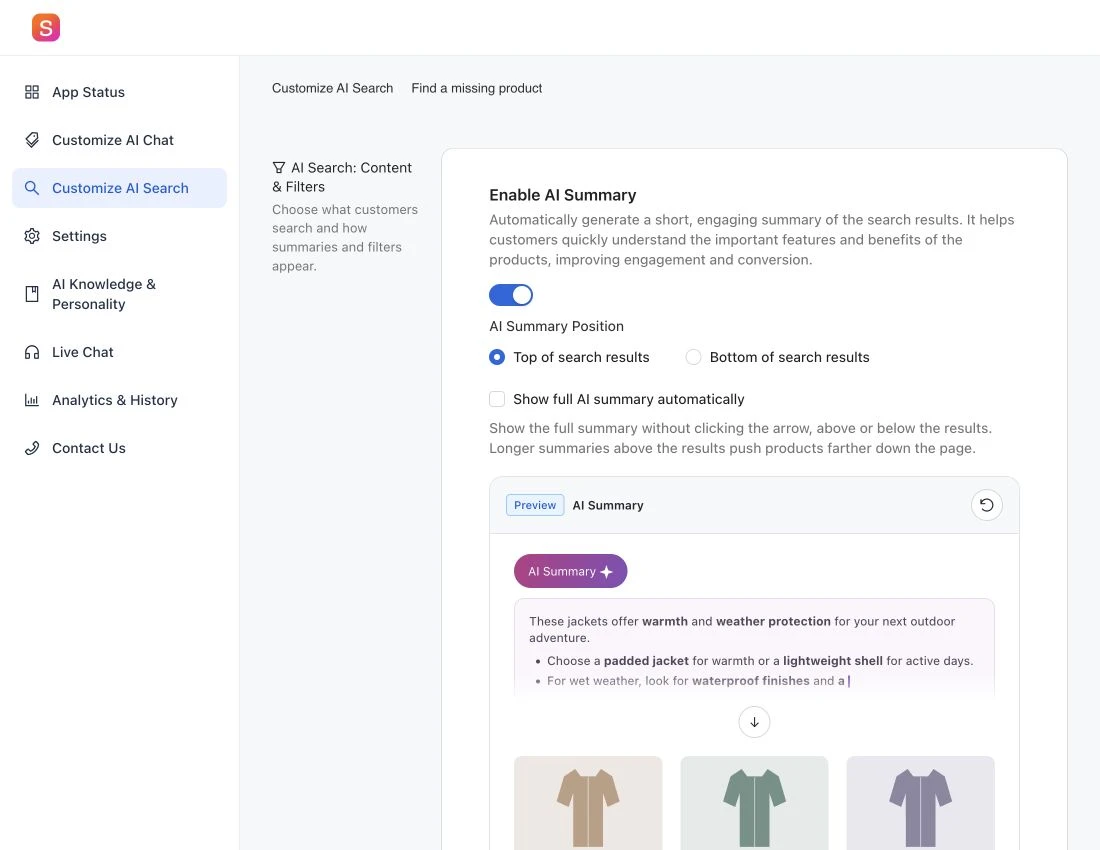
大部分搜尋版面及外觀變更,無論你使用 Shopify 或其他網站平台,都已可在 Shoply AI Admin Console 的 Customize AI Search 內設定。建議先嘗試這些內建選項,然後在管理後台按一下 Save 套用你的選擇。只有當這些控制項未涵蓋你需要的樣式時,才使用 CSS。
下方的互動式示例使用與管理後台相同的預覽。你可在此作為示範試用;它們不會更改你的商店。
- AI 摘要: 可開啟或關閉摘要,並選擇顯示在產品結果上方或下方。
- 搜尋篩選器: 顯示或隱藏篩選列,並可將篩選器放在頂部、左側或浮動面板中。左側版面在較小螢幕上會移至結果上方。關於對聊天結果的共通影響,請參閱[搜尋篩選器可見性設定](/faq/advanced-settings-for-ai-search#hide-search-filters)。
- 產品操作按鈕及顏色: 可選擇 Add to Cart、View Product 或 No Button。可設定按鈕背景色及文字顏色,並更改評分星星的顏色以配合你的商店。
- 每行顯示的產品數量: 桌面版可選三欄或四欄,手機版可選一欄或兩欄。欄數較少時,每張產品圖片可獲得更多顯示空間。
- 顯示的產品總數: 可分別為小型手機螢幕、較大手機螢幕及桌面版設定不同產品數量。管理後台提供 3、4、6、8、9、12、15、16、18 或 20 件產品選項。此設定控制的是結果數量,而非欄數。
如果你仍需要自訂設計,請繼續閱讀下方的 CSS 指南。
開始使用
如果內建選項未能提供你想要的外觀,可使用自訂 CSS 進一步微調搜尋結果。
Shoply AI Chat 與 AI Search 都可以顯示搜尋結果,因此你加入的 CSS 自訂選項會同時套用到兩者。注意:AI Summary 功能只適用於 Shoply AI Search。
首先,請先[啟用 AI Search 再開始設定樣式](/blog/how-to-add-ai-search-to-a-shopify-store),這樣你便可在真實搜尋結果上預覽變更。
在哪裡加入你的 CSS
如果要隱藏整個篩選列,請使用內建控制項:前往 Customize AI Search → Search filters,關閉 Show filters in search results,然後按一下 Save。無需使用 CSS。詳情請參閱[Hide Search Filters](https://shoplyai.ai/faq/advanced-settings-for-ai-search#hide-search-filters)。
- 前往 Shoply 應用程式管理後台中的 Customize AI Search 部分。
- 找到 CSS styles for search elements 文字區域
- 在文字區域輸入你的自訂 CSS 程式碼
- 按一下 Save 套用變更
CSS 基礎
CSS 可讓你更改顏色、字體、間距、邊框等。基本語法如下:
.class-name {
    property: value;
}
例如,如要將文字顏色改為深紅色:
.shoply-product-name {
    color:rgb(82, 2, 2);
}
了解 Shoply 專用的 CSS 類別
Shoply 提供了一組專用 CSS 類別,讓你可針對搜尋結果的不同部分進行設定。每個類別都對應搜尋結果中的特定元素。
Shoply 亦已為這些類別定義某些預設樣式。你可使用 Chrome DevTools 檢查這些樣式,並搜尋各個類別。如需覆蓋預設樣式,可按 MDN CSS !important 文件 所述,在你的 CSS 規則中加入 !important 宣告。
產品卡片類別
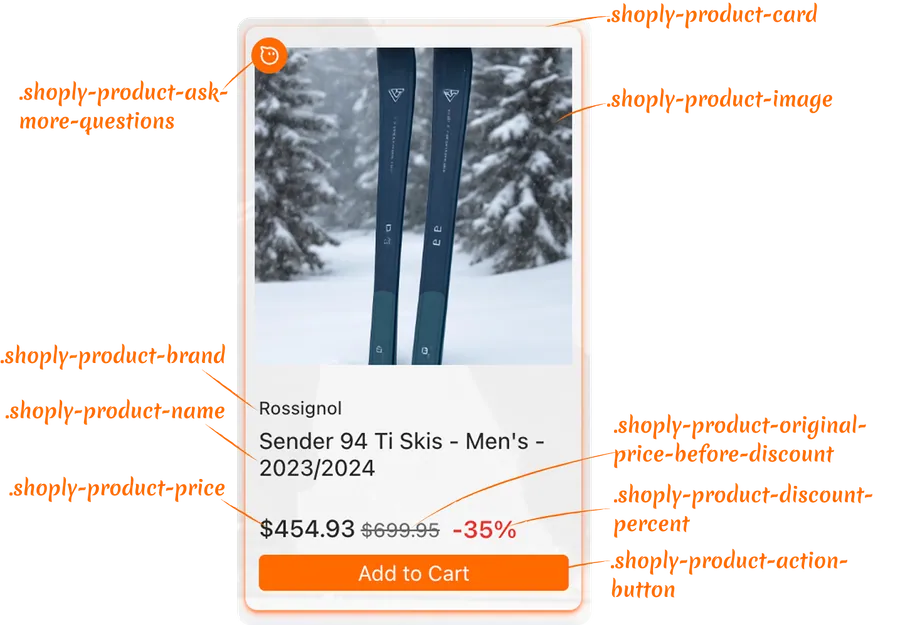
容器的樣式:
.shoply-product-image- 設定產品圖片樣式.shoply-product-card- 設定產品卡片容器樣式
文字資訊的樣式:
.shoply-product-brand- 設定顯示於產品標題上方的產品品牌/供應商名稱樣式.shoply-product-name- 設定產品標題/名稱樣式
價格的樣式:
.shoply-product-price- 設定產品價格樣式(套用折扣後).shoply-product-original-price-before-discount- 設定折扣前原價樣式(預設帶刪除線).shoply-product-discount-percent- 設定折扣百分比文字樣式(預設顯示為粗體紅字)
操作按鈕的樣式:
.shoply-product-action-button- 設定主要操作按鈕樣式(Add to Cart、View Product 等).shoply-product-action-button-sold-out- 設定產品售罄時的操作按鈕樣式(停用狀態)
注意:你可在 Shoply 應用程式管理後台的 Customize AI Search 部分中設定顧客按一下操作按鈕後會發生甚麼事——他們可以將產品加入購物車、被重新導向至產品頁面,或你亦可選擇完全隱藏操作按鈕。
AI 摘要類別
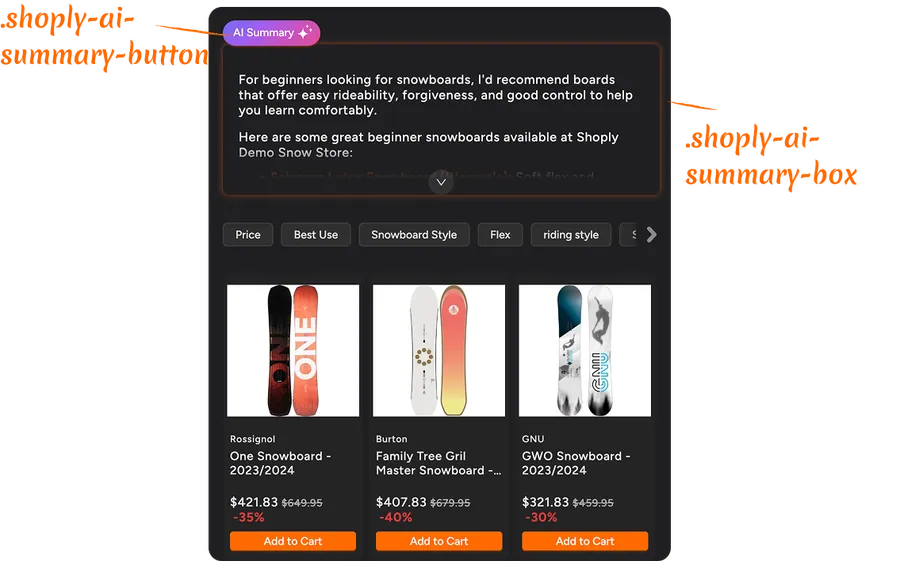
.shoply-ai-summary-box- 設定 AI 生成摘要的容器方塊樣式。.shoply-ai-summary-button- 設定觸發 AI 摘要生成按鈕的樣式。
使用 CSS 自訂搜尋結果中產品卡片的示例
更改產品品牌樣式
產品品牌會顯示於產品標題上方。以下是一些常見自訂方式:
/* Make brand name smaller and gray */
.shoply-product-brand {
    font-size: 11px;
    color: #888888;
    font-weight: 500;
    text-transform: uppercase;
    letter-spacing: 0.5px;
}
自訂產品標題
產品名稱是最重要的元素之一。你可將它自訂成配合品牌風格:
/* Make product title bold and larger */
.shoply-product-name {
    font-size: 18px;
    font-weight: 600;
    color: #1a1a1a;
    line-height: 1.4;
    margin-bottom: 8px;
}

/* Add hover effect */
.shoply-product-name:hover {
    color: #0066cc;
    text-decoration: underline;
}
產品價格樣式示例
透過自訂樣式,令你的價格更突出:
/* Style the current price (after discount) */
.shoply-product-price {
    font-size: 20px;
    font-weight: 700;
    color: #e74c3c;
    margin-top: 10px;
}

/* Style the original price (before discount) - greyed out with strikethrough */
.shoply-product-original-price-before-discount {
    font-size: 14px;
    color: #999999;
    margin-left: 8px;
    text-decoration: line-through;
}
自訂操作按鈕
你的操作按鈕(Add to Cart、View Product)可設定成配合商店設計:
/* Style the main action button with blue background, white text, rounded corners, and smooth transitions */
.shoply-product-action-button {
    background-color: #0066cc !important;
    color: #ffffff !important;
    border-radius: 6px;
    padding: 12px 24px;
    font-weight: 600;
    font-size: 14px;
    transition: all 0.3s ease;
    border: none;
}

/* Add hover effect - darker blue background, slight lift, and shadow */
.shoply-product-action-button:hover {
    background-color: #0052a3 !important;
    transform: translateY(-2px);
    box-shadow: 0 4px 8px rgba(0, 102, 204, 0.3);
}

/* Style sold-out button - grey background, darker grey text, disabled cursor, and reduced opacity */
.shoply-product-action-button-sold-out {
    background-color: #cccccc !important;
    color: #666666 !important;
    cursor: not-allowed;
    opacity: 0.6;
}
設定產品圖片樣式
你可透過邊框、陰影或滑鼠懸停效果增強產品圖片表現:
/* Add border and shadow to product images */
.shoply-product-image {
    border-radius: 8px;
    border: 2px solid #f0f0f0;
    box-shadow: 0 2px 8px rgba(0, 0, 0, 0.1);
    transition: all 0.3s ease;
}

/* Add hover effect of the product image*/
.shoply-product-image:hover {
    transform: scale(1.05);
    box-shadow: 0 4px 16px rgba(0, 0, 0, 0.2);
}
自訂 AI 摘要區塊的示例
對於已啟用 AI Search 的商店,AI Summary 會顯示於搜尋結果頂部,並會在顧客開始瀏覽產品前,根據搜尋結果即時說明應該買甚麼及原因。
你可以在應用程式管理後台的 Customize AI Search 頁面停用 AI Summary。你亦可如下方所示,使用 CSS 自訂其外觀。
設定 AI 摘要方塊樣式
    /* Style the AI summary box with purple gradient background, white text, rounded corners, shadow, and semi-transparent border */
.shoply-ai-summary-box {
    background: linear-gradient(135deg, #667eea 0%, #764ba2 100%);
    color: #ffffff;
    padding: 24px;
    border-radius: 12px;
    box-shadow: 0 8px 24px rgba(102, 126, 234, 0.3);
    border: 1px solid rgba(255, 255, 255, 0.2);
}

/* Alternative: Light theme - light gray background with subtle border and shadow */
.shoply-ai-summary-box {
    background-color: #f8f9fa;
    border: 1px solid #e9ecef;
    padding: 20px;
    border-radius: 8px;
    box-shadow: 0 2px 8px rgba(0, 0, 0, 0.05);
}
自訂 AI 摘要按鈕
預設情況下,AI Summary 會保持簡短精要,以節省畫面空間。顧客可按一下「AI Summary Button」展開並查看完整詳情。想令它更配合你的品牌?你亦可自訂此按鈕!請參考以下示例。
/* Customize the summary button */
.shoply-ai-summary-button {
    background: linear-gradient(135deg, #667eea 0%, #764ba2 100%) !important;
    color: #ffffff !important;
    border: none;
    border-radius: 20px;
    padding: 10px 20px;
    font-weight: 600;
    font-size: 14px;
    cursor: pointer;
    transition: all 0.3s ease;
}

/* Add hover effect */
.shoply-ai-summary-button:hover {
    transform: translateY(-2px);
    box-shadow: 0 4px 12px rgba(102, 126, 234, 0.4);
}
疑難排解
我的 CSS 變更沒有顯示
- 檢查有沒有拼寫錯誤:確認你的 CSS 類別名稱拼寫正確(它們都以
.shoply-開頭) - 清除瀏覽器快取:瀏覽器有時會快取舊樣式
- 檢查 CSS 語法:確認所有 CSS 規則均已用
}正確結束 - 使用
!important:如果樣式未有套用,你可能需要加入!important以覆蓋預設樣式:css.shoply-product-action-button { background-color: #ff0000 !important; }
手機版上的樣式看起來不同
某些樣式可能需要針對手機版作特定調整。請使用 media queries:
@media (max-width: 768px) {
    .shoply-product-name {
        font-size: 14px;
    }
}
需要重設為預設樣式
只需清空 CSS 文字區域並儲存。應用程式便會還原為預設樣式。
還需要更多協助?
如果你需要更多 CSS 自訂協助:
- 查看應用程式設定中的視覺示例(Product Card Preview 及 AI Summary Preview)
- 參考 CSS 文件資源,例如 MDN Web Docs
- 如需個人化協助,請聯絡我們的支援團隊:customer-obsession@shoplyai.ai
祝你自訂順利! 🎨
有了這些 CSS 類別,你便可以全面控制搜尋結果的外觀。盡情實驗、測試,並打造與你的品牌完美配合的搜尋體驗!