
AI Search की उपस्थिति को कस्टमाइज़ कैसे करें
आपके Shoply AI खोज परिणामों को अनुकूलित करने के दो तरीके हैं:
- बिल्ट-इन विकल्प: कोड लिखे बिना सारांश, फ़िल्टर, बटन, रंग और उत्पाद लेआउट बदलने के लिए अपने Shoply AI Admin Console में दिए गए नियंत्रणों से शुरुआत करें। बिल्ट-इन विकल्प और प्रीव्यू देखें।
- कस्टम CSS: यदि ये नियंत्रण आपको मनचाहा डिज़ाइन नहीं देते, तो फ़ॉन्ट, स्पेसिंग, बॉर्डर और अन्य दृश्य विवरणों को बेहतर बनाने के लिए CSS—वेबपेजों की स्टाइलिंग भाषा—का उपयोग करें। आप इसे बिल्ट-इन सेटिंग्स के साथ भी उपयोग कर सकते हैं। CSS गाइड पर जाएँ।
संभव है कि आपको CSS की बिल्कुल ज़रूरत न हो
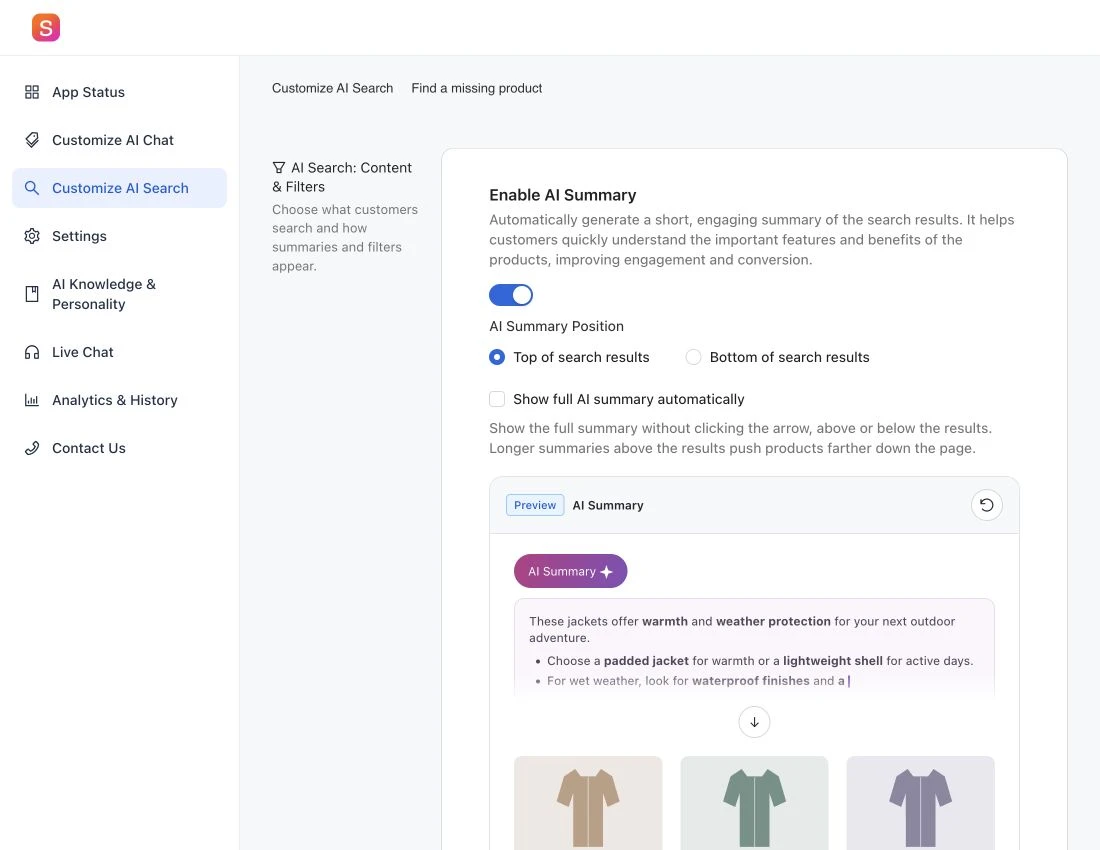
खोज लेआउट और रूप-रंग में अधिकांश बदलाव पहले से ही आपके Shoply AI Admin Console में Customize AI Search के अंतर्गत उपलब्ध हैं, चाहे आप Shopify उपयोग करते हों या कोई अन्य वेबसाइट प्लेटफ़ॉर्म। पहले इन बिल्ट-इन विकल्पों को आज़माएँ, फिर अपनी पसंद लागू करने के लिए एडमिन में Save पर क्लिक करें। जिन स्टाइलिंग विकल्पों को ये नियंत्रण कवर नहीं करते, उनके लिए CSS का उपयोग करें।
नीचे दिए गए इंटरैक्टिव उदाहरण वही प्रीव्यू उपयोग करते हैं जो एडमिन में होते हैं। ये ऐसे उदाहरण हैं जिन्हें आप यहाँ आज़मा सकते हैं; ये आपके स्टोर में बदलाव नहीं करते।
- AI Summary: सारांश को चालू या बंद करें, और चुनें कि यह उत्पाद परिणामों के ऊपर दिखाई दे या नीचे।
- Search filters: फ़िल्टर बार को दिखाएँ या छिपाएँ, और फ़िल्टर को ऊपर, बाईं ओर, या फ़्लोटिंग पैनल में रखें। छोटी स्क्रीन पर बायाँ लेआउट परिणामों के ऊपर चला जाता है। चैट परिणामों पर साझा प्रभाव के लिए search filter visibility settings देखें।
- Product action buttons and colors: Add to Cart, View Product, या No Button चुनें। बटन का बैकग्राउंड और टेक्स्ट रंग चुनें, और अपने स्टोर से मेल कराने के लिए rating-star का रंग बदलें।
- Products per row: डेस्कटॉप पर तीन या चार कॉलम चुनें, और मोबाइल पर एक या दो कॉलम। कम कॉलम होने पर प्रत्येक उत्पाद छवि को अधिक जगह मिलती है।
- Total products displayed: छोटे मोबाइल स्क्रीन, बड़े मोबाइल स्क्रीन और डेस्कटॉप के लिए अलग-अलग उत्पाद संख्या सेट करें। एडमिन 3, 4, 6, 8, 9, 12, 15, 16, 18, या 20 उत्पादों के विकल्प देता है। यह कॉलम की संख्या के बजाय परिणामों की संख्या नियंत्रित करता है।
यदि आपको अब भी कस्टम डिज़ाइन चाहिए, तो नीचे दिए गए CSS गाइड के साथ आगे बढ़ें।
शुरुआत करना
यदि बिल्ट-इन विकल्प आपको मनचाहा रूप नहीं देते, तो अपने खोज परिणामों को और बेहतर बनाने के लिए कस्टम CSS का उपयोग करें।
Shoply AI Chat और AI Search दोनों खोज परिणाम दिखा सकते हैं, इसलिए जो CSS अनुकूलन विकल्प आप जोड़ेंगे, वे दोनों पर लागू होंगे। ध्यान दें: AI Summary सुविधा केवल Shoply AI Search में उपलब्ध है।
सबसे पहले, स्टाइलिंग से पहले AI Search सक्षम करें ताकि आप वास्तविक परिणामों पर बदलावों का प्रीव्यू देख सकें।
अपनी CSS कहाँ जोड़ें
पूरी फ़िल्टर बार छिपाने के लिए बिल्ट-इन नियंत्रण का उपयोग करें: Customize AI Search → Search filters पर जाएँ, Show filters in search results को बंद करें, और Save पर क्लिक करें। CSS की आवश्यकता नहीं है। विवरण के लिए Hide Search Filters देखें।
- Shoply app के admin console में Customize AI Search सेक्शन पर जाएँ।
- CSS styles for search elements टेक्स्ट एरिया ढूँढें
- टेक्स्ट एरिया में अपना कस्टम CSS कोड दर्ज करें
- अपने बदलाव लागू करने के लिए Save पर क्लिक करें
CSS की मूल बातें
CSS आपको रंग, फ़ॉन्ट, स्पेसिंग, बॉर्डर और बहुत कुछ बदलने देता है। इसका मूल syntax इस प्रकार है:
.class-name {
    property: value;
}
उदाहरण के लिए, टेक्स्ट का रंग गहरा लाल करने के लिए:
.shoply-product-name {
    color:rgb(82, 2, 2);
}
Shoply-विशिष्ट CSS classes को समझना
Shoply कुछ विशिष्ट CSS classes प्रदान करता है जिनका उपयोग आप अपने खोज परिणामों के अलग-अलग हिस्सों को लक्षित करने के लिए कर सकते हैं। प्रत्येक class खोज परिणाम के एक विशेष तत्व से मेल खाती है।
Shoply ने इन classes के लिए कुछ डिफ़ॉल्ट styles भी परिभाषित किए हैं। आप उन styles को Chrome DevTools का उपयोग करके देख सकते हैं और प्रत्येक class को खोज सकते हैं। यदि आपको डिफ़ॉल्ट styles को override करना हो, तो MDN CSS !important documentation में बताए अनुसार अपनी CSS rules में !important घोषणा जोड़ें।
Product Card Classes
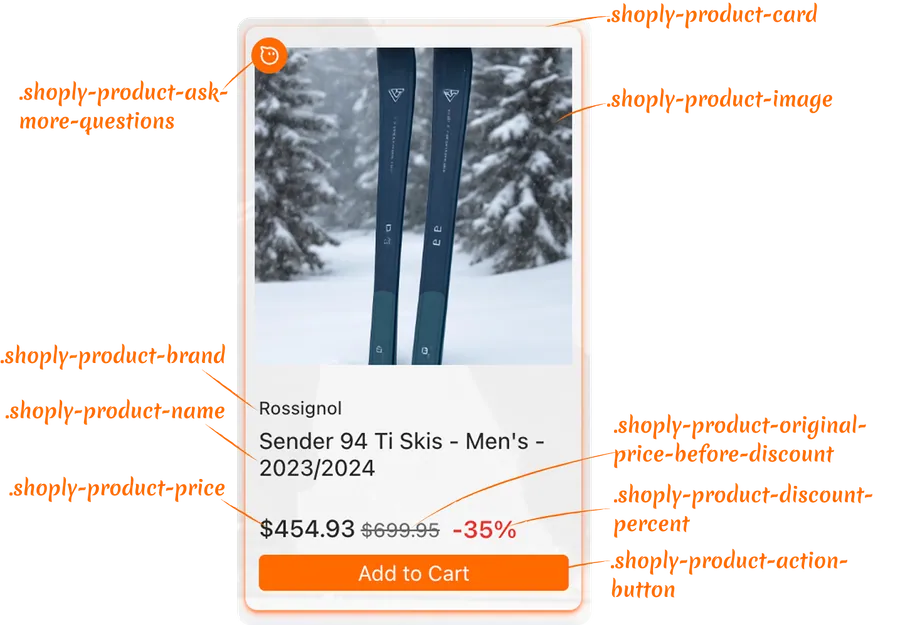
कंटेनर के लिए styles:
.shoply-product-image- उत्पाद छवि को style करता है.shoply-product-card- उत्पाद कार्ड कंटेनर को style करता है
टेक्स्ट जानकारी के लिए styles:
.shoply-product-brand- उत्पाद शीर्षक के ऊपर दिखने वाले उत्पाद brand/vendor नाम को style करता है.shoply-product-name- उत्पाद शीर्षक/नाम को style करता है
कीमत के लिए styles:
.shoply-product-price- उत्पाद कीमत को style करता है (discount लागू होने के बाद).shoply-product-original-price-before-discount- discount से पहले की मूल कीमत को style करता है (डिफ़ॉल्ट रूप से line-through decoration के साथ).shoply-product-discount-percent- discount percentage टेक्स्ट को style करता है (डिफ़ॉल्ट रूप से bold लाल टेक्स्ट के रूप में प्रदर्शित)
action button के लिए styles:
.shoply-product-action-button- मुख्य action buttons को style करता है (Add to Cart, View Product, आदि).shoply-product-action-button-sold-out- जब उत्पाद sold out हो तो action button को style करता है (disabled state)
ध्यान दें: Shoply app के admin console के Customize AI Search सेक्शन में, आप यह कॉन्फ़िगर कर सकते हैं कि जब ग्राहक action button पर क्लिक करें तो क्या हो—वे उत्पाद को cart में जोड़ सकते हैं, product page पर redirect हो सकते हैं, या आप action button को पूरी तरह छिपाने का विकल्प चुन सकते हैं।
AI Summary Classes
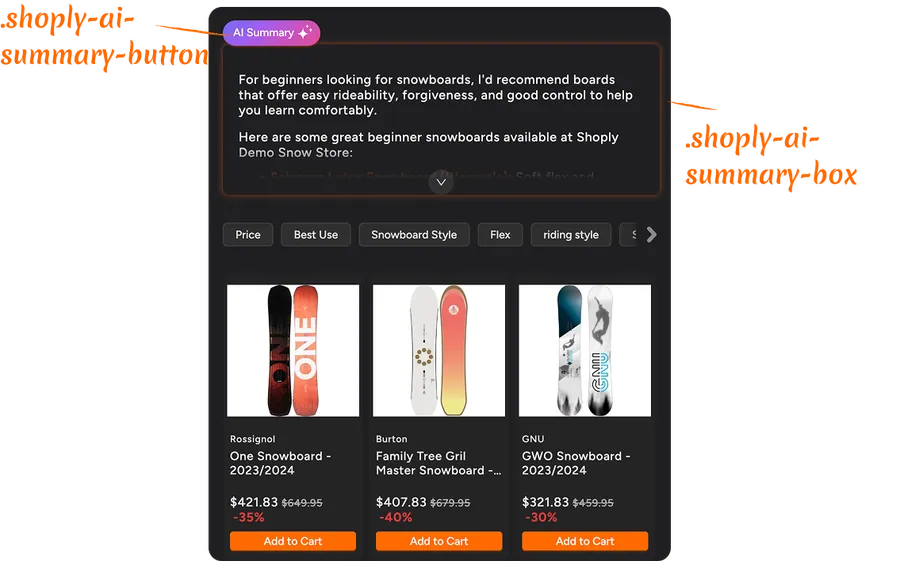
.shoply-ai-summary-box- AI-generated summaries के कंटेनर बॉक्स को style करता है।.shoply-ai-summary-button- AI summary generation ट्रिगर करने वाले बटन को style करता है।
CSS के साथ खोज परिणामों में Product Cards को अनुकूलित करने के उदाहरण
Product Brand Styling बदलना
उत्पाद brand, उत्पाद शीर्षक के ऊपर दिखाई देता है। यहाँ कुछ सामान्य अनुकूलन दिए गए हैं:
/* Make brand name smaller and gray */
.shoply-product-brand {
    font-size: 11px;
    color: #888888;
    font-weight: 500;
    text-transform: uppercase;
    letter-spacing: 0.5px;
}
Product Title को अनुकूलित करना
उत्पाद नाम सबसे महत्वपूर्ण तत्वों में से एक है। इसे अपने brand से मेल खाने के लिए अनुकूलित करें:
/* Make product title bold and larger */
.shoply-product-name {
    font-size: 18px;
    font-weight: 600;
    color: #1a1a1a;
    line-height: 1.4;
    margin-bottom: 8px;
}

/* Add hover effect */
.shoply-product-name:hover {
    color: #0066cc;
    text-decoration: underline;
}
Product Prices को style करने के उदाहरण
कस्टम styling के साथ अपनी कीमतों को और अधिक उभारें:
/* Style the current price (after discount) */
.shoply-product-price {
    font-size: 20px;
    font-weight: 700;
    color: #e74c3c;
    margin-top: 10px;
}

/* Style the original price (before discount) - greyed out with strikethrough */
.shoply-product-original-price-before-discount {
    font-size: 14px;
    color: #999999;
    margin-left: 8px;
    text-decoration: line-through;
}
Action Buttons को अनुकूलित करना
आपके action buttons (Add to Cart, View Product) को आपके स्टोर के डिज़ाइन से मेल खाने के लिए style किया जा सकता है:
/* Style the main action button with blue background, white text, rounded corners, and smooth transitions */
.shoply-product-action-button {
    background-color: #0066cc !important;
    color: #ffffff !important;
    border-radius: 6px;
    padding: 12px 24px;
    font-weight: 600;
    font-size: 14px;
    transition: all 0.3s ease;
    border: none;
}

/* Add hover effect - darker blue background, slight lift, and shadow */
.shoply-product-action-button:hover {
    background-color: #0052a3 !important;
    transform: translateY(-2px);
    box-shadow: 0 4px 8px rgba(0, 102, 204, 0.3);
}

/* Style sold-out button - grey background, darker grey text, disabled cursor, and reduced opacity */
.shoply-product-action-button-sold-out {
    background-color: #cccccc !important;
    color: #666666 !important;
    cursor: not-allowed;
    opacity: 0.6;
}
Product Images को style करना
बॉर्डर, shadow, या hover effects के साथ अपनी उत्पाद छवियों को बेहतर बनाएँ:
/* Add border and shadow to product images */
.shoply-product-image {
    border-radius: 8px;
    border: 2px solid #f0f0f0;
    box-shadow: 0 2px 8px rgba(0, 0, 0, 0.1);
    transition: all 0.3s ease;
}

/* Add hover effect of the product image*/
.shoply-product-image:hover {
    transform: scale(1.05);
    box-shadow: 0 4px 16px rgba(0, 0, 0, 0.2);
}
AI Summary Section को अनुकूलित करने के उदाहरण
उन स्टोर्स के लिए जो AI Search सक्षम करते हैं, AI Summary खोज परिणामों के शीर्ष पर दिखाई देगा और उत्पादों को स्क्रॉल करने से पहले ही खोज परिणामों के आधार पर तुरंत बताएगा कि क्या खरीदना है और क्यों।
आप app के admin console में Customize AI Search पेज पर AI Summary को disable कर सकते हैं। नीचे दिखाए अनुसार आप CSS का उपयोग करके इसके रूप-रंग को भी अनुकूलित कर सकते हैं।
AI Summary Box को style करना
    /* Style the AI summary box with purple gradient background, white text, rounded corners, shadow, and semi-transparent border */
.shoply-ai-summary-box {
    background: linear-gradient(135deg, #667eea 0%, #764ba2 100%);
    color: #ffffff;
    padding: 24px;
    border-radius: 12px;
    box-shadow: 0 8px 24px rgba(102, 126, 234, 0.3);
    border: 1px solid rgba(255, 255, 255, 0.2);
}

/* Alternative: Light theme - light gray background with subtle border and shadow */
.shoply-ai-summary-box {
    background-color: #f8f9fa;
    border: 1px solid #e9ecef;
    padding: 20px;
    border-radius: 8px;
    box-shadow: 0 2px 8px rgba(0, 0, 0, 0.05);
}
AI Summary Button को अनुकूलित करना
डिफ़ॉल्ट रूप से, स्क्रीन स्पेस बचाने के लिए AI Summary को छोटा और संक्षिप्त रखा जाता है। ग्राहक पूरा विवरण देखने के लिए “AI Summary Button” पर क्लिक करके इसे expand कर सकते हैं। क्या आप इसे अपने brand से मेल कराना चाहते हैं? आप इस बटन को भी अनुकूलित कर सकते हैं! नीचे दिए गए उदाहरण देखें।
/* Customize the summary button */
.shoply-ai-summary-button {
    background: linear-gradient(135deg, #667eea 0%, #764ba2 100%) !important;
    color: #ffffff !important;
    border: none;
    border-radius: 20px;
    padding: 10px 20px;
    font-weight: 600;
    font-size: 14px;
    cursor: pointer;
    transition: all 0.3s ease;
}

/* Add hover effect */
.shoply-ai-summary-button:hover {
    transform: translateY(-2px);
    box-shadow: 0 4px 12px rgba(102, 126, 234, 0.4);
}
समस्या निवारण
मेरे CSS बदलाव दिखाई नहीं दे रहे हैं
- टाइपो जाँचें: सुनिश्चित करें कि आपके CSS class names सही लिखे गए हैं (वे
.shoply-से शुरू होते हैं) - अपने browser cache को साफ़ करें: कभी-कभी browsers पुराने styles cache कर लेते हैं
- CSS syntax जाँचें: सुनिश्चित करें कि आपकी सभी CSS rules
}से सही तरह बंद की गई हैं !importantका उपयोग करें: यदि styles लागू नहीं हो रहे हैं, तो डिफ़ॉल्ट styles को override करने के लिए आपको!importantजोड़ना पड़ सकता है:css.shoply-product-action-button { background-color: #ff0000 !important; }
मोबाइल पर styles अलग दिखते हैं
कुछ styles के लिए मोबाइल-विशिष्ट adjustments की आवश्यकता हो सकती है। media queries का उपयोग करें:
@media (max-width: 768px) {
    .shoply-product-name {
        font-size: 14px;
    }
}
डिफ़ॉल्ट styles पर वापस जाना है
बस CSS टेक्स्ट एरिया साफ़ करें और save करें। app डिफ़ॉल्ट styling पर वापस लौट आएगा।
और मदद चाहिए?
यदि आपको CSS customization में अतिरिक्त सहायता चाहिए:
- app settings में visual examples देखें (Product Card Preview और AI Summary Preview)
- MDN Web Docs जैसे CSS documentation संसाधनों को देखें
- व्यक्तिगत सहायता के लिए हमारी support team से customer-obsession@shoplyai.ai पर संपर्क करें
अनुकूलन की शुभकामनाएँ! 🎨
इन CSS classes के साथ, आपके पास अपने खोज परिणामों के रूप-रंग पर पूरा नियंत्रण है। प्रयोग करें, परीक्षण करें, और ऐसा खोज अनुभव बनाएँ जो आपके brand से पूरी तरह मेल खाता हो!