
Published
How to Show Unit Prices (Price per kg or Liter) in AI Search and Chat
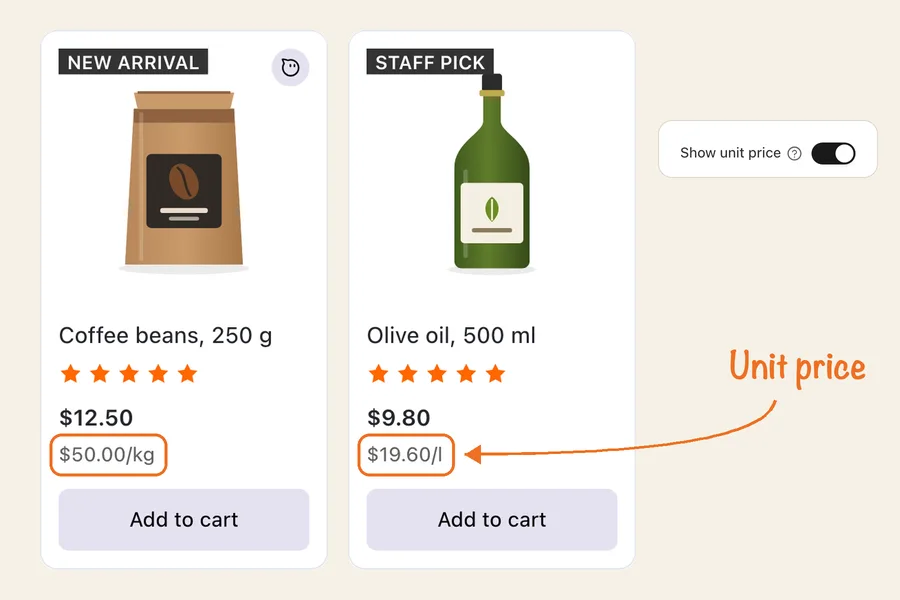
If you sell food, drinks or other goods by weight, volume, length or area, shoppers compare the price per kilogram, liter or meter, called the unit price. In some countries, such as Germany, the law requires the unit price next to the product price. Shoply can show the unit price you set in Shopify under the price on product cards in AI Search and AI Chat, such as “€3,23/kg” under €16,16. You set unit prices in Shopify and turn on Show unit price in Shoply.
What do shoppers see?
- A smaller line under the price on product cards in AI Search. If you also show prices without VAT, the unit price appears below the price without VAT.
- The same line in AI Chat, on the product cards the assistant recommends.
- The right unit price for each size. The card shows size choices when your sizes have their own photos. When a shopper clicks another size, the line changes with the price. For example, a 270 g bag at €1,37 shows “€5,07/kg”, and a 5 kg sack at €16,16 shows “€3,23/kg”.
- The same quantity as in Shopify. If your unit price in Shopify is per 100 g, shoppers see it per 100 g too: the 270 g bag shows “€0,51/100 g”.
- Every product card design. The line appears in Classic, Gallery and Editorial.
Before you start
- A Shopify store. Show unit price uses Shopify’s unit prices, so websites that use Shoply without Shopify (SiteChat) don’t have it.
- Unit prices on your products in Shopify. Shoply shows only the unit prices you already set in Shopify. Products without one show no line.
Step 1: Add unit prices in Shopify
Skip this step if your products already show unit prices in your Shopify store.
- In your Shopify admin, go to Products and click the product. If it has several sizes, click the size under Variants.
- In the Pricing section, click Unit price.
- In Total amount, enter how much the product contains and choose the unit, such as 270 g.
- Optional: in Base measure, change the quantity the unit price is quoted per, such as 100 g instead of 1 kg.
- Click Done, then Save.
For bulk editing and more detail, see Shopify’s guide to unit pricing .
Step 2: Turn on “Show unit price”
- In the Shoply AI app, open Customize AI Search.
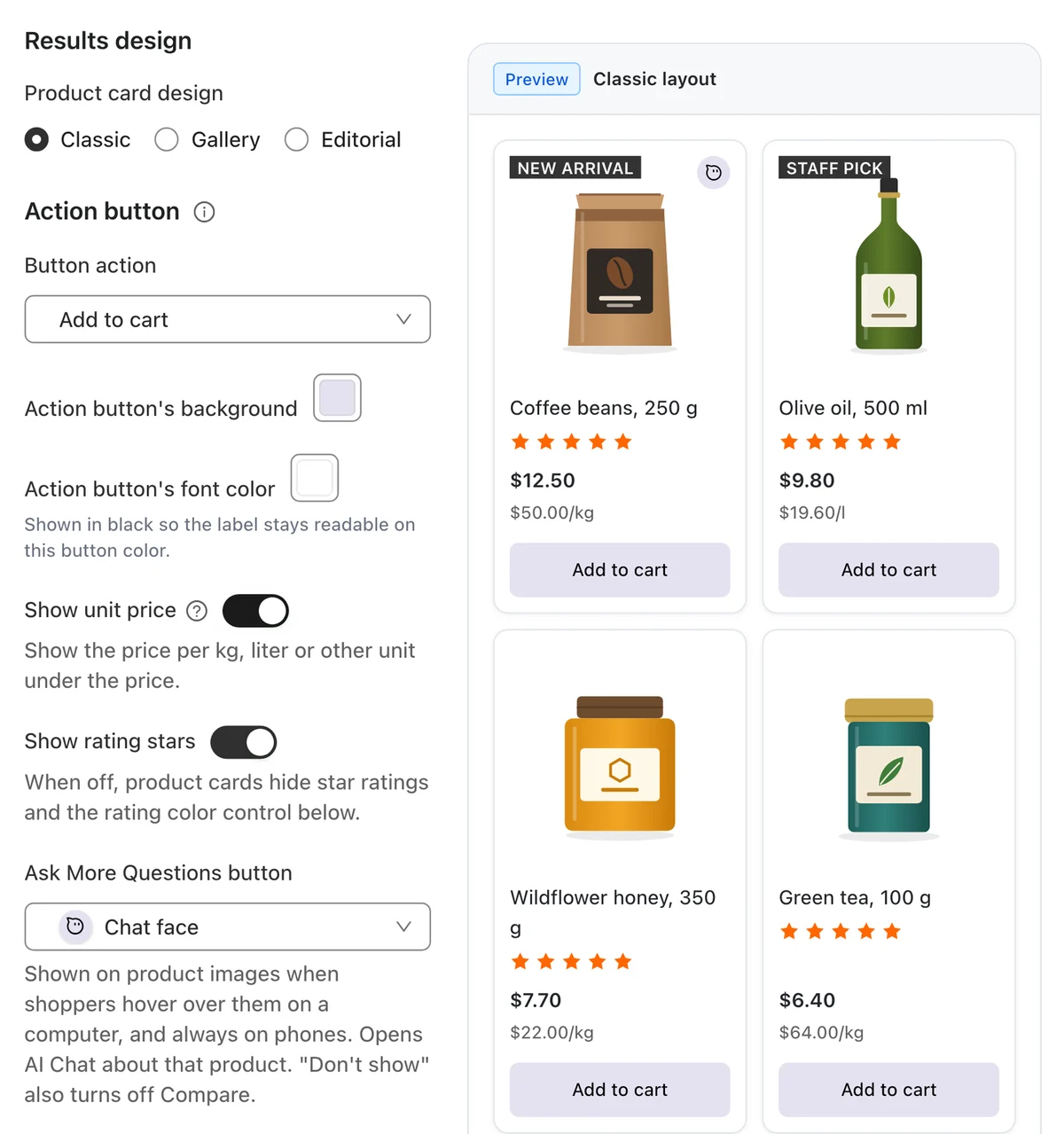
- In AI Search: product cards, turn on Show unit price.
- Click Save.
The switch starts off for every store. Once it is on, the results preview on the same page shows sample groceries, each with a unit price under its price.
Step 3: Check your store
Shoply reads unit prices from Shopify each time it updates its copy of your products. It does this on a schedule, soon after you edit products in Shopify, and when you click Recrawl now on App status. Unit prices you have just added show after Shoply’s next update.
- Search for a product that has a unit price in Shopify.
- Check that its card shows the unit price under the price.
- Open AI Chat, ask for a product recommendation, and check the product cards there too.
The line doesn’t appear?
- Have Shoply update your products now. In the Shoply AI app, open App status and click Recrawl now. When the last update time on that page changes, search again.
- Check the product in Shopify. Open the product or size and check that it has a unit price under Pricing.
- Check the setting. Make sure Show unit price is on and that you clicked Save.
- Check whether the product is an exception. See When is the line not shown?
How do I turn it off?
Turn off Show unit price and click Save. The line disappears from your store right away. If you turn it back on, the line comes back right away too; Shoply doesn’t need to update your products again.
Which Shopify fields does Shoply use?
Shoply reads these fields of each product variant (each size) from Shopify’s Admin API. They are the same fields behind the Unit price settings in your Shopify admin. referenceValue, referenceUnit, quantityValue and quantityUnit are parts of the variant’s unitPriceMeasurement.
| Shopify field | Where it comes from in your Shopify admin | What Shoply does with it |
|---|---|---|
unitPrice (its amount) | Calculated by Shopify from the variant’s Price, Total amount and Base measure | Shown as the unit price, such as €3,23 |
referenceValue and referenceUnit | Base measure, such as 1 kg or 100 g | Shown after the slash: “/kg”, or “/100 g” for a base measure of 100 g |
quantityValue and quantityUnit | Total amount, such as 270 g | Not shown. Shopify uses it to calculate unitPrice |
showUnitPrice | Shopify’s setting for whether this variant’s unit price is shown | When it is false, Shoply shows no line for that variant |
price | Price | Tells Shoply which variant’s unit price belongs to the price on the card |
referenceUnit must be a unit of weight, volume, length or area, such as KG, L, M or M2. When it is ITEM (per item), Shoply shows no line.
When is the line not shown?
- The product has no unit price in Shopify, or its unit price is switched off in Shopify.
- The unit price is “per item”. Shoply shows unit prices per weight, volume, length or area, such as kg, l, m or m², but not per item.
- Several sizes share the price shown on the card, and their unit prices differ or one has none. Shoply doesn’t guess which size the shopper means, so it shows no line. If the card shows size choices, the line appears once the shopper picks one.
- The shopper sees a price other than the product’s Price in Shopify, such as a converted price in another currency or a price you set for another Shopify market. Shoply has your unit price only for the product’s Price and its currency, so it shows no line rather than a wrong one.
- The product shows no price, for example when your store hides prices in search or the product is sold in store only.
If the law where you sell requires a unit price next to every price, check these cases on your own products.
Can I change how the line looks?
Yes. If you add your own styles to AI Search (CSS, the code that sets colors and sizes), use the line’s name, .shoply-product-unit-price, to style it. To find where to add styles, see how to customize AI Search with CSS.
/* Make the unit price darker and slightly larger */
.shoply-product-unit-price { opacity: 1; font-size: 13px !important; }
Keep !important on font-size. The Editorial card design sets its own smaller size for this line, and without !important that size wins over yours.