
Published
How to Block Bots and Spam in Shoply AI

Chats and searches from bots count toward your plan, the same as a shopper’s, unless the automatic bot checks described near the end of this page catch them first. One store recently found a bot asking Shoply AI questions from 207 different IP addresses (the internet address a visitor connects from) in 59 countries, using each address about once.
You have two tools against bots. Both work on Shopify stores and SiteChat websites, on every plan, including the free plan.
- Visitor access turns bots away before Shoply AI answers them. You choose the countries Shoply AI serves, and you can block IP addresses.
- Mark as spam gives back the part of your plan a bot already used. A marked conversation stops counting, and Shoply AI stops answering the bot’s IP address on your store.
Which tool should I use?
| What you see | What to do |
|---|---|
| Bots from countries you don’t sell to | Choose your countries in Visitor access. This works even when a bot changes its address on every visit. |
| A bot’s IP address, shown to you by another service | Block that address or its range in Visitor access. |
| Bot conversations in Chat & search history | Use Mark as spam on each one to get back the part of your plan they used. |
You can use more than one. Marking a conversation as spam also blocks the bot’s address.
Choose the countries Shoply AI serves
- In your Shoply AI Admin Console (the admin), open Settings.
- Find Visitor access. Under Countries Shoply AI serves, choose Only the countries I choose.
- Type a country’s name and pick it from the list. Repeat for each country you sell to.
- Click Save.
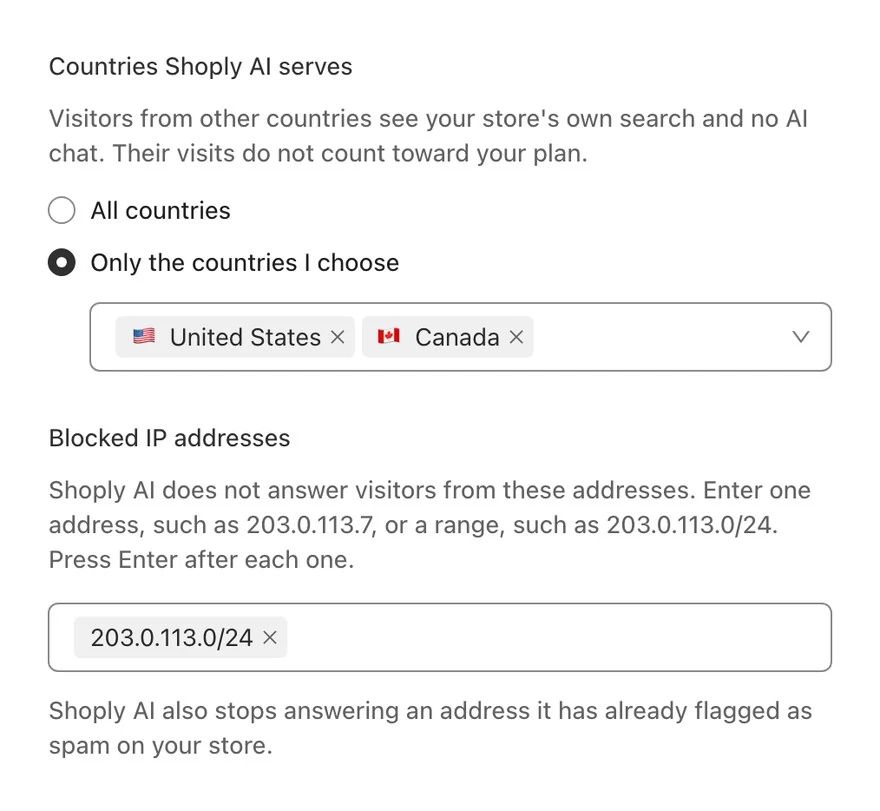
What visitors from other countries see
- On a Shopify store: your store’s own search, and no AI Chat.
- On a SiteChat website: your site without Shoply AI.
Their visits don’t count toward your plan, because Shoply AI turns them away before it does any work for them.
Before you save
- Include the country you work from. Your own previews of AI Search and AI Chat in the admin follow the same rule, so they won’t load for you from any other country.
- Shoply AI finds the country from the visitor’s IP address. A shopper on a VPN (an app that makes a phone or computer appear to be in another country) counts as being in the VPN’s country.
- Shoply AI still serves visitors whose country it can’t tell. No real shopper gets locked out by a missing location. A bot in that situation gets through too; use Mark as spam for it.
- Pick at least one country. If you choose Only the countries I choose and pick none, the admin reminds you to choose one, and Shoply AI keeps serving every country.
- Already set countries in Advanced settings? Visitor access shows and edits that same list, so you don’t need both. How to Restrict Chatbot Access by Country explains the older Advanced settings method.
Block IP addresses
- In Settings → Visitor access, find Blocked IP addresses.
- Enter one address, such as
203.0.113.7, or a range, such as203.0.113.0/24(a block of 256 addresses), and press Enter. You can add as many as you need. Newer, longer IPv6 addresses work too. - Click Save.
Visitors from these addresses see your store without Shoply AI, the same as visitors from countries you don’t serve, and their visits don’t count toward your plan. If you type something that isn’t an address or a range, the admin tells you and doesn’t add it.
A range blocks every visitor in it, including real shoppers whose address falls inside it. Block a range only when you’ve seen several bots inside it.
Where do I find a bot’s address?
Chat & search history shows each visitor’s city, not their IP address. If another service, such as your website host, shows you a bot’s address, block it here. Otherwise, use Mark as spam, which blocks the bot’s address for you. That block doesn’t appear in your Blocked IP addresses list.
Mark a conversation as spam
- Open Analytics & history, then the Chat & search history tab.
- Find the conversation. Look for the same questions repeated, such as list all products or next page.
- Click the three-dot menu (⋮) at the right of its row, then Mark as spam.
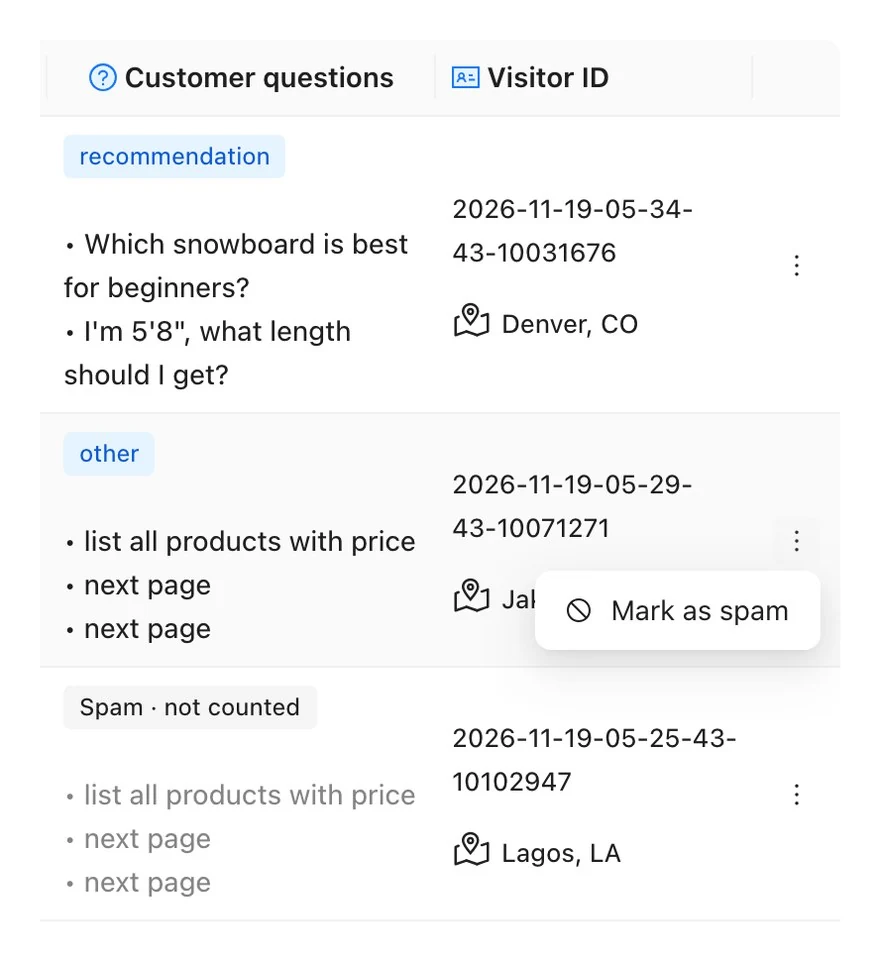
What happens when you mark a conversation
- It stops counting toward your plan right away. The admin shows your new usage for this billing cycle.
- The row shows “Spam · not counted”, and its questions turn grey. The conversation stays in your history, so you can undo the mark.
- Shoply AI stops answering that IP address on your store. The block starts within about 5 minutes and lasts one year. It covers only your store.
- Shoply AI blocks everyone using that address. If a real shopper shares an office or mobile network with the bot, Shoply AI stops answering them on your store too.
The admin doesn’t ask you to confirm, because you can undo any mark you make.
If you marked a real shopper
Open the same three-dot menu on their conversation and choose Not spam. The conversation counts toward your plan again, and Shoply AI answers that address again.
If a shopper tells you the chat stopped answering them, ask roughly when they chatted and what they asked. Find that conversation and choose Not spam. If it isn’t marked, check your countries and blocked addresses in Visitor access.
Does Shoply AI stop any bots on its own?
Yes, in two ways:
- It skips automated and outdated browsers. Shoply AI doesn’t load at all for browsers that say they’re run by automation software, or for desktop Chrome versions more than about two years old, which bots often pretend to be. These visits never reach AI Search or AI Chat. A real shopper on a Chrome that old won’t see Shoply AI either; updating Chrome fixes it.
- It labels some spam itself. Conversations that Shoply AI marks as spam on its own don’t count toward your plan and don’t appear in your history, so there’s nothing for you to undo.
Visitor access and Mark as spam are for the bots that get past these checks.
Do Visitor access and Mark as spam keep bots off my whole store?
No. They control Shoply AI only, so a blocked visitor can still open your store’s pages. To keep bots off your whole store, use the bot settings your store platform or website host offers.
To read what your visitors ask, see How to Read Analytics and Chat History.