
如何在 Gmail 使用 Shoply 外掛程式取得建議電郵回覆
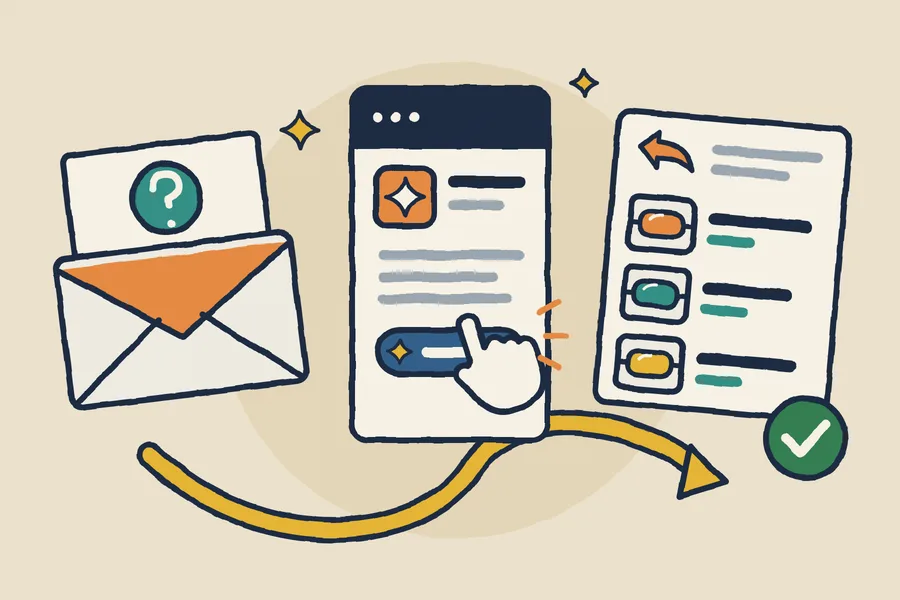
Shoply AI Email Assistant 是一個供使用 Shoply AI 的商店使用的 Gmail 外掛程式。在網頁版 Gmail 開啟客戶電郵後,按 Suggest reply,Shoply 就會根據你商店的產品、政策及訂單資料撰寫回覆,就像它在你商店的聊天中回覆顧客一樣。再按一下,就可以將答案轉成回覆草稿。你可以先閱讀、按需要編輯,然後自行按下 Send。
此外掛程式目前處於試行階段。只有列入 Shoply AI Email Assistant 試行名單的商店才可取得建議回覆。如欲加入,請電郵至 support@shoplyai.ai。
外掛程式有甚麼功能?
- 只會在你要求時運作。 單純開啟電郵不會向 Shoply 傳送任何內容。只有當你按下 Suggest reply 或 Regenerate 時,外掛程式才會傳送你目前開啟的電郵。
- 只會撰寫草稿,絕不會直接寄出電郵。 Insert as reply draft 會在 Gmail 開啟一封回覆發件人的電郵,並自動填入答案。外掛程式無法發送電郵。
- 對於無把握的電郵會交由你處理。 當 Shoply 沒有足夠信心,或電郵屬於市場推廣或垃圾郵件時,面板會顯示該電郵需要由真人回覆。
- 無法更改訂單。 Shoply 在撰寫回覆時,不能取消訂單或執行任何其他操作。回覆只是供你批准的文字內容。
開始之前
- 已列入試行名單的商店,並已設定好 Shoply AI。
- 網頁版 Gmail,並使用你用來回覆客戶的 Google 帳戶。
- 你商店的 Shoply 管理後台,用來複製商店金鑰及建立密鑰。
步驟 1:複製你的商店金鑰
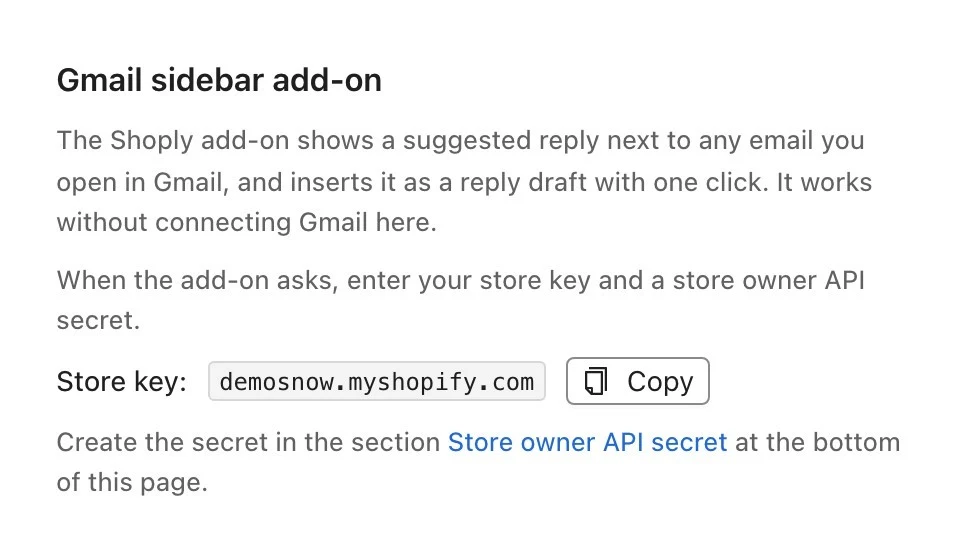
在 Shoply 管理後台中,開啟 Settings,並在 AI Email Assistant 區段中找到 Gmail sidebar add-on。按下商店金鑰旁邊的 Copy。
步驟 2:建立商店擁有人 API 密鑰
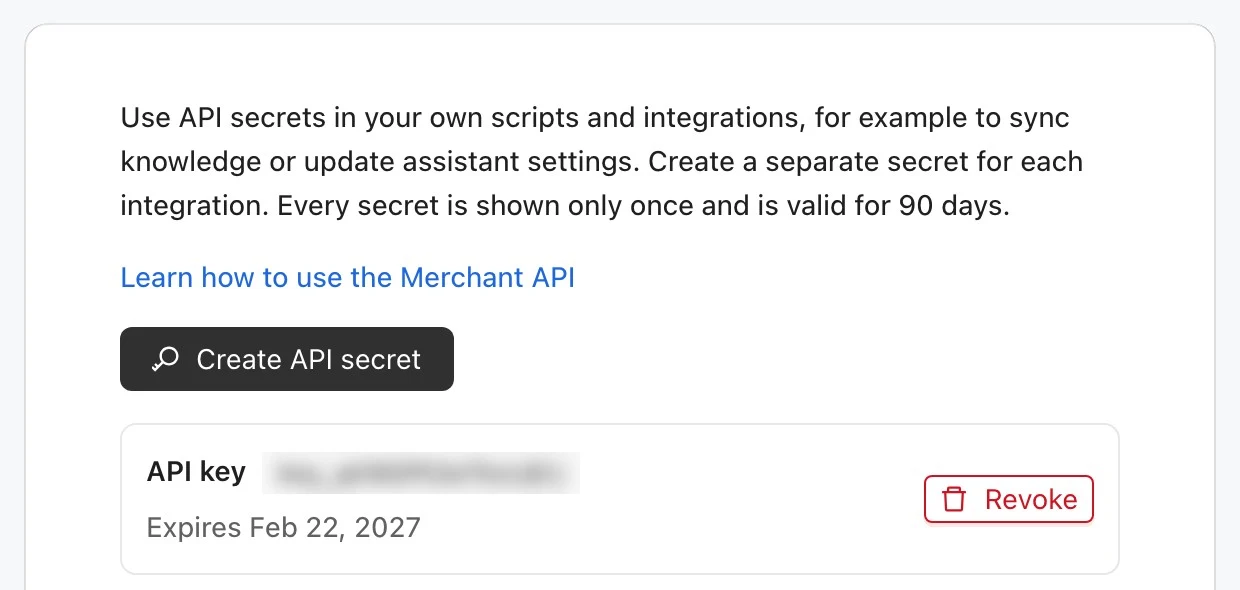
在同一個 Settings 頁面中,於 Store owner API secret 區段按下 Create API secret,並立即複製該密鑰。Shoply 只會顯示一次,而且它的有效期為 90 天。
步驟 3:安裝外掛程式
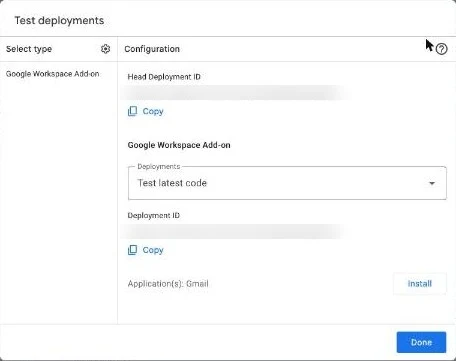
在試行期間,Shoply 支援團隊會為你的 Google 帳戶提供外掛程式存取權限。開啟 Google 傳送給你的連結,選擇 Deploy,然後選 Test deployments,再按 Install,最後按 Done。
步驟 4:開啟外掛程式並允許所需權限
在網頁版 Gmail 開啟任何一封電郵,然後點擊右側面板中的橙色 S 圖示。首次使用時,面板會顯示「Permission required」。按下 Grant permission,並在 Google 的授權畫面中批准。

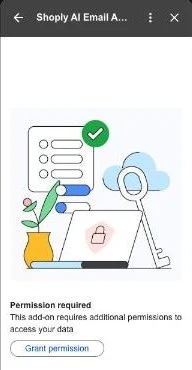
此外掛程式會向 Google 要求四項權限:
- 以 Gmail 外掛程式形式運行,以便顯示於 Gmail 的側邊面板。
- 讀取目前開啟的電郵,以便在你要求時將該封電郵傳送至 Shoply。
- 在你按下按鈕時建立草稿,以便將回覆插入為草稿。
- 連接外部服務,以便連線至 Shoply 的伺服器 api.shoplyai.ai。
步驟 5:連接你的商店
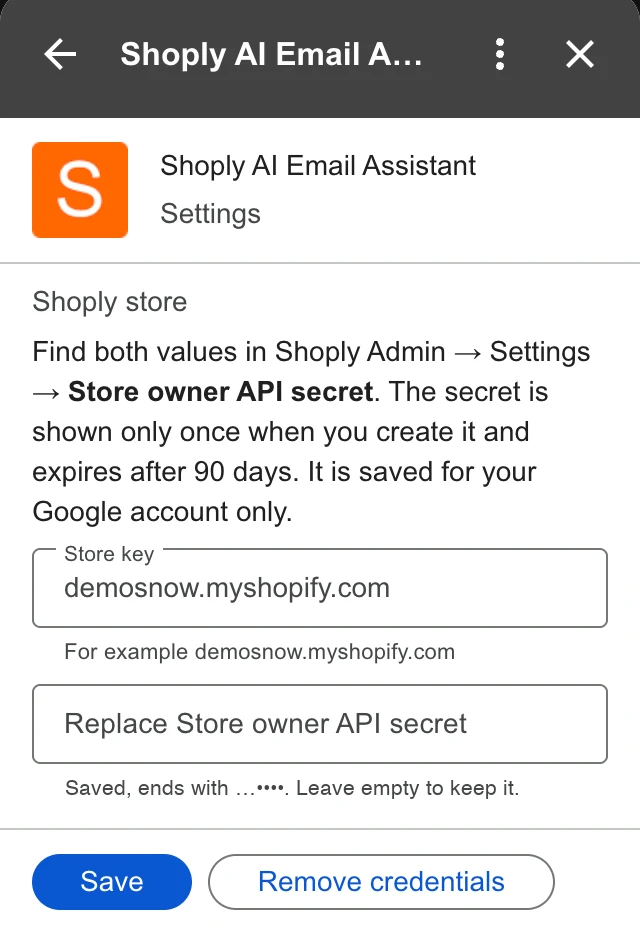
按下 Open settings,貼上商店金鑰及密鑰,然後按 Save。外掛程式會將兩者儲存在你的 Google 帳戶中,作為此外掛程式的私人儲存資料。儲存後,只會顯示密鑰最後四個字元。
如何取得建議回覆?
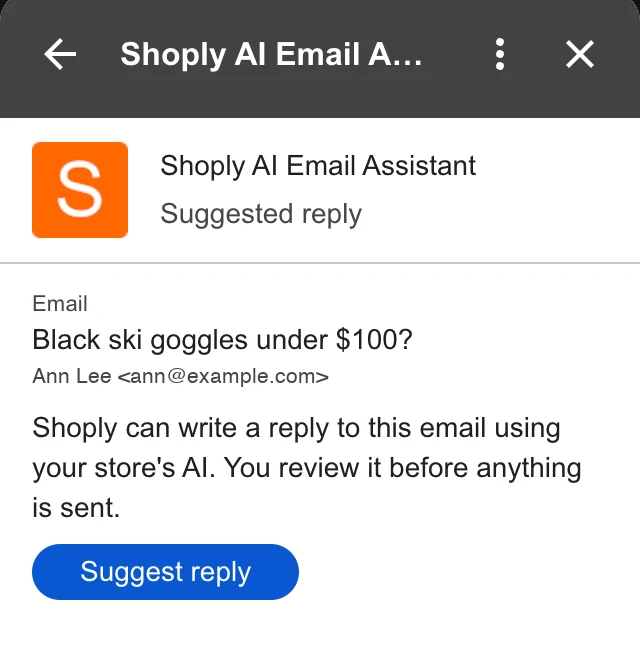
- 開啟一封客戶電郵,然後按 Suggest reply。面板會先顯示電郵主旨及寄件人。
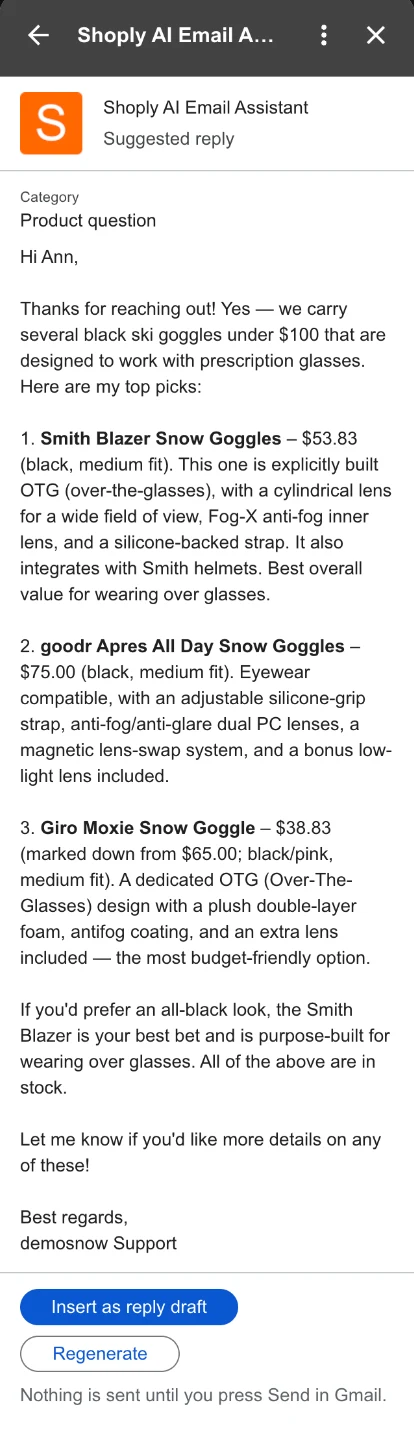
- 幾秒後,面板會顯示電郵類型及 Shoply 的回覆,產品名稱會以粗體顯示。如果回覆未能切中重點,請按 Regenerate。
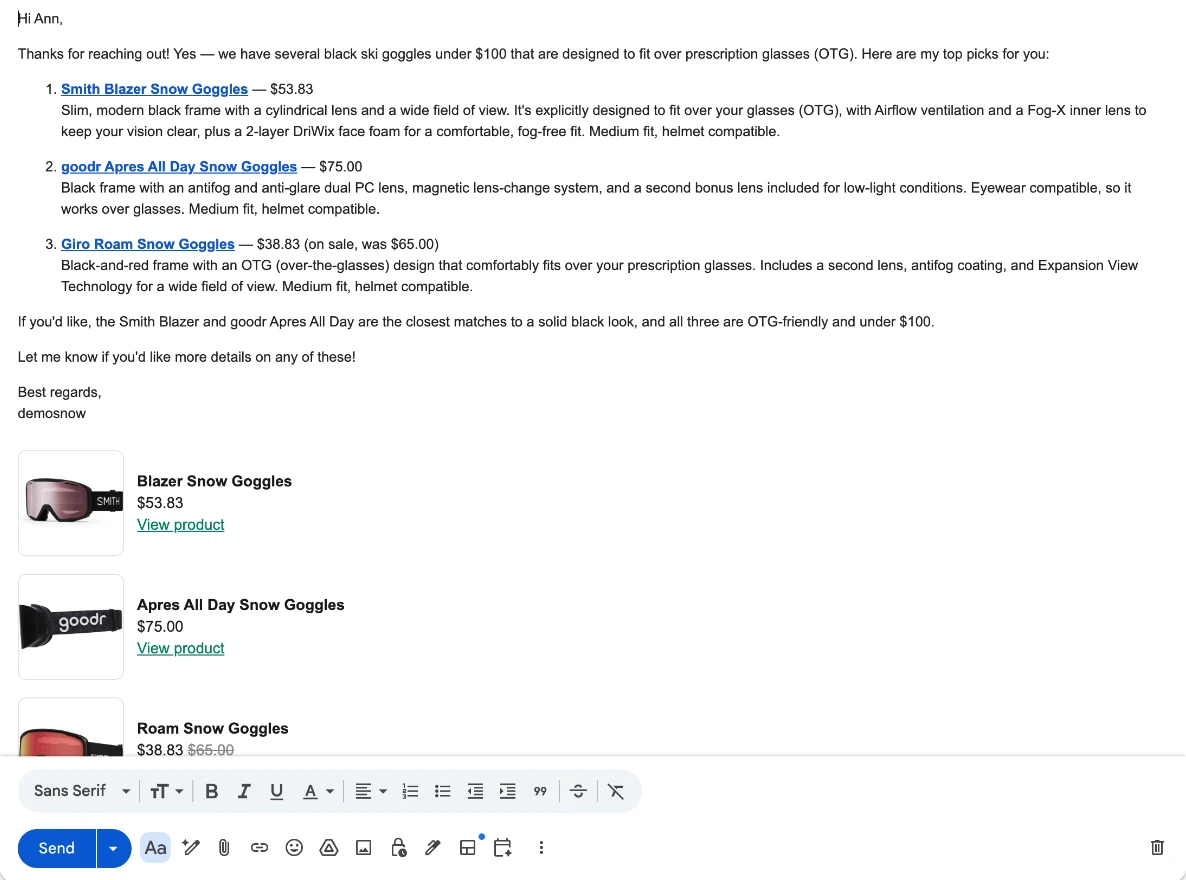
- 按下 Insert as reply draft。Gmail 會開啟一封回覆給寄件人的電郵,並套用格式:產品名稱會變成連結,而每件產品後面都會附有包含照片及價格的卡片。你可按需要編輯,然後按 Send。
每個建議回覆都會計入我的方案用量嗎?
會。每個建議回覆都會按你方案在該計費週期內的聊天額度計作一次聊天,與顧客進行一次對話的計算方式相同。Regenerate 會產生新的回覆,因此會再計作一次聊天。當 Shoply 表示某封電郵需要真人回覆時,該答案不會消耗任何聊天額度。
外掛程式會使用哪些電郵資料?
外掛程式只會在你按下 Suggest reply 或 Regenerate 時,將目前開啟電郵的主旨、日期、訊息 ID、寄件人、To 及 Cc 地址,以及最多 20,000 個字元的文字內容傳送給 Shoply。它絕不會傳送附件,亦不會傳送你信箱中的其他電郵。Shoply 會保留每次請求的記錄 90 天,讓它顯示在你的 Shoply 管理後台最近電郵清單中,之後便會刪除。Shoply 對 Google API 資料的使用,遵循 Google API Services User Data Policy,包括其 Limited Use 要求。
如何中斷連接或移除此外掛程式?
- 如要中斷商店連接,請開啟外掛程式選單(三點圖示),選擇 Settings,然後按 Remove credentials。這會從你的 Google 帳戶刪除已儲存的商店金鑰及密鑰。
- 如要移除外掛程式,請開啟外掛程式選單並選擇 Manage add-on。
- 如要停止某個密鑰生效,請在 Shoply 管理後台的 Store owner API secret 區段中,按其旁邊的 Revoke。
我可以在哪裡獲得協助?
請電郵至 support@shoplyai.ai。外掛程式的 Help 選單項目會開啟此頁面。