
如何將 Intercom、Front 或 Help Scout 連接至 Shoply AI
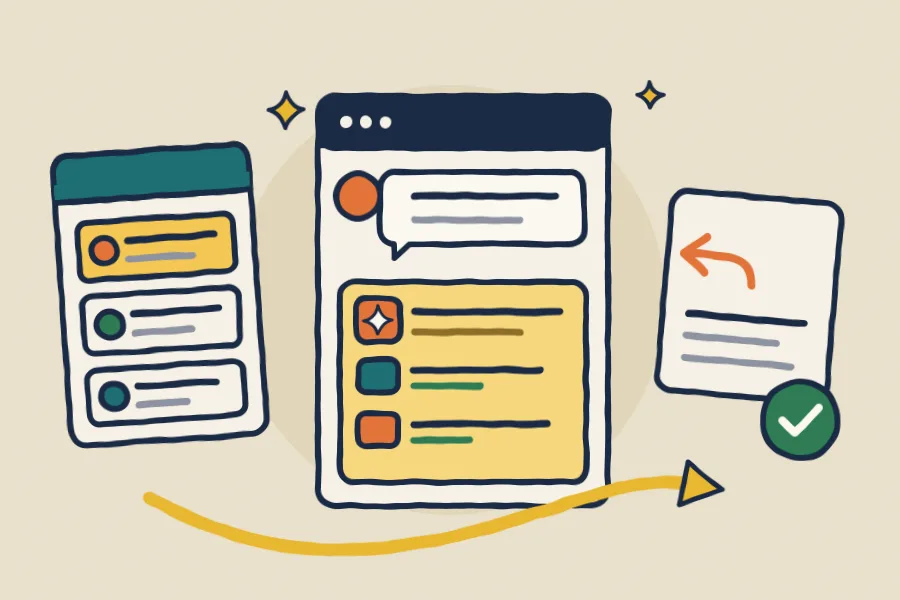
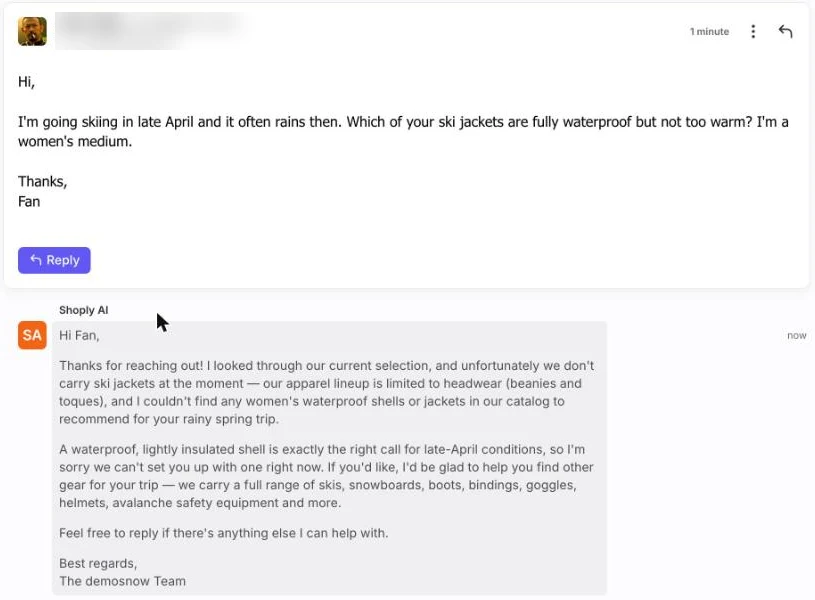
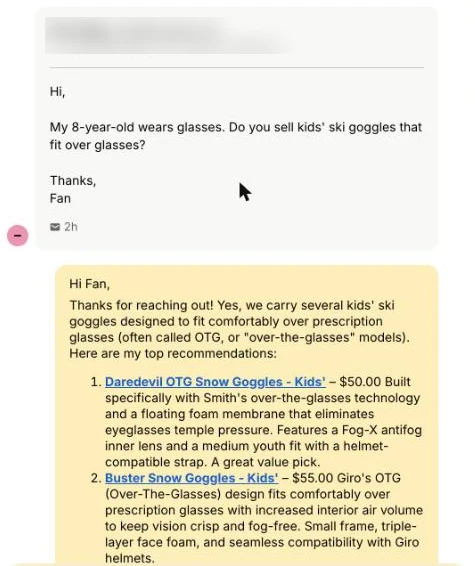
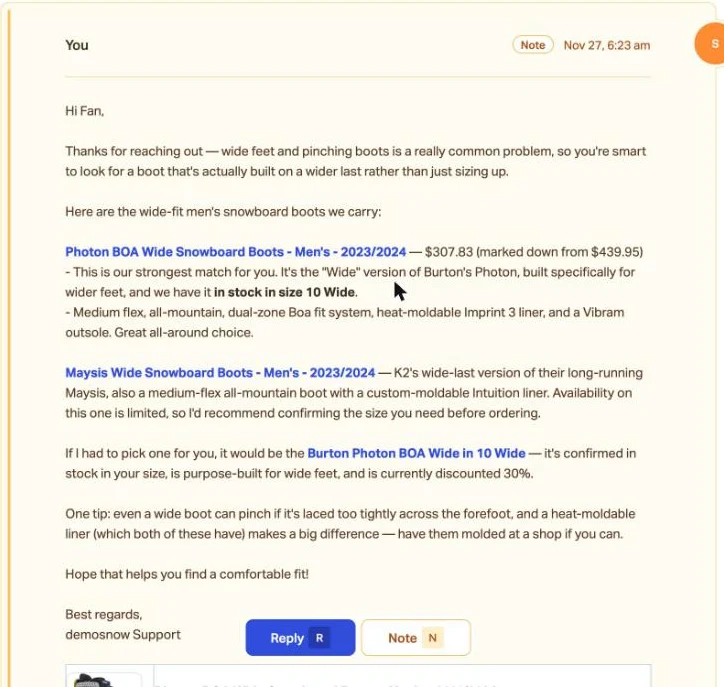
當你的團隊在 Intercom、Front 或 Help Scout 回覆客戶時,仍然需要有人為每段對話撰寫第一個回覆,而很多對話都在問相同的訂單狀態及產品問題。將你的 helpdesk 連接至 Shoply AI 後,Shoply 會直接在對話中回覆新的客戶訊息,而它無法妥善回答的對話則會留給你的團隊處理。它使用與你商店聊天相同的產品、政策及訂單知識。視乎你選擇的 Reply mode,每個答案可以是供團隊審閱並複製到回覆中的私人備註,或是直接回覆客戶。
目前,只有參與我們搶先體驗的商店可以連接 Intercom、Front 或 Help Scout。若想加入,請電郵至 support@shoplyai.ai,我們會告訴你你的商店何時可以連接。
Shoply 在我的 helpdesk 內會做甚麼?
- 它大約每分鐘檢查一次新訊息。 Shoply 會尋找自上次檢查後收到新客戶訊息的對話,因此答案通常會在一至兩分鐘內出現。
- 它會回覆客戶最新的一則訊息。 Shoply 會閱讀該訊息,連同對話中較早前的訊息,以及最多 5 個附件,例如相片或 PDF。
- 它會遵循你的 Reply mode。 Shoply 會發佈私人備註,或按你允許的訊息類型直接回覆。
- 它會略過自己無法妥善回答的訊息。 當 Shoply 信心不足,或訊息屬自動發送、推廣或垃圾訊息時,它不會發佈任何內容。你的團隊會如常回覆該對話。
- 它絕不會讀取你的私人備註。 備註通常包含成本價或其他客戶個案,因此 Shoply 不會把它們納入讀取範圍。
- 它不能更改訂單。 Shoply 只會新增備註或回覆。它不能取消訂單、發出退款或關閉對話。
- 每個答案都會計作一次聊天。 Shoply 每回覆一則客戶訊息,都會使用你方案中的一次聊天額度。
備註只包含 Shoply 的答案,方便你直接複製到回覆中。產品名稱會連結到你的商店。
| Helpdesk | Shoply 的答案會顯示為 | 發佈者 |
|---|---|---|
| Intercom | 對話中的備註 | 核准 Shoply 的 Intercom 管理員 |
| Front | 只有你的隊友可見的評論 | Shoply AI app |
| Help Scout | 對話中的備註 | 核准 Shoply 的 Help Scout 使用者 |
開始之前
- 你的商店已加入搶先體驗。 請先等待我們的電郵,確認你的商店可以連接。
- 你在 helpdesk 擁有管理員帳戶。 Intercom 和 Front 只允許管理員授權 app。在 Help Scout 中,Shoply 會以核准它的使用者身份運作。
- Help Scout:包含 API 的方案。 Help Scout 的 Free 方案不提供 API 存取,因此連接需要其 Standard 方案或更高級別方案。
你無需從 helpdesk 複製任何金鑰。系統會開啟來自你的 helpdesk 的視窗,然後你會在那裡核准 Shoply AI。如果你已在此瀏覽器登入 helpdesk,它可能會在不提示的情況下,以該使用者身份核准 Shoply AI。請先確認你登入的是團隊預期的管理員帳戶。
連接你的 helpdesk
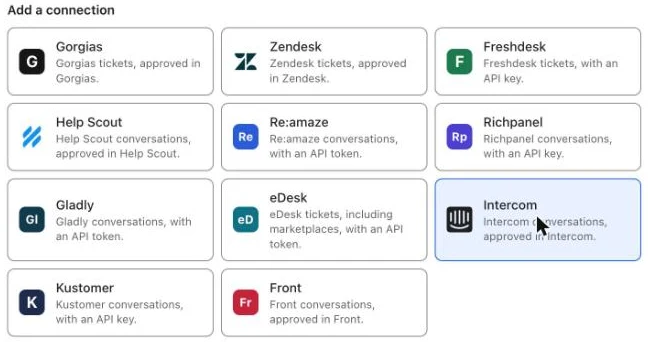
- 在 Shoply 管理後台中,開啟 Settings → Email and helpdesk。在 Add a connection 下,按一下 Intercom、Front 或 Help Scout。
- 只限 Intercom: 選擇你的 Intercom workspace 所託管的地區:United States、Europe 或 Australia。Intercom 會在 Settings → Workspace → General 下顯示。Intercom 的授權頁面會因地區而異。
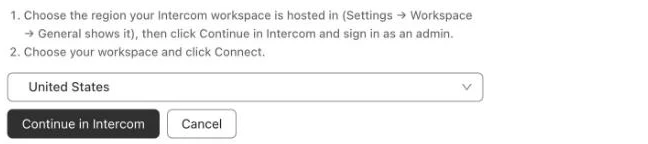
- 按一下 Continue in Intercom、Continue in Front 或 Continue in Help Scout。
- 你的 helpdesk 會開啟一個視窗。請以管理員身份登入,並在該處核准 Shoply AI。之後視窗會關閉,而你的帳戶會顯示在 Email and helpdesk 中。
如果連接失敗怎麼辦?
Shoply 會在頁面頂部顯示原因。請檢查你是否以管理員身份登入;若使用 Intercom,亦請確認你已選擇正確的 workspace 地區,然後再試一次。
我應如何在備註與直接回覆之間作出選擇?
在 Shoply 管理後台的 Email and helpdesk 區段中,於 Reply mode 下選擇其中一項:
- Draft only. 每個答案都會作為私人備註。客戶在你的團隊將備註複製到回覆並發送之前,不會看到任何內容。
- Auto-send. 對於你勾選的訊息類型,例如訂單狀態或產品問題,Shoply 會直接回覆客戶。其他答案則會以備註形式發佈。

Shoply 只會在電郵對話中直接回覆,而該回覆會由你的 helpdesk 以電郵方式發送給客戶。在 Front 中,回覆會透過該對話 inbox 的電郵渠道發出。對於聊天、社交平台及訊息應用程式的對話,Shoply 一律只會發佈備註。
每個答案都會計入我的方案用量嗎?
會。Shoply 每回覆一則客戶訊息,不論是作為備註還是回覆,都會在該計費週期內計作你方案聊天額度中的一次聊天。被 Shoply 略過的訊息則不會消耗聊天額度。
我可以在哪裡查看 Shoply 對每則訊息做了甚麼?
開啟 Analytics & History,然後選擇 Email history 分頁。當中會列出 Shoply 最近處理的電郵及 helpdesk 訊息,以及每則訊息的處理結果。
如果 Shoply 失去存取權限怎麼辦?
如果有人在你的 helpdesk 中移除了 Shoply AI 的存取權限,Shoply 管理後台會在該帳戶上顯示警告,而新的訊息在你重新連接前將不會獲得回覆。按一下該帳戶上的 Reconnect,然後再次核准 Shoply AI。之後 Shoply 會從中斷的位置繼續運作。
如何中斷連接某個 helpdesk?
在 Shoply 管理後台中,開啟 Settings → Email and helpdesk,按一下該帳戶旁邊的 Disconnect,然後確認。Shoply 便會停止回覆,並刪除其已儲存的存取權限。
- Intercom: Shoply 亦會從你的 workspace 移除其 app。
- Front 和 Help Scout: Shoply AI 仍會列在你已授權的 app 清單中,直到你在 helpdesk 設定中將其移除為止。無論如何,Shoply 都不會再使用它。
我可以在哪裡獲得協助?
請電郵至 support@shoplyai.ai。