
Published
How to Connect Intercom, Front or Help Scout to Shoply AI
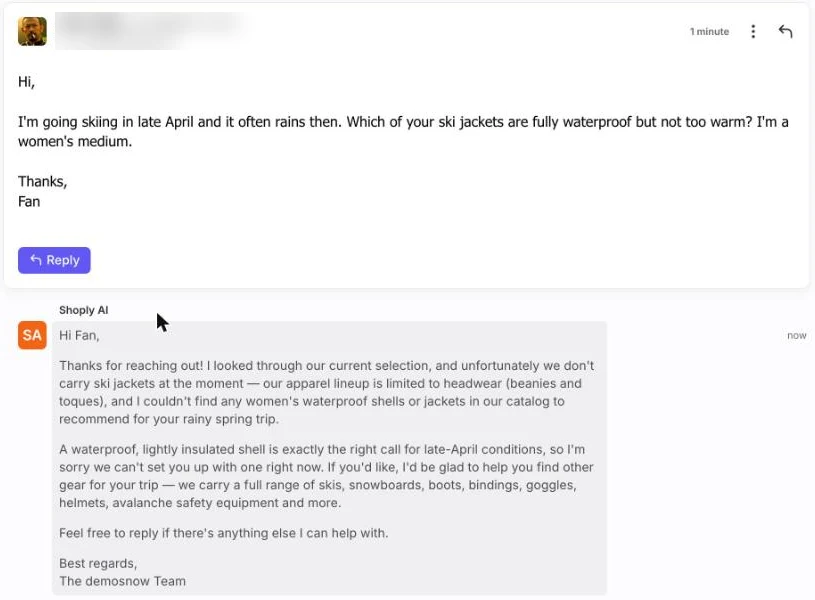
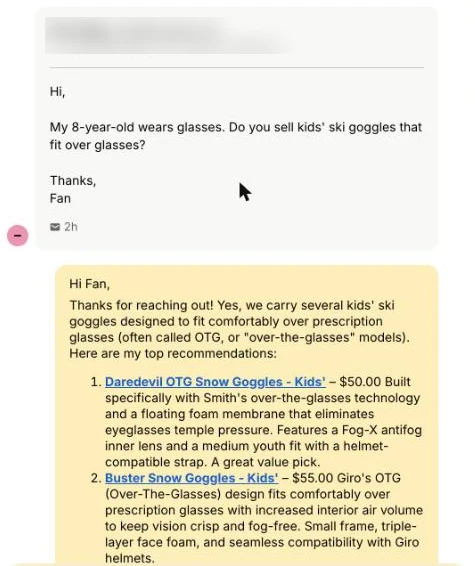
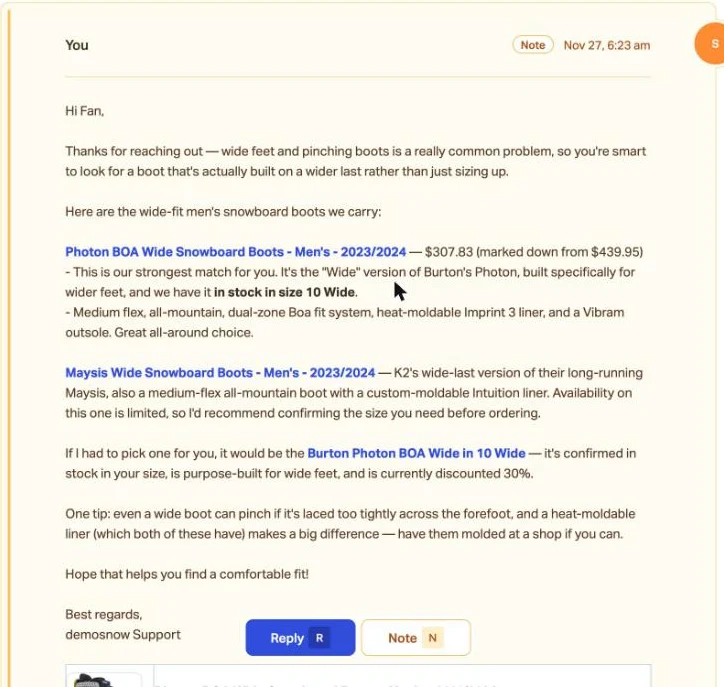
When your team answers customers in Intercom, Front or Help Scout, someone still writes the first answer to every conversation, and many conversations ask the same order-status and product questions. Connect your helpdesk to Shoply AI, and Shoply answers new customer messages in the conversation itself, leaving the ones it can’t answer well to your team. It uses the same knowledge of your products, policies and orders as your store’s chat. Depending on the Reply mode you choose, each answer is a private note your team reviews and copies into a reply, or a direct reply to the customer.
For now, only stores in our early access can connect Intercom, Front or Help Scout. To join, email support@shoplyai.ai, and we’ll tell you when your store can connect.
What does Shoply do in my helpdesk?
- It checks for new messages about once a minute. Shoply looks for conversations with a new customer message since its last check, so an answer usually appears within a minute or two.
- It answers the customer’s newest message. Shoply reads it together with the conversation’s earlier messages and up to 5 attached files, such as photos or PDFs.
- It follows your Reply mode. Shoply posts a private note, or replies directly for the message types you allow.
- It skips messages it can’t answer well. When Shoply is not confident, or the message is automated, marketing or spam, it posts nothing. Your team answers that conversation as usual.
- It never reads your private notes. Notes often hold cost prices or other customers’ cases, so Shoply leaves them out of what it reads.
- It cannot change orders. Shoply only adds notes or replies. It cannot cancel an order, issue a refund or close the conversation.
- Each answer counts as one chat. Every customer message Shoply answers uses one chat from your plan.
A note holds only Shoply’s answer, ready to copy into your reply. Product names are links to your store.
| Helpdesk | Shoply’s answer appears as | Posted as |
|---|---|---|
| Intercom | A note in the conversation | The Intercom admin who approved Shoply |
| Front | A comment, which only your teammates see | The Shoply AI app |
| Help Scout | A note in the conversation | The Help Scout user who approved Shoply |
Before you start
- Your store in early access. Wait for our email saying your store can connect.
- An admin account in your helpdesk. Intercom and Front let only an admin allow an app. In Help Scout, Shoply acts as the user who approves it.
- Help Scout: a plan that includes the API. Help Scout’s Free plan has no API access, so connecting needs its Standard plan or higher.
You don’t copy any key from your helpdesk. A window from your helpdesk opens, and you approve Shoply AI there. If you’re already signed in to your helpdesk in this browser, it may approve Shoply AI as that user without asking. Check first that you’re signed in as the admin your team expects.
Connect your helpdesk
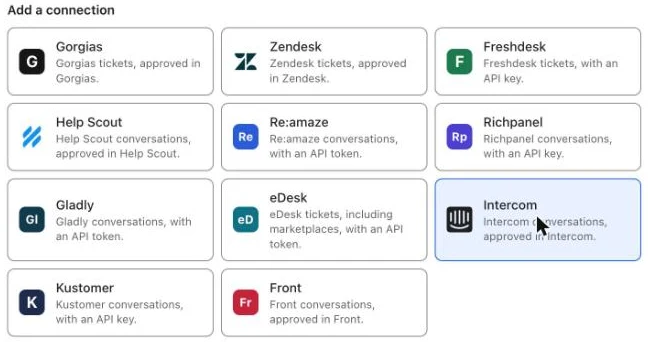
- In the Shoply admin, open Settings → Email and helpdesk. Under Add a connection, click Intercom, Front or Help Scout.
- Intercom only: choose the region your Intercom workspace is hosted in: United States, Europe or Australia. Intercom shows it under Settings → Workspace → General. Intercom’s approval page is different for each region.
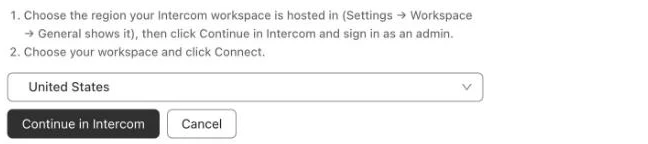
- Click Continue in Intercom, Continue in Front or Continue in Help Scout.
- A window from your helpdesk opens. Sign in as an admin and approve Shoply AI there. The window then closes, and your account appears in Email and helpdesk.
What if connecting fails?
Shoply shows the reason at the top of the page. Check that you signed in as an admin, and for Intercom that you chose your workspace’s region, then try again.
How do I choose between notes and direct replies?
In the Shoply admin’s Email and helpdesk section, under Reply mode, choose one:
- Draft only. Every answer is a private note. Customers see nothing until your team copies the note into a reply and sends it.
- Auto-send. Shoply replies to the customer directly for the message types you tick, such as order status or product questions. Its other answers are posted as notes.

Shoply replies directly only on email conversations, where your helpdesk emails the reply to the customer. In Front, the reply goes out through the email channel of the conversation’s inbox. On chat, social and messaging conversations, Shoply always posts a note.
Does each answer count toward my plan?
Yes. Each customer message Shoply answers, as a note or as a reply, counts as one chat toward your plan’s chat allowance for the billing cycle. A message Shoply skips uses no chat.
Where can I see what Shoply did with each message?
Open Analytics & History and choose the Email history tab. It lists the most recent emails and helpdesk messages Shoply handled, with the result of each.
What if Shoply loses access?
If someone removes Shoply AI’s access in your helpdesk, the Shoply admin shows a warning on that account, and new messages get no answer until you reconnect. Click Reconnect on the account and approve Shoply AI again. Shoply then continues from where it stopped.
How do I disconnect a helpdesk?
In the Shoply admin, open Settings → Email and helpdesk, click Disconnect next to the account and confirm. Shoply stops answering and deletes its saved access.
- Intercom: Shoply also removes its app from your workspace.
- Front and Help Scout: Shoply AI stays listed among the apps you authorized until you remove it in your helpdesk’s settings. Shoply no longer uses it either way.
Where can I get help?
Email support@shoplyai.ai.