
Published
How to Connect Gorgias or Zendesk to Shoply AI
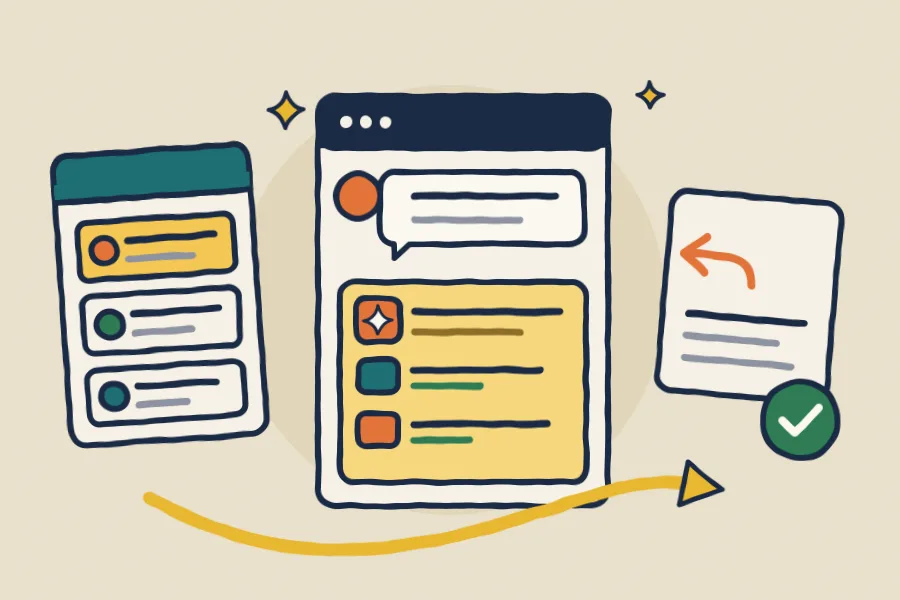
When your team answers customers in Gorgias or Zendesk, someone still writes the first answer to every ticket, and many tickets ask the same order-status and product questions. Connect your helpdesk to Shoply AI, and Shoply answers new customer messages on the ticket itself, leaving the ones it can’t answer well to your team. It uses the same knowledge of your products, policies and orders as your store’s chat. Depending on the Reply mode you choose, each answer is an internal note your team reviews and copies into a reply, or a direct reply to the customer.
For now, only stores in our pilot can connect Gorgias or Zendesk. To join, email support@shoplyai.ai, and we’ll tell you when your store can connect.
What does Shoply do in my helpdesk?
- It answers the customer’s newest message. When a customer opens a ticket or adds a public message, Shoply reads it, together with the ticket’s earlier public messages and up to 5 attached files, such as photos or PDFs.
- It follows your Reply mode. Shoply posts an internal note, or replies directly for the message types you allow.
- It skips messages it can’t answer well. When Shoply is not confident, or the message is marketing or spam, it posts nothing. Your team answers that ticket as usual.
- It never reads your internal notes. Notes often hold cost prices or other customers’ cases, so Shoply leaves them out of what it reads.
- It cannot change orders. Shoply only adds notes or replies. It cannot cancel an order, issue a refund or change the ticket.
- Each answer counts as one chat. Every customer message Shoply answers uses one chat from your plan, so a ticket where Shoply answers three messages uses three chats.
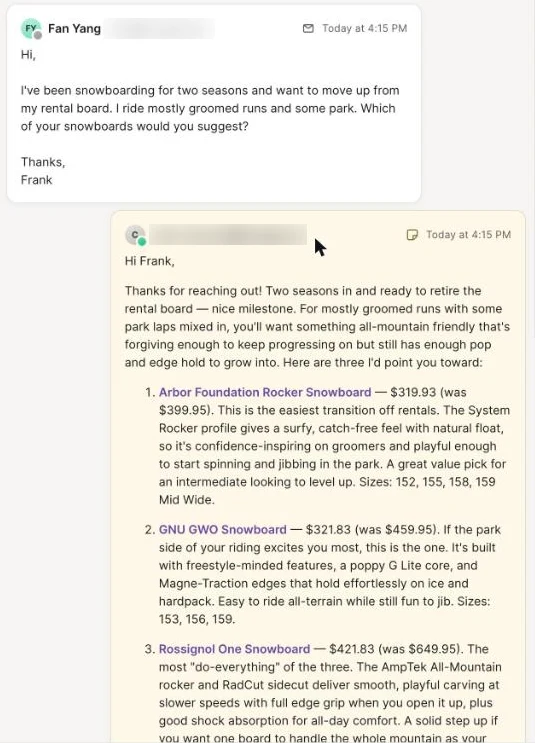
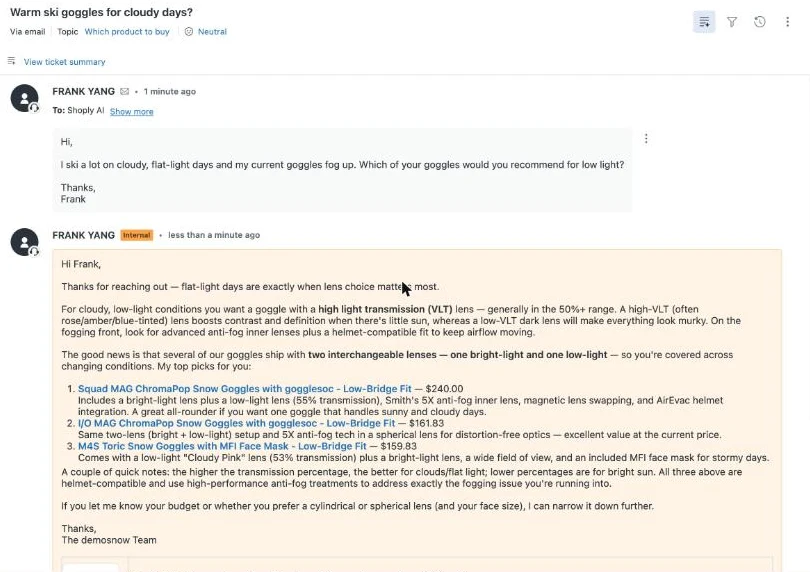
An internal note holds only Shoply’s answer, ready to copy into your reply. Product names are links, and where your helpdesk shows them, product cards with a photo and price follow.
Before you start
- Your store in the pilot. Wait for our email saying your store can connect.
- An admin account in Gorgias or Zendesk. Only an admin can allow Shoply AI into your helpdesk.
You don’t copy any key from your helpdesk. A window from your helpdesk opens, and you approve Shoply AI there. Shoply then posts its notes and replies as the admin who approved it. If you’re already signed in to your helpdesk in this browser, your helpdesk may approve Shoply AI as that user without asking. Check first that you’re signed in as the admin your team expects to see on those messages.
Connect Gorgias
- In the Shoply admin, open Settings → Email and helpdesk. Under Add a connection, click Gorgias.

- Enter your Gorgias address, for example yourstore.gorgias.com, and click Continue in Gorgias.
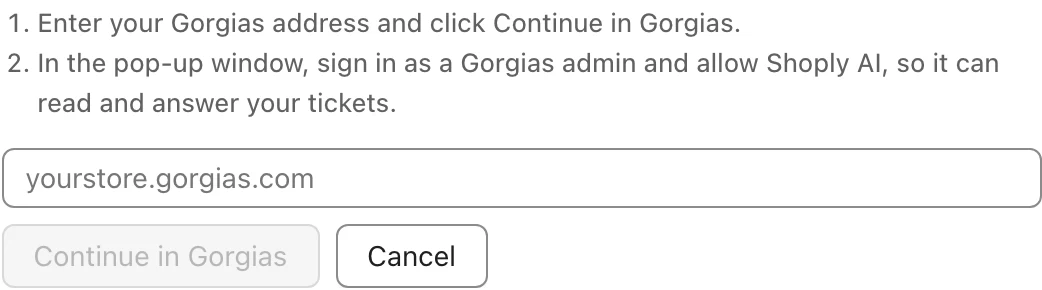
- A Gorgias window opens. Sign in as a Gorgias admin and allow Shoply AI if Gorgias asks. The window then closes, and your account appears in Email and helpdesk.
Connect Zendesk
- In the Shoply admin, open Settings → Email and helpdesk. Under Add a connection, click Zendesk.
- Enter your Zendesk address, for example yourstore.zendesk.com, and click Continue in Zendesk.
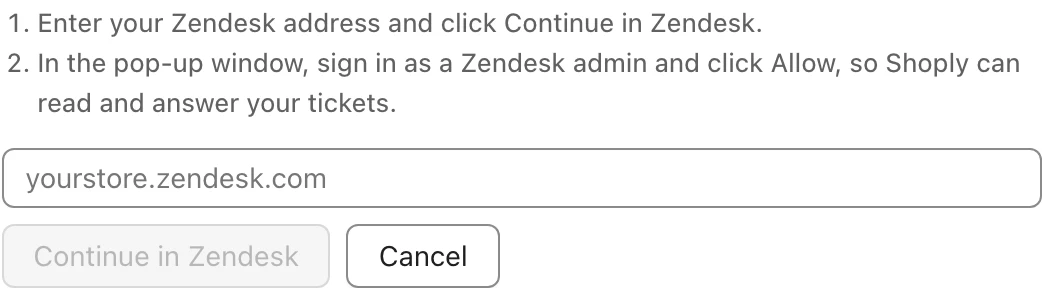
- A Zendesk window opens. Sign in as a Zendesk admin and click Allow. The window then closes, and your account appears in Email and helpdesk.
What if connecting fails?
Shoply shows the reason at the top of the page. Check the address and that you signed in as an admin, then try again.
What does Shoply set up when I connect?
Before your account shows as connected, Shoply checks that it can read your tickets. Then it adds a webhook named “Shoply AI reply suggestions” to your helpdesk: a setting that makes your helpdesk tell Shoply each time a customer writes. In Zendesk, Shoply also adds a trigger, Zendesk’s rule for when to send that notice, with the same name. You don’t need to set up anything else in your helpdesk.
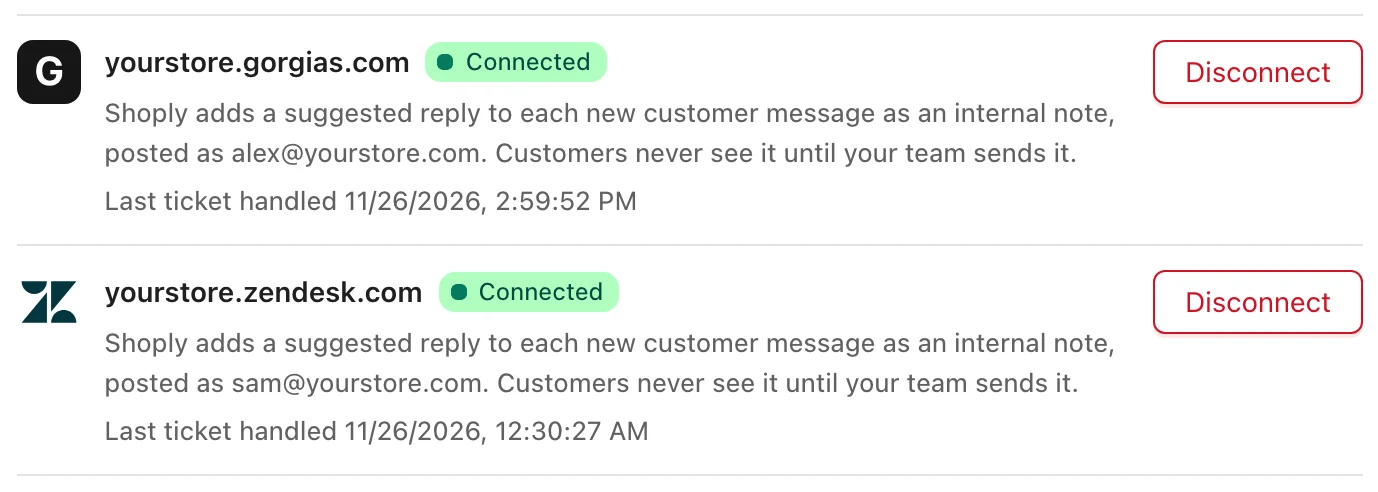
In Email and helpdesk, each connected account shows the user Shoply posts as and the time Shoply last handled a ticket.
How do I choose between notes and direct replies?
In the Shoply admin’s Email and helpdesk section, under Reply mode, choose one:
- Draft only. Every answer is an internal note on the ticket. Customers see nothing until your team copies the note into a reply and sends it.
- Auto-send. Shoply replies to the customer directly for the message types you tick, such as order status or product questions. Its other answers are posted as notes. Shoply never replies directly to cancellations, returns or order changes.

Shoply replies directly only where your helpdesk emails the reply to the customer: email tickets in Gorgias, and email and web-form tickets in Zendesk. On chat, social and messaging tickets, and on Amazon buyer messages that reach your helpdesk, Shoply’s answers are always notes.
Shoply never sends the same reply twice on one ticket. If sending fails, Shoply posts the reply as a note instead, so your team can still copy it into a reply.
Can a customer get two replies?
Yes, if your helpdesk also receives the emails of an inbox you connected to Shoply. For example, if Gmail forwards your support address into Gorgias and you also connected that Gmail inbox, each email reaches Shoply twice. Shoply then answers it in both places, and each answer counts as a chat. With Auto-send on, the customer can get both replies. To avoid that, connect either the inbox or the helpdesk for that address, not both. The Shoply admin shows a reminder while both are connected.
Does each answer count toward my plan?
Yes. Each customer message Shoply answers in your helpdesk, as a note or as a reply, counts as one chat toward your plan’s chat allowance for the billing cycle. A message Shoply skips uses no chat. When your plan’s chats run out, the Shoply admin says AI replies are paused, and Shoply stops answering until you upgrade or your next billing cycle starts. In Analytics & History, the usage chart shows these chats as their own bars, one for Gorgias and one for Zendesk.
Where can I see what Shoply did with each message?
Open Analytics & History and choose the Email history tab. It lists the 20 most recent emails and helpdesk messages Shoply handled, with the result of each, such as “Note added in Zendesk”, “Replied in Gorgias” or “Needs your reply”. Open a row to read Shoply’s answer.
Can I connect more than one account?
Yes. You can connect several helpdesk accounts, for example Gorgias for one brand and Zendesk for another. Each account appears on its own, with its own Disconnect button. A helpdesk account can belong to only one Shoply store.
What if Shoply loses access?
If someone removes Shoply AI’s access in your helpdesk, the Shoply admin shows a warning on that account, and new messages get no answer until you reconnect. Click Reconnect Gorgias or Reconnect Zendesk. Shoply fills in your address. Click Continue in Gorgias or Continue in Zendesk and approve Shoply AI again.
How do I disconnect a helpdesk?
In the Shoply admin, open Settings → Email and helpdesk, click Disconnect next to the account and confirm. Shoply removes its webhook from your helpdesk, and in Zendesk its trigger too. Shoply deletes its saved sign-in to your helpdesk and stops answering tickets. In Gorgias, disconnecting also removes the Shoply AI app from your account. If your helpdesk does not let Shoply remove its webhook or trigger, Shoply shows a message asking you to delete “Shoply AI reply suggestions” yourself:
- Gorgias: Settings → HTTP integration.
- Zendesk: in Admin Center, Apps and integrations → Webhooks, and Objects and rules → Business rules → Triggers.
Where can I get help?
Email support@shoplyai.ai.