
Published
How to Add AI Product Comparison Pages to Your Store
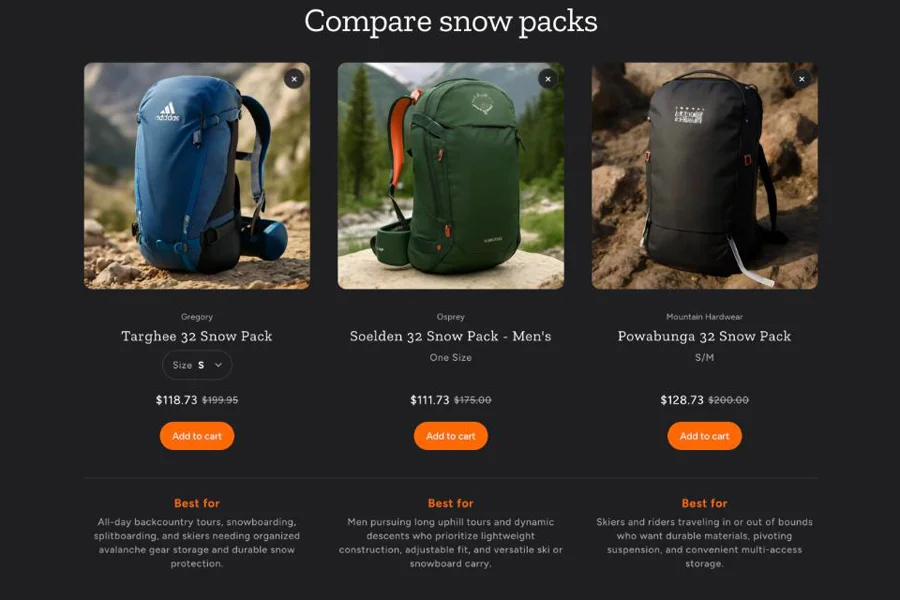
Shoppers often hesitate between two or three similar products. Shoply can put them side by side on one page: Shoply AI reads each product’s description and builds a comparison table, with a short line on what each product is best for. You choose which products to compare, and you can link to the comparison from any button, banner, email or social post.
What do shoppers see?
- The products side by side, each with its photo, brand, price, size or color choice, and an Add to cart button.
- “Best for”: one sentence per product on who or what it suits best, written by the AI.
- A table of features, grouped into sections such as “Capacity and fit”. Show differences only hides the rows where every product is the same.
- Your store’s language. The AI writes the summary and the table in the language of the page, for example in Dutch on your Dutch storefront.
- Room to change their mind. The × on a product removes it, and Add a product searches your store for another one. A comparison holds up to three products.
Two ways to open a comparison
A comparison page with its own link
The page opens at this address on your store’s domain:
https://your-store.com/apps/shoply-ai?page_mode=compare&product_id1=PRODUCT_ID&product_id2=PRODUCT_IDReplace each PRODUCT_ID with a product’s ID (see How do I find a product ID?). Add product_id3 for a third product. To open a specific size or color, add variant_id1, variant_id2 or variant_id3.
Because it is a normal link, you can share it anywhere: a “Compare” button on a collection page, a newsletter, a blog post or a social post. See this example on our demo store .
A pop-up over any page of your store
Add #shoply-compare to a link on your store, and the comparison opens in a full-screen pop-up over the current page:
| Link | What opens |
|---|---|
#shoply-compare=123,456 | Products 123 and 456 |
#shoply-compare=123:789,456 | Product 123 in its variant 789 (a size or color), and product 456 |
#shoply-compare on a product page | That product, plus an Add a product card |
On a product page, the page’s own product is always the first column. For example, this link opens a comparison from a button:
<a href="#shoply-compare=123,456">Compare these two</a>Shoppers close the pop-up with the ×, the Esc key or their browser’s Back button. Try the Compare snow packs button on our demo store’s home page .
How do I find a product ID?
- In your Shopify admin, go to Products and open the product.
- The ID is the number at the end of the address in your browser, for example
7834161184883inadmin.shopify.com/store/your-store/products/7834161184883. - For a variant ID, click the size or color under Variants. Its ID is the number after
/variants/in the address.
How do I change the design?
- In the Shoply AI app, open Customize AI Search.
- Open AI Comparison page and pick a design:
- Showroom: clean centered columns, with each feature name above its values.
- Blueprint: feature names in a column on the left and striped rows, like a spec sheet.
- Mosaic: each product and each group of features in a rounded card.
- Spotlight: products in an outlined band in your theme color, with ticks for yes or no features.
- Check the preview and click Save.
The page uses your theme’s fonts and colors, so it looks like the rest of your store.
Does a comparison use my chats?
- A new comparison counts as one chat, like one answer in AI Chat.
- Saved comparisons are free. Shoply keeps each comparison for 3 days. Anyone who opens the same products in that time sees the saved one, and it does not count.
- Every view shows in your chat history, so you can see which products shoppers compare.
- Sales count too. The products on a comparison count as products the shopper clicked in Shoply, so a later purchase of one of them is credited to Shoply in your sales report.
To stop automated traffic from using up your chats, one visitor can start at most 20 new comparisons in 10 minutes. Saved comparisons have no limit.
Which stores can use it?
Comparison pages work on Shopify stores, because they use Shopify’s app proxy to open on your own domain. Websites that use Shoply without Shopify (SiteChat) don’t have them yet.